3.3 Initial Setting
This section describes how to perform initial settings (registering licenses, changing admin user password) and how to add users.
3.3.1 Changing the Administrator Password#
As an initial setting, register the license and change the password for the admin user from the default settings. admin is the default registered user in SpeeDBee Synapse. The default settings for the admin user are:
| Item | Description |
|---|---|
| Login ID | admin |
| User name | admin |
| Privileges | System administrator |
| Password | admin |
| E-mail address | admin@example.com |
In the Data Flow Controller version and OMRON-SBS for Windows version, the license is already registered by default. In that case, please proceed from step 7.
-
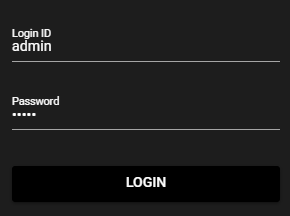
On the login screen, enter “admin” for the login ID and password and press “Login”.
-
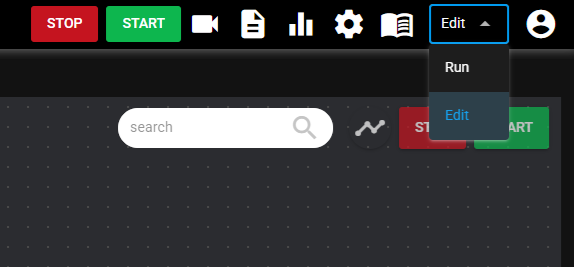
Select "Edit mode" in the header mode selection to open the Edit mode screen.
-
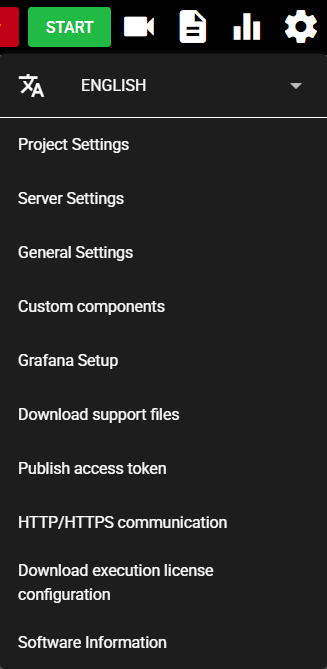
Press the Setting menu icon of the Header.

-
Select “Software Information”.
-
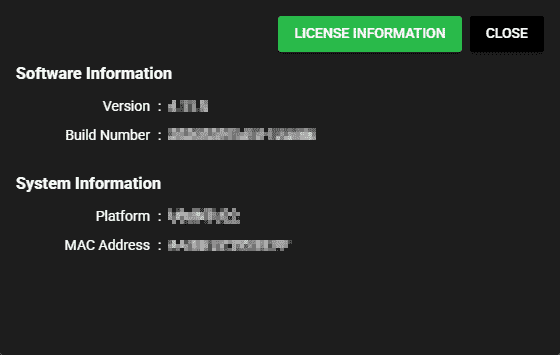
Press “License Information”.
-
Click “Apply File” to select the license file, or enter a license key in the input field and click “Apply Key”.

-
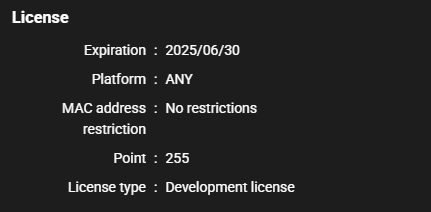
If the correct license is applied, the license details are displayed.
-
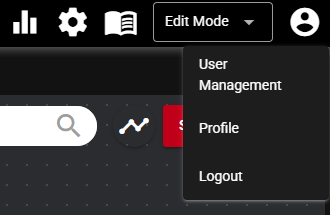
Then press the user icon and select “User Management” to open the User Management dialog.
-
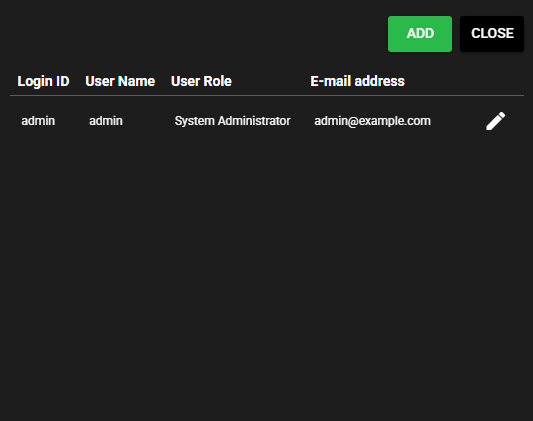
Press the edit icon for the "admin" user.
-
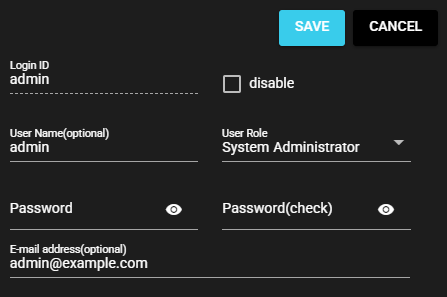
Enter any password other than "admin" in “Password” and “Password (Confirm)” and press “Save”.
3.3.2 Add User#
You can add users by the following procedure.
-
In the User Management dialog, click the “Add” button.
-
Enter the following items. For the privileges, select “Administrator”. When finished, press the “Save” button.

Item Description disable If you select this check box, the user will be disabled and will not be able to log in. Login ID This is the ID you enter at login. User name This is the name of the user. Note: It is possible to omit the input. Privileges See table below. Password This is the password to enter at login. E-mail address The email address associated with the user. Note: It is possible to omit the input. There are four types of user privileges:
Privileges Description System administrator All operations are possible. Granted to initial user "admin" and requires at least one. Administrator All operations are possible. You cannot add, update, or delete system administrators. Operator This person can view the Run Mode and start and stop components. Viewer This person can view the Run Mode. -
In the User Management dialog, click the “Close” button.
-
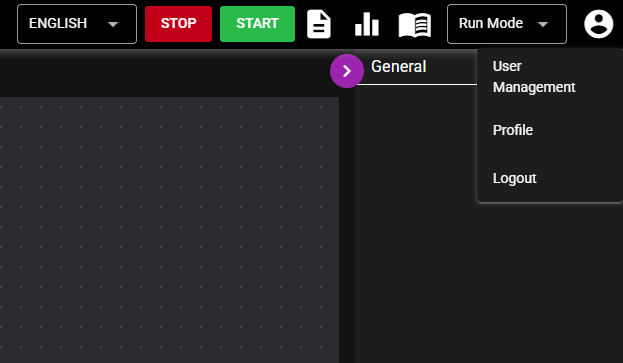
Press the user icon and select “Logout”.
-
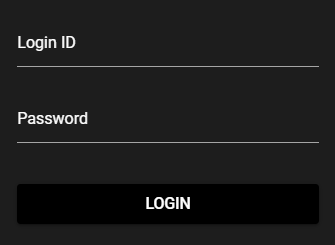
At the login screen, enter the login ID and password of the newly added user and press “Login”. This operation must be done by the relevant user him/her self.
-
Press the user icon and select “Profile”.
-
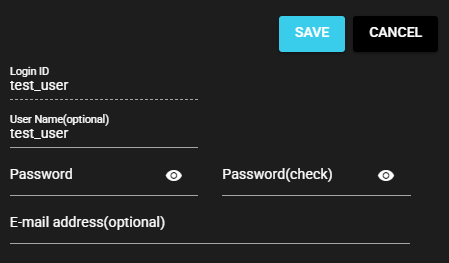
The information of the currently logged in user is displayed, and you know that you are logged in as the user you added above. You can change the settings of the currently logged in user by changing the settings and pressing "Save."
3.3.3 Setting of the Project Name#
SpeeDBee Synapse manages the specified data flow in units called projects.
Set a project name to make it easier to identify the configured data flow.
(Example: Project name such as "Line A production information visualization," "Facility linkage system," etc. are arbitrarily set up.)
Initially, the name project1 is set, and the project name is displayed in the header.

Refer to the following for details on the setting procedure.