4.4 Serializer
This section explains each serializer component.
4.4.1 JSON Serializer#
This component processes specified data into JSON format.
It receives data from other components connected to the input port, processes it into JSON format with "component name:data name" as the key at a certain time/number of times, and outputs it.

4.4.1.1 Basic Information#
The basic information on the JSON serializer is as follows:
| Item | Description |
|---|---|
| Base name | JSON |
| Description | Receives data from a component, processes it into a fixed JSON format, and passes it to another component. |
| Consumption point | 0 |
| Port | Input: 1 Receives data from other components. Output: 1 Outputs a JSON file created by processing input data. For more information on output data, see Output Data Items. System: 1 This outputs component operation status and error information. For details about the error information to be output, refer to Error Code List. |
4.4.1.2 Configuration Items#
The JSON serializer configuration items are as follows:

| Item | Description |
|---|---|
| Name | Name to be assigned to the component Note: The same name as another component name cannot be used. |
| Autostart disable | Select ON to disable the Autostart of the component. |
| Format | Select ON to format JSON. |
| Indent | You can specify the indentation to be given to JSON. Note: You can input when you select Format ON. |
| Time zone | You can select the time zone for the timestamps given to the data in JSON. |
| Change unit | You can select the criteria for switching JSON files. |
| Change time(sec) | You can input how many seconds of data to write to a single JSON file. Note: You can input when the change unit is time. |
| Change count | You can input how many counts of data to write in a single JSON file. Note: You can input when the change unit is a count. |
| Max size(KB) | You can input the maximum size for a single JSON file. |
| Default float digits | You can set the number of digits to be emitted when the data is a floating decimal number. Used as the default value when the number of decimal digits is not specified for each data. |
| Output with total nano time | You can add total nanoseconds to the data. |
| After the start, data is output continuing from where the previous emission left off. | When the component is stopped and restarted, data is output continuing from where the previous emission left off. |
You can optionally output fix values to a JSON file.
| Item | Description |
|---|---|
| Fix column name | The column name of the fix value |
| Value | The value to be output as a fix value |
4.4.1.3 Output Data Items#
The JSON serializer outputs the following data:
| Item | Column Name | Data Type | Description |
|---|---|---|---|
| JSON Data Output | output file | FILE | This column outputs the created JSON file. The media type is fixed to "application/json". |
The following is an example of an output file generated after receiving I/O data from the Resource Collector. "records" will contain the data. "timestamp" is the date and time the data was generated. "resrc: \~~" is the I/O data received from the Resource Collector named "resrc".
{
  "records": [
    {
      "timestamp": "2023-10-02T05:54:54.837742200Z",
      "resrc:IOPS": 0,
      "resrc:I_O": "sdb",
      "resrc:kb_r_s": 0,
      "resrc:kb_w_s": 0
    },
    {
      "timestamp": "2023-10-02T05:54:55.837652700Z",
      "resrc:IOPS": 0,
      "resrc:I_O": "sdb",
      "resrc:kb_r_s": 0,
      "resrc:kb_w_s": 0
    },
    ~~~
  ]
}
4.4.2 CSV Serializer#
This component processes specified data into CSV format.
It receives data from other components connected to the input port, processes it into CSV format at a certain time/number of times, and outputs it.
You can change the sort order of the CSV files in the input port configuration.

4.4.2.1 Basic Information#
The basic information on the CSV serializer is as follows:
| Item | Description |
|---|---|
| Base name | CSV |
| Description | Receives data from a component, processes it into CSV format, and passes it to another component. |
| Consumption point | 0 |
| Port | Input: 1 Receives data from other components. Output: 1 Outputs a CSV file created by processing input data. For more information on output data, see Output Data Items. System: 1 This outputs component operation status and error information. For details about the error information to be output, refer to Error Code List. |
4.4.2.2 Configuration Items#
The CSV serializer configuration items are as follows:
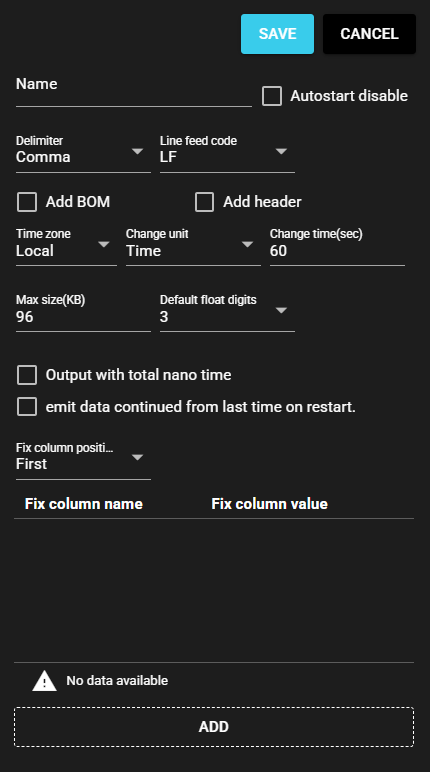
| Item | Description |
|---|---|
| Name | Name to be assigned to the component Note: The same name as another component name cannot be used. |
| Autostart disable | Select ON to disable the Autostart of the component. |
| Delimiter | You can select the delimiter for the CSV file. |
| Line feed code | You can select the line feed code for the CSV file. |
| Add BOM | Select ON to add a file BOM to the CSV file. |
| Add header | Select ON to add a header to the CSV file. |
| Time zone | You can select the time zone for the timestamps given to the CSV data. |
| Change unit | You can select the criteria for switching CSV files. |
| Change time(sec) | You can input how many seconds of data to write to a single CSV file. Note: You can input when the change unit is time. |
| Change count | You can input how many counts of data to write in a single CSV file. Note: You can input when the change unit is a count. |
| Max size(KB) | You can input the maximum size for a single JSON file. |
| Default float digits | You can set the number of digits to be emitted when the data is a floating decimal number. Used as the default value when the number of decimal digits is not specified for each data. |
| Output with total nano time | You can add total nanoseconds to the data. |
| After the start, data is output continuing from where the previous emission left off. | When the component is stopped and restarted, data is output continuing from where the previous emission left off. |
| Fix column position | You can select the position of the fix value column in the CSV file. |
You can optionally output fix values to a CSV file.
| Item | Description |
|---|---|
| Fix column name | The column name of the fix value |
| Value | The value to be output as a fix value |
4.4.2.3 Output Data Items#
The CSV serializer outputs the following data:
| Item | Column Name | Data Type | Description |
|---|---|---|---|
| CSV Data Output | output file | FILE | This column outputs the created CSV file. The media type is fixed to "text/csv". |
The following is an example of an output file generated after receiving I/O data from the Resource Collector. The leftmost column is the data timestamp. The remaining columns are the I/O data received from the Resource Collector.
2023-10-02T06:19:52.837670200Z,0.000,"sdb",0.000,0.000
2023-10-02T06:19:53.837656800Z,0.000,"sdb",0.000,0.000
2023-10-02T06:19:54.837805700Z,0.000,"sdb",0.000,0.000
2023-10-02T06:19:55.837734700Z,0.000,"sdb",0.000,0.000
~~~
4.4.3 Generic JSON Serializer#
This component processes specified data into JSON format.
It receives data from other components connected to the input port, processes it into JSON format at a certain time/number of times, and outputs it. You can select a JSON format from presets or specify any format.

4.4.3.1 Basic Information#
The basic information on the Generic JSON serializer is as follows:
| Item | Description |
|---|---|
| Base name | Generic JSON |
| Description | Receives data from a component, processes it into any JSON format, and passes it to another component. |
| Consumption point | 2 |
| Port | Input: 1 Receives data from other components. Output: 1 Outputs a JSON file created by processing input data. For more information on output data, see Output Data Items. System: 1 This outputs component operation status and error information. For details about the error information to be output, refer to Error Code List. |
4.4.3.2 Configuration Items#
The Generic JSON serializer configuration items are as follows:
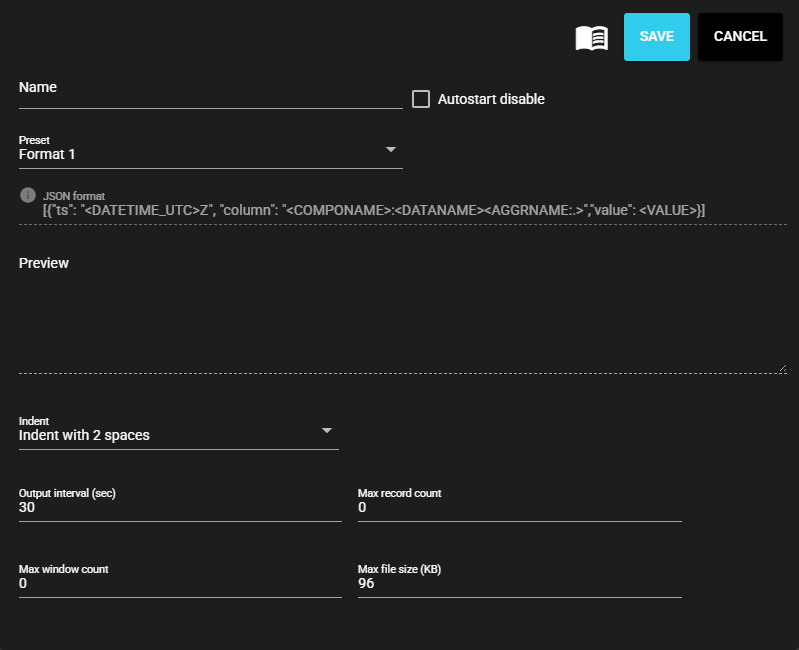
| Item | Description |
|---|---|
| Name | Name to be assigned to the component Note: The same name as another component name cannot be used. |
| Autostart disable | Select ON to disable the Autostart of the component. |
| Preset | You can select JSON format. |
| JSON format | Format selected in the preset. Note: You can edit when you select Any format. Note: Use Replacement string to apply the corresponding information. For more information, see Available Replacement string for Generic JSON. |
| Preview | Display JSON output preview. |
| Indent | You can specify the indentation to be given to JSON. |
| Output interval (sec) | You can input how many seconds of data to write to a single JSON file. |
| Max record count | You can input how many records of data to write in a single JSON file. |
| Max window count | You can input how many windows of data to write in a single JSON file. |
| Max file size (KB) | You can input the maximum size for a single JSON file. |
4.4.3.2.1 Available Replacement string for Generic JSON#
| Replacement string | Quotation marks | Description | Example of converted string |
|---|---|---|---|
| <COMPONAME> | Required | Source component name of data | plc-collector |
| <DATANAME> | Required | Data name | D110 |
| <DATATYPE> | Required | Data type | double |
| <AGGRNAME> | Required | Aggregate method name (empty if not an aggregate) | count |
| <AGGRNAME:.> | Required | Prefix + Aggregate method name (empty if not an aggregate) | .count |
| <VALUE> | Unavailable | Value | 123.45 |
| <DATETIME_UTC> | Required | Date of data timestamp(UTC) | 2024-11-06T00:00:00.000000 |
| <DATETIME_UTC:format> | Required | Date of data timestamp(UTC) with format | 2024/11/06 00:00:00 |
| <DATETIME_LOCAL> | Required | Date of data timestamp(Local Time Zone) | 2024-11-06T00:00:00.000000 |
| <DATETIME_LOCAL:format> | Required | Date of data timestamp(Local Time Zone) with format | 2024/11/06 00:00:00 |
| <TS> | Available | Data timestamp(in seconds) | 1733356200 |
| <TS:n> | Available | Data timestamp(in seconds) display up to n decimal places (max n: 9) | 1733356200.123 |
| <TS_MS> | Available | Data timestamp(in milliseconds) | 1733356200123 |
| <TS_MS:n> | Available | Data timestamp(in milliseconds) display up to n decimal places (max n: 9) | 1733356200123.456 |
| <TS_US> | Available | Data timestamp(in microseconds) | 1733356200123456 |
| <TS_US:n> | Available | Data timestamp(in microseconds) display up to n decimal places (max n: 9) | 1733356200123456.789 |
| <TS_NS> | Available | Data timestamp(in nanoseconds) | 1733356200123456789 |
Description of Replacement string
- If quotation marks are permitted, please enclose the replacement string within quotation marks. Example "<COMPONAME>"
- The format can use strftime-compatible specifiers. Example "<DATETIME_UTC:%Y/%m/%d %H:%M:%S.%f>" → "2024/11/06 00:00:00.000000"
4.4.3.3 Output Data Items#
The Generic JSON serializer outputs the following data:
| Item | Column Name | Data Type | Description |
|---|---|---|---|
| JSON Data Output | output file | FILE | This column outputs the created JSON file. The media type is fixed to "application/json". |
The following is an example of an output file generated after receiving I/O data from the Resource Collector. The selected preset is “Format 1”, and the selected indentation is “Indent with 2 spaces”. "<DATETIME_UTC>" is replaced with the data timestamp. "<COMPONAME><DATANAME><AGGRNAME:.>" are replaced with the Resource collector name, data name, and aggregate method name, respectively. "<VALUE>" is replaced with the I/O data received from the Resource collector.
[{"ts": "<DATETIME_UTC>Z", "column": "<COMPONAME>:<DATANAME><AGGRNAME:.>","value": <VALUE>}]
[
  {
    "ts": "2023-10-02T05:54:54.837742Z",
    "column": "resrc:IOPS",
    "value": 0
  },
  {
    "ts": "2023-10-02T05:54:54.837742Z",
    "column": "resrc:I_O",
    "value": "sdb"
  },
  {
    "ts": "2023-10-02T05:54:54.837742Z",
    "column": "resrc:kb_r_s",
    "value": 0
  },
  {
    "ts": "2023-10-02T05:54:54.837742Z",
    "column": "resrc:kb_w_s",
    "value": 0
  },
]