4.7 Logic (Event)
This section explains the logic components associated with events.
4.7.1 Event Data#
This component determines the condition of the collected data and registers it as new separate data only when the condition is met.
It receives data from the input port, performs conditional judgment on the data each time, and outputs the data as new separate data if the conditions are met.

4.7.1.1 Basic Information#
The basic information of the event data is as follows.
| Item | Description |
|---|---|
| Base name | Event data |
| Description | Outputs only the collected data that matches the condition as new separate data. Note: The memory usage, etc. increases because the data is registered as different data. This is not suitable when you want to handle high sampling rate data as is. |
| Consumption point | 2 |
| Port | Input: 1 Receives data from other components. Output: 1 Outputs received data that matches the condition. System: 1 This outputs component operation status and error information. For details about the error information to be output, refer to Error Code List. |
| Other | For a setting example using event data, see Setting Example. |
4.7.1.2 Setting Method#
You can configure event data by following the steps below.
-
Add any component that has an output port. For more information on how to add components, see Add Components.
-
Start the added component to output data. For more information on how to start components, see Start/Stop Components.
-
Add event data. For more information on how to add components, see Add Components.
-
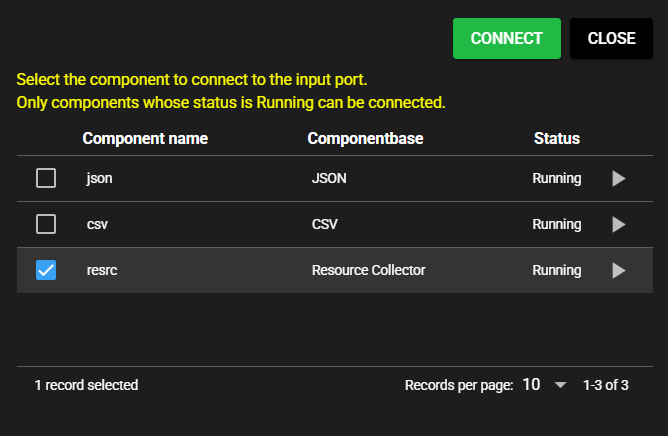
Select the component you added for the component to connect to the input port.
-
Enter the following component information.
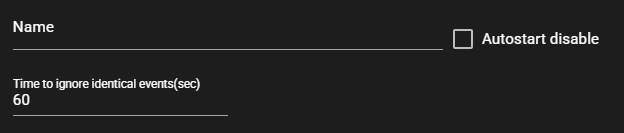
Item Description Name Enter a component name.
Note: The same name as another component name cannot be used.Autostart disable Select ON to disable the Autostart of the component. Time to ignore identical events(sec) Enter time to ignore the identical events -
Select a Setting option from the following.
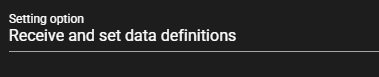
Item Description Receive and set data definitions Displays a list of data received at the input port for individual settings Set by regular expression Makes settings for the data received at the input port that matches a regular expression entered -
Enter the following items to set the event condition.

Item Description Component Regular expression to indicate the component name of the data received at the input port that is to be set
Note: Can be entered only when the setting option is Set by regular expressionData name Regular expression to indicate the data name of the data received at the input port that is to be set
Note: Can be entered only when the setting option is Set by regular expressionTrigger name Enter a name for the trigger Condition type True: A trigger occurs if the conditional expression is true
False: A trigger occurs if the conditional expression is false
Fall: A trigger occurs when the conditional expression changes from true to false
Raise: A trigger occurs when the conditional expression changes from false to true
Anytime: Occurs when a value is registeredConditional expression Enter the conditional expression for trigger
Note: Cannot be entered when the condition type is AnytimeRegular expression input examples
The following are input examples of regular expressions.
- Match only "data1": data1
- Match data whose name includes "abc": .*abc.*
- Match data whose name starts with "abc": abc.*
- Match data whose name ends with "abc": .*abc
-
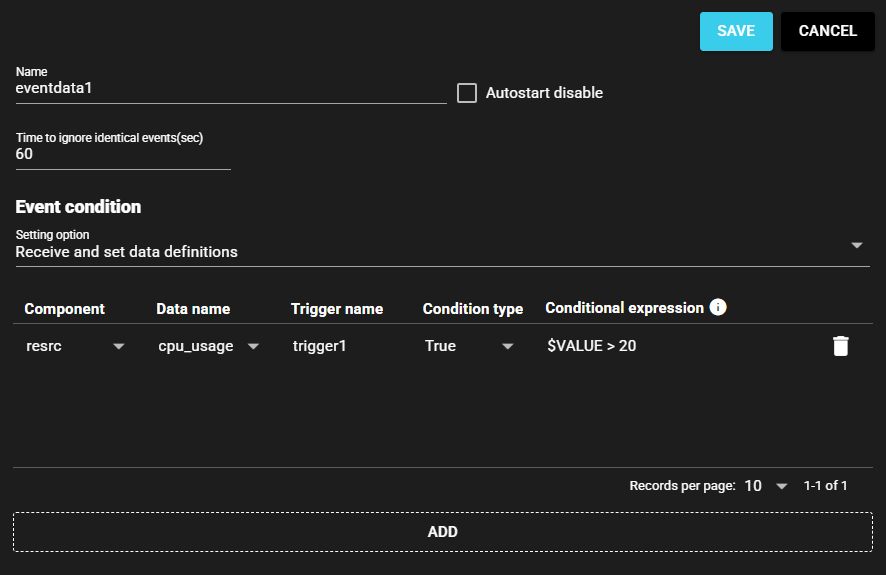
Press Save.
-
Start the component. For more information on how to start components, see Start/Stop Components.
4.7.1.3 Setting Example#
An example of setting event data is as follows. Here, the first step is to collect CPU usage using a resource collector. Then, use event data so that the CPU usage is registered as new separate data only when it exceeds 20%.
-
Add a collector beforehand. Here we create a resource collector named "resrc" and configure it to output CPU usage.
-
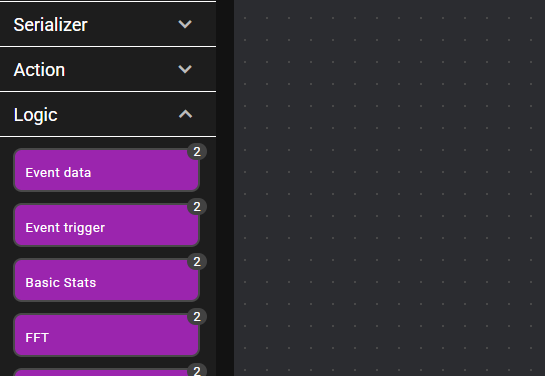
Drag and drop the event data icon onto the panel.
-
Select the component to connect to the input port. In this case, select the resource collector named "resrc".
-
Enter the following items and press Save.
Item Description Name Event Data 1 Autostart disable OFF Time to ignore identical events(sec) 60 Setting option Receive and set data definitions Component resource Data name cpu_usage Trigger name trigger1 Condition type True Conditional expression $VALUE > 20 -
CPU usage is received from the resource collector and registered as new separate data when it exceeds 20%. The registered data is output from the output port.
4.7.2 Event Trigger#
This component determines the condition of the collected data and outputs the information of the intervals that match the condition.
This component is used in combination with the "Use Event" component of the input port.
It receives data from the input port, performs conditional judgment on the data each time, and outputs the information of the interval that matches the condition as data.
4.7.2.1 Basic Information#
The basic information of the event trigger is as follows.
| Item | Description |
|---|---|
| Base name | Event trigger |
| Description | Determines the condition of the collected data and outputs as data the information of the intervals that match the condition. This component is used in combination with the "Use Event" component of the input port. To transmit the data in the event to the flowlink destination, a separate flowlink must be connected. Unlike the event data, which registers the original data separately, this component registers the information of the event intervals, so memory usage can be saved. |
| Consumption point | 2 |
| Port | Input: 1 Receives data from other components. Output: 1 Determines the condition of the received data and outputs whether the condition is met as a true/false value. System: 1 This outputs component operation status and error information. For details about the error information to be output, refer to Error Code List. |
| Other | For a setting example using an event trigger, see Setting Example. |
4.7.2.2 Setting Method#
You can configure an event trigger by following the steps below.
-
Add any component that has an output port. For more information on how to add components, see Add Components.
-
Start the added component to output data. For more information on how to start components, see Start/Stop Components.
-
Add an event trigger. For more information on how to add components, see Add Components.
-
Select the component you added for the component to connect to the input port.
-
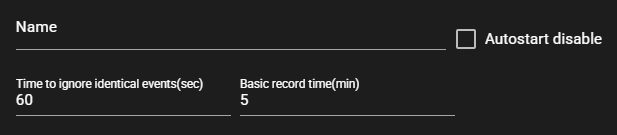
Enter the following component information.
Item Description Name Enter a component name.
Note: The same name as another component name cannot be used.Autostart disable Select ON to disable the Autostart of the component. Time to ignore identical events(sec) Enter time to ignore the identical events Basic record time(min) Enter the basic record time in minutes -
Select a Setting option for the start event from the following.
Item Description Receive and set data definitions Displays a list of data received at the input port for individual settings Set by regular expression Makes settings for the data received at the input port that matches a regular expression entered -
Enter the following items to set the start event.
Item Description Component Regular expression to indicate the component name of the data received at the input port that is to be set
Note: Can be entered only when the setting option is Set by regular expressionData name Regular expression to indicate the data name of the data received at the input port that is to be set
Note: Can be entered only when the setting option is Set by regular expressionTrigger name Enter a name for the trigger Condition type True: A trigger occurs if the conditional expression is true
False: A trigger occurs if the conditional expression is false
Fall: A trigger occurs when the conditional expression changes from true to false
Raise: A trigger occurs when the conditional expression changes from false to true
Anytime: Occurs when a value is registeredConditional expression Enter the conditional expression for trigger
Note: Cannot be entered when the condition type is AnytimeRegular expression input examples
The following are input examples of regular expressions.
- Match only "data1": data1
- Match data whose name includes "abc": .*abc.*
- Match data whose name starts with "abc": abc.*
- Match data whose name ends with "abc": .*abc
-
If you want to set an end event, set End event ON.

-
To set an end event, select a Setting option for the end event from the following.
Item Description Receive and set data definitions Displays a list of data received at the input port for individual settings Set by regular expression Makes settings for the data received at the input port that matches a regular expression entered -
To set an end event, enter the following items to set the end event.
Item Description Component Regular expression to indicate the component name of the data received at the input port that is to be set
Note: Can be entered only when the setting option is Set by regular expressionData name Regular expression to indicate the data name of the data received at the input port that is to be set
Note: Can be entered only when the setting option is Set by regular expressionTrigger name Enter a name for the trigger Condition type True: A trigger occurs if the conditional expression is true
False: A trigger occurs if the conditional expression is false
Fall: A trigger occurs when the conditional expression changes from true to false
Raise: A trigger occurs when the conditional expression changes from false to true
Anytime: Occurs when a value is registeredConditional expression Enter the conditional expression for trigger
Note: Cannot be entered when the condition type is AnytimeRegular expression input examples
The following are input examples of regular expressions.
- Match only "data1": data1
- Match data whose name includes "abc": .*abc.*
- Match data whose name starts with "abc": abc.*
- Match data whose name ends with "abc": .*abc
-
Press Save to save the settings.
-
Start the component. For more information on how to start components, see Start/Stop Components.
-
Events set in an event trigger can be used to determine the condition when another component receives data. For more information, see Event Settings in Input Port.
Components for which the event intervals of event triggers are not available
The following components can be connected (set) to an event trigger but cannot use the event interval.
・Logic components (event data, basic stats, FFT, moving average)
4.7.2.3 Setting Example#
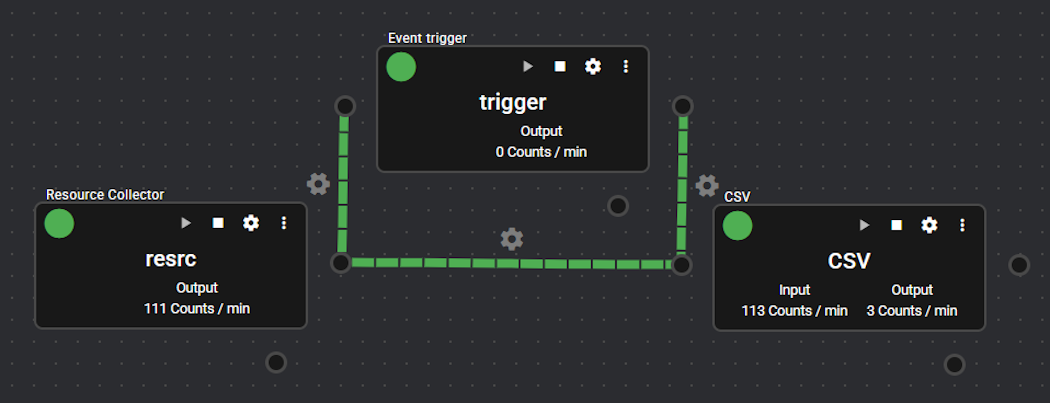
An example of setting an event trigger is as follows. Here, the first step is to make settings to allow the CPU usage collected by a resource collector to be processed by a CSV serializer. Then, use a event trigger so that processing occurs only when the CPU usage exceeds 20%.
-
Add a collector beforehand. Here we create a resource collector named "resrc" and configure it to output CPU usage.
-
Drag the event trigger icon from the left menu and drop it on the panel.
-
Select the component to connect to the input port. In this case, select the resource collector named "resrc".
-
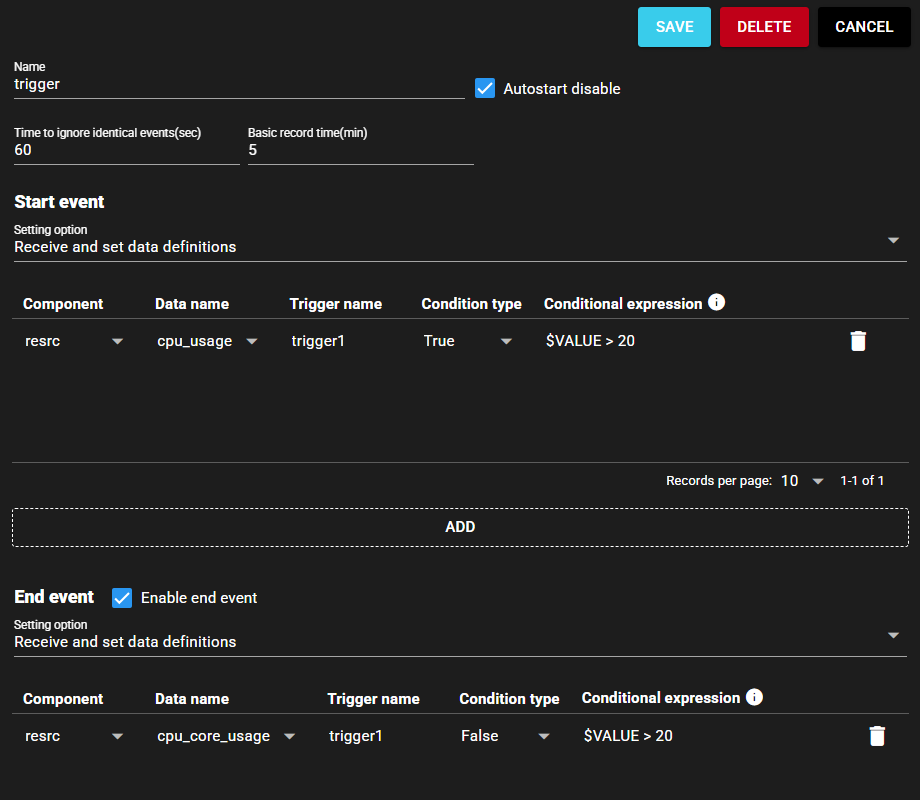
Enter the following items and press Save.
Item Description Name Event Trigger 1 Autostart disable OFF Time to ignore identical events(sec) 60 Basic record time(min) 5 Setting option Receive and set data definitions Component resource Data name cpu usage Trigger name trigger1 Condition type True Conditional expression $VALUE > 20 Enable end event ON Setting option Receive and set data definitions Component resource Data name cpu_usage Trigger name trigger1 Condition type False Conditional expression $VALUE > 20 -
Drag the CSV serializer icon from the left menu and drop it on the panel.
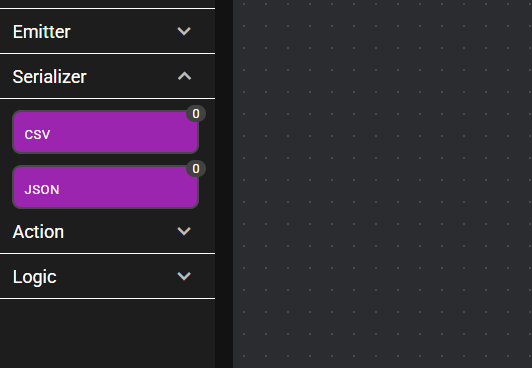
-
Enter the setting items as needed and press Save.
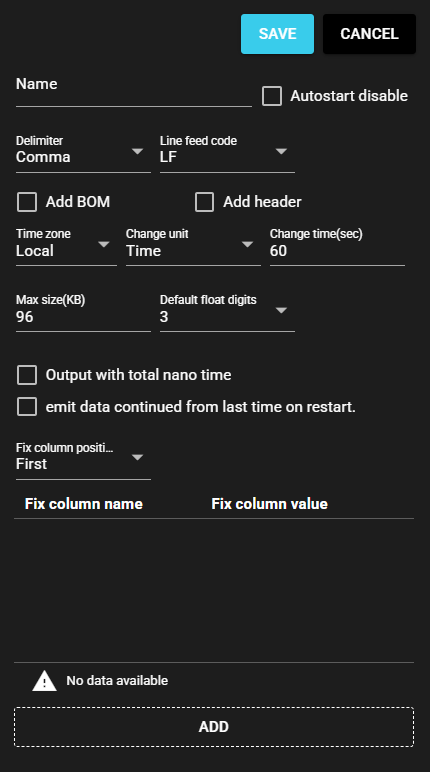
-
Connect the output port of the resource collector/event trigger and the input port of the CSV serializer with a flowlink.
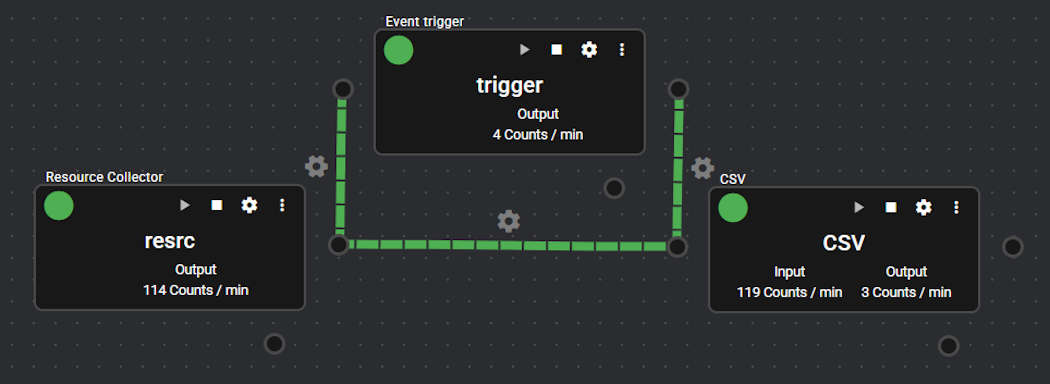
-
Right-click the input port of the CSV serializer.
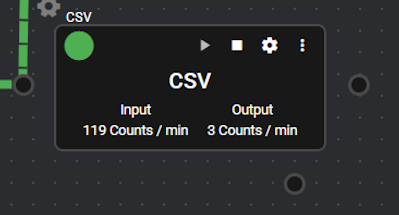
-
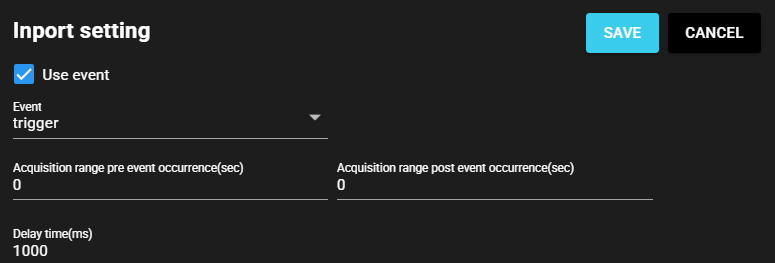
Check Use event, select "Event Trigger 1" in Event, and press Save.
-
With the component running in this state, the CPU usage collected by the resource collector is processed into a CSV file by the CSV serializer only when it exceeds 20%.