4.17 Managing Configuration Information (Project)
4.17.1 Project Overview#
Projects are the mechanism for managing the configuration in SpeeDBee Synapse. The configuration in SpeeDBee Synapse is divided into common configuration and project-specific configuration. By switching projects, you can manage multiple configurations on the same device. You can also use features such as exporting project settings and importing them to other devices.
The following illustration shows the project's features.
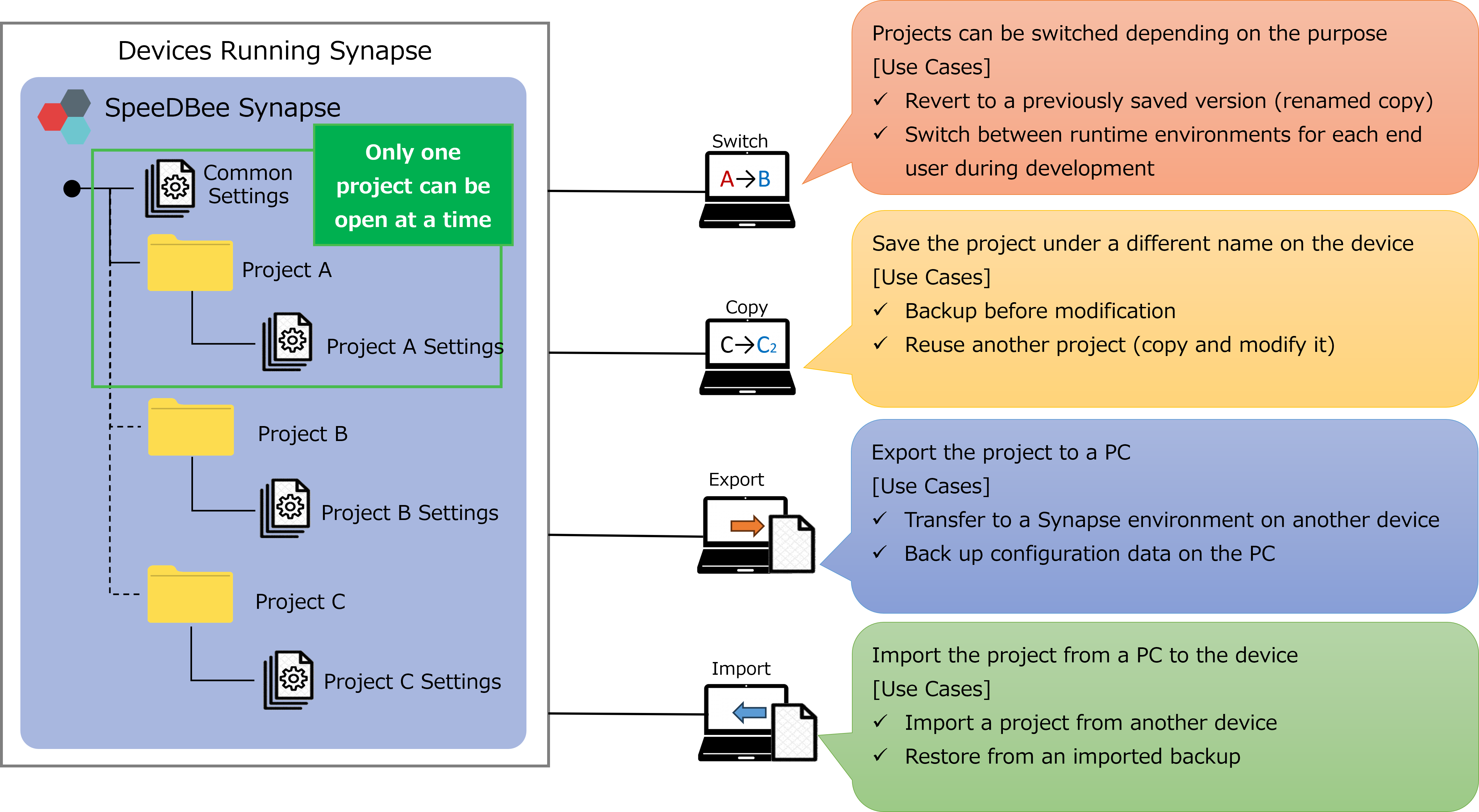
The following is a list of common and project-specific configurations.
| Common/Project-specific | Configuration Details |
|---|---|
| Common | - License Information - User Management/Authentication - Encrypt Communication - Server Settings - Log - Database - Access Token |
| Project Specific | - Configured Data Flow (Panel, Component, Flowlink) - Registered Custom Components - Registered Dependencies (Python) - Data Output by Components - Grafana Settings |
While SpeeDBee Synapse is running, one project is always selected. The currently selected project is displayed in the header.

You cannot perform the following operation to the currently selected project.
・ Delete
4.17.2 Create project#
You can create a project by following the steps below.
-
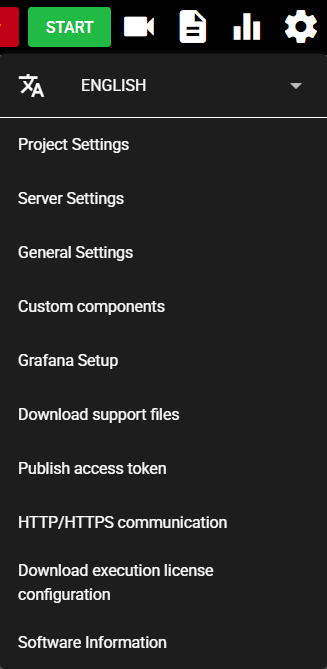
Press the Setting Menu icon and select Project Settings.
-
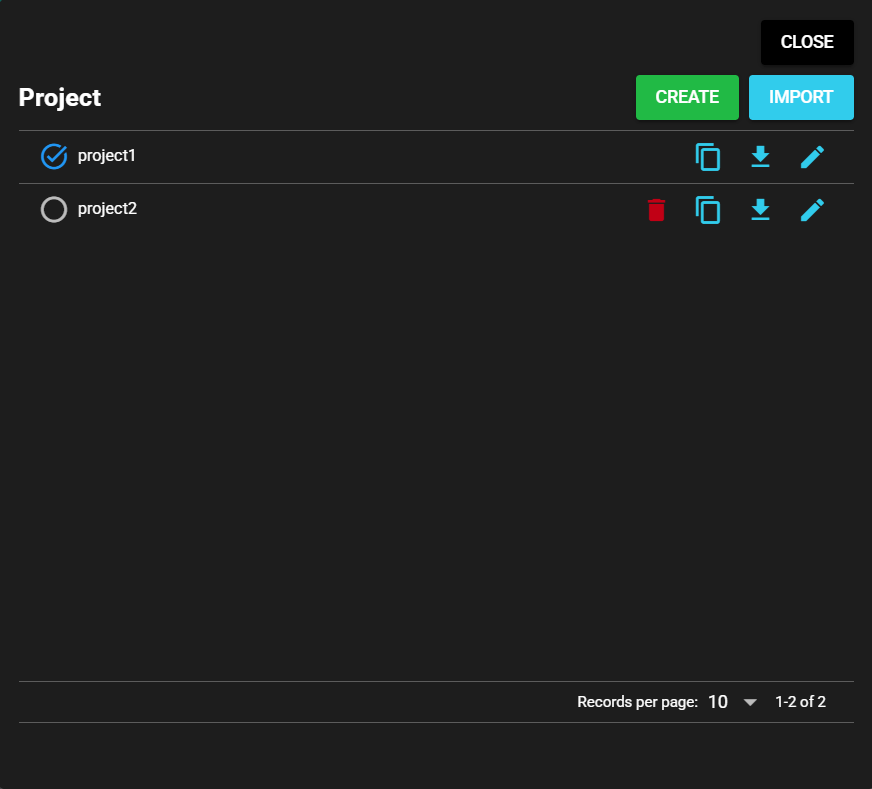
Press the Create button.
-
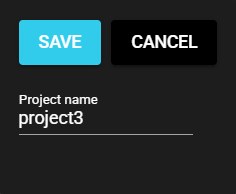
Input a name for your newly created project.
-
Press Save.
-
A new project will be created.
4.17.3 Copy project#
You can make a copy of the created project by following the steps below.
-
Press the Setting Menu icon and select Project Settings.
-
Press the Copy Icon (Replicate) for the project you want to replicate.
-
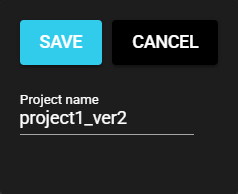
Input a replicated project name.
-
Press Save.
-
A replicate copy of the project will be created.
4.17.4 Import project#
You can import a project by following the steps below.
-
Press the Setting Menu icon and select Project Settings.
-
Press the Import button.
-
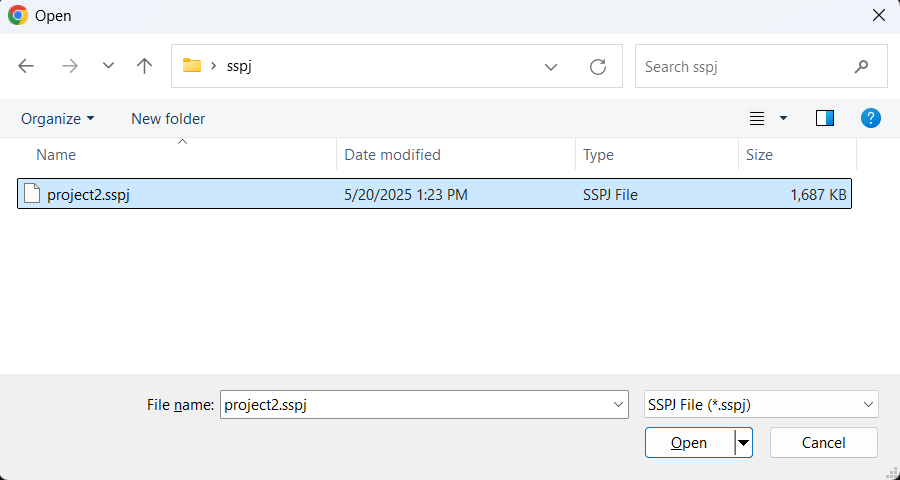
Follow the Export steps and select the exported file.
-
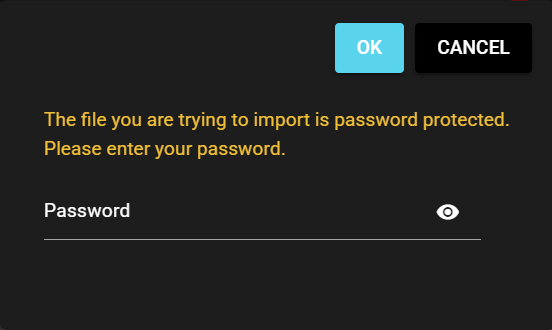
If the file is protected by a password, input the password and select OK.
-
The project will be imported.
Caution
- The dependencies of Python custom components are installed over the Internet. Therefore, if there is no Internet connection, the Python Modules will not be installed.
- Custom components in C programming language will not be imported if the import target platform is different.
- When migrating projects between different platforms, dependency modules may need to be reinstalled.
- Python modules added directly from wheel files (.whl files) will not be migrated. Please manually reinstall them after import if necessary.
4.17.5 Export project#
You can export a project by following the steps below.
-
Press the Setting Menu icon and select Project Settings.
-
Press the Export Icon (Export) for the project you want to export.
-
If you want to protect the exported project with a password, input any password you wish.
Note: This step can be skipped.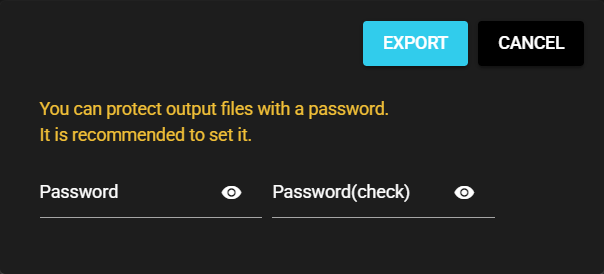
-
Select Export.
-
The project will be exported.
4.17.6 Switch project#
You can switch projects by following the steps below.
-
Press the Setting Menu icon and select Project Settings.
-
Select the radio button for the project you want to switch to.
-
Select Yes in the confirmation dialog.
-
The project will be switched.
4.17.7 Information Update#
You can update the project information by following the steps below. The only information you can update is the project name.
-
Press the Setting Menu icon and select Project Settings.
-
Press the Edit Icon (Edit) for the project whose information you want to update.
-
Input a new project name.
-
Press Save.
-
The project name will be updated.
4.17.8 Delete project#
You can delete a project by following the steps below.
-
Press the Setting Menu icon and select Project Settings.
-
Press the Trash Icon (Delete) for the project you want to delete.
Note: You cannot delete the currently selected project.
-
Select Yes in the confirmation dialog.
-
The project will be deleted.