4.8 Logic (Real Time Analysis and Data Manipulation)
This section explains the logic components associated with real time analysis.
4.8.1 Basic Stats#
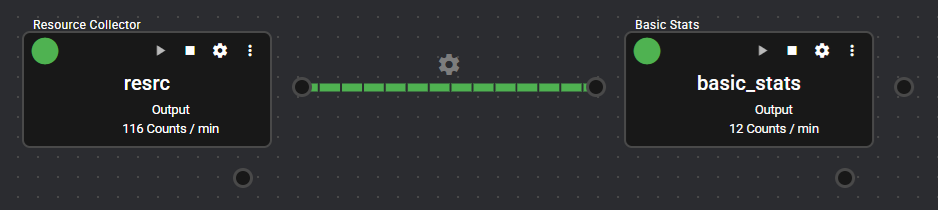
This component computes basic statistics.
It receives data from the input port and outputs the results of basic statistics of the data within a certain range (count/seconds) as new data.
4.8.1.1 Basic Information#
The basic information of the basic stats is as follows.
| Item | Description |
|---|---|
| Base name | Basic stats |
| Description | Outputs as data the results of basic statistics of the collected data. |
| Consumption point | 2 |
| Port | Input: 1 Receives data from other components. Output: 1 Outputs the results of computing basic statistics of the input data based on the settings specified by the Setting Method. System: 1 This outputs component operation status and error information. For details about the error information to be output, refer to Error Code List. |
4.8.1.2 Setting Method#
You can configure basic stats by following the steps below.
-
Add any component that has an output port. For more information on how to add components, see Add Components.
-
Start the added component to output data. For more information on how to start components, see Start/Stop Components.
-
Add basic stats. For more information on how to add components, see Add Components.
-
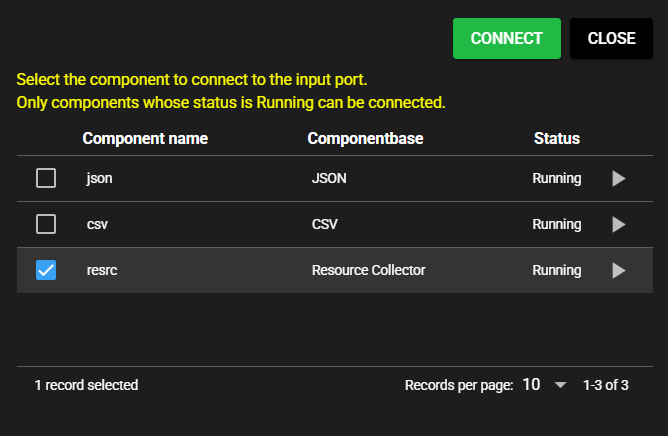
Select the component you added for the component to connect to the input port.
-
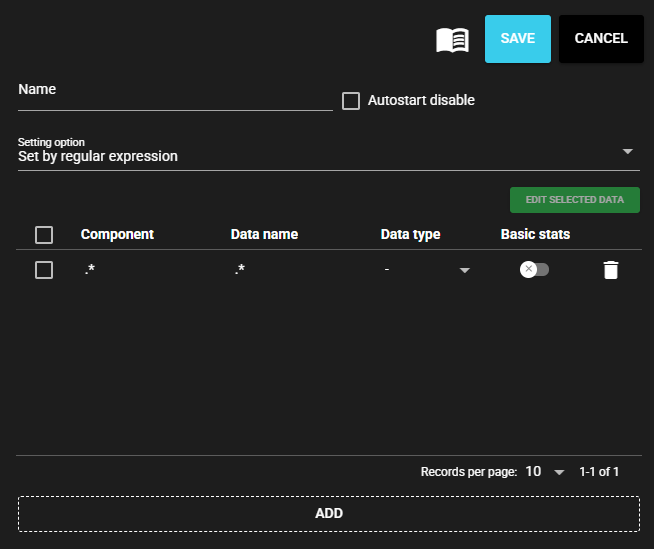
Enter the following component information.

Item Description Name Enter a name for the component
Note: The same name as another component name cannot be used.Autostart disable Select ON to disable the Autostart of the component. -
Select a Setting option from the following.
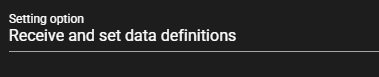
Item Description Receive and set data definitions Displays a list of data received at the input port for individual settings Set by regular expression Makes settings for the data received at the input port that matches a regular expression entered -
Enter the following items for the data to be set only when the Setting option is Set by regular expression.

Item Description Component Regular expression to indicate the component name of the data received at the input port that is to be set Data Name Regular expression to indicate the data name of the data received at the input port that is to be set Data Type Data type of the data received at the input port that is to be set Regular expression input examples
The following are input examples of regular expressions.
- Match only "data1": data1
- Match data whose name includes "abc": .*abc.*
- Match data whose name starts with "abc": abc.*
- Match data whose name ends with "abc": .*abc
-
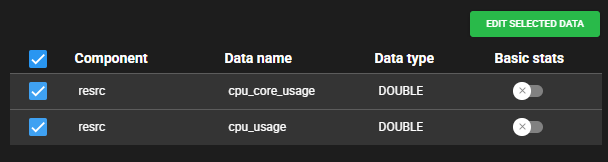
Do one of the following to open the basic stats setting dialog.
- Press the Basic Stats icon for the data for which you want to set basic stats.
- Check the data for which you want to set basic stats and press Edit selected data. The same settings will be applied to the checked data.
-
Enter the following items to set basic stats.
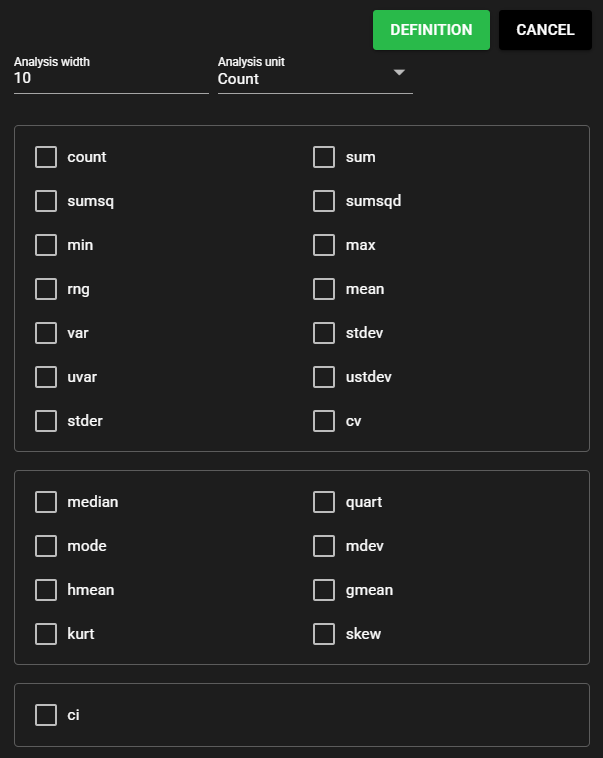
Item Description Analysis width Set the width of analysis Analysis unit Set the unit for analysis width (Count or Seconds) count Number of data values in the data being analyzed sum Total value of the data being analyzed sumsq Sum of the squares of each value in the data being analyzed sumsqd Sum of the squared deviations of each value in the data being analyzed from the mean min Smallest value in the data being analyzed max Largest value in the data being analyzed rng Difference between the maximum and minimum values of the data being analyzed mean Average value of the data being analyzed var Square of the average of how far each value in the data being analyzed is from the mean stdev Square roots of variance uvar Variance divided by count -1 ustdev Standard deviation of the sample stder Standard deviation of the sample mean cv Standard deviation divided by the mean median Value in the middle of the data being analyzed, ordered from smallest to largest quart Values that divide the data being analyzed, ordered from smallest to largest, into four equal parts mode Value that appears most frequently in the data being analyzed mdev Average of how far each value in the data being analyzed is from the mean hmean Reciprocal of the average of the reciprocals of each value in the data being analyzed gmean Nth root of the product of each value in the data being analyzed
Note: N is the countkurt Sharpness of the distribution skew Distortion of the distribution ci Range of values that can be trusted to contain the mean of the data being analyzed -
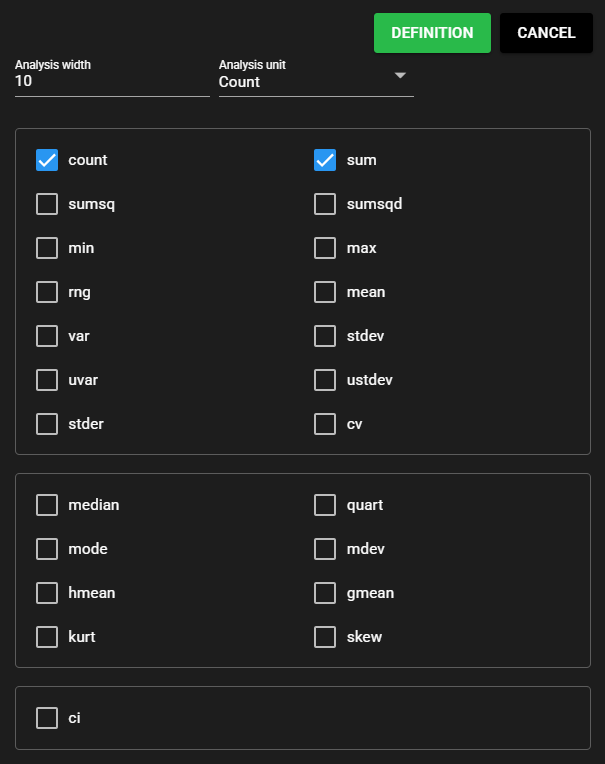
Press Definition.
-
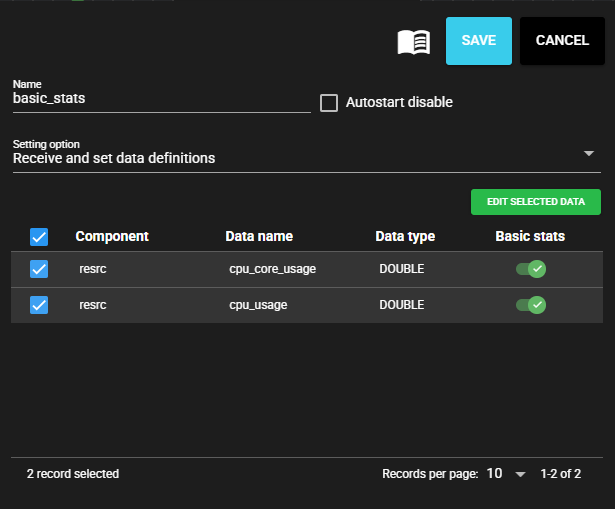
Press Save.
-
Start the component. For more information on how to start components, see Start/Stop Components.
4.8.2 FFT#
This component registers the FFT results of collected data as data.
It receives data from the input port and outputs the results of FFT analysis on the data as separate data.
This component is available only for column type middle data for which the sampling rate is defined.
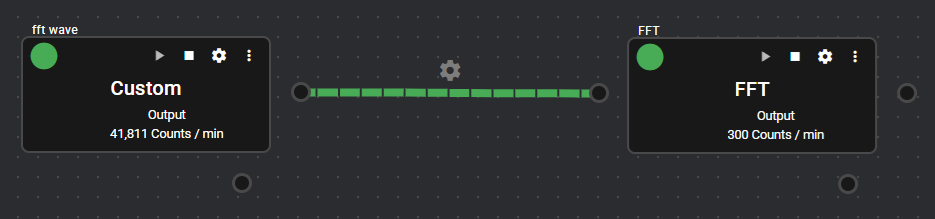
About column type middle data
There are no standard-feature components that use column type middle with a defined sampling rate. Develop and use custom components that handle column type middle (regular sampling rate) data.
4.8.2.1 Basic Information#
The basic information of the FFT is as follows.
| Item | Description |
|---|---|
| Base name | FFT |
| Description | Outputs as data the results of FFT analysis on the collected data. |
| Consumption point | 2 |
| Port | Input: 1 Receives data from other components. Output: 1 Outputs the results of FFT analysis on the input data based on the settings specified by the Setting Method. System: 1 This outputs component operation status and error information. For details about the error information to be output, refer to Error Code List. |
4.8.2.2 Setting Method#
You can configure FFT by following the steps below.
-
Add any component that has an output port. For more information on how to add components, see Add Components.
-
Start the added component to output data. For more information on how to start components, see Start/Stop Components.
-
Add FFT. For more information on how to add components, see Add Components.
-
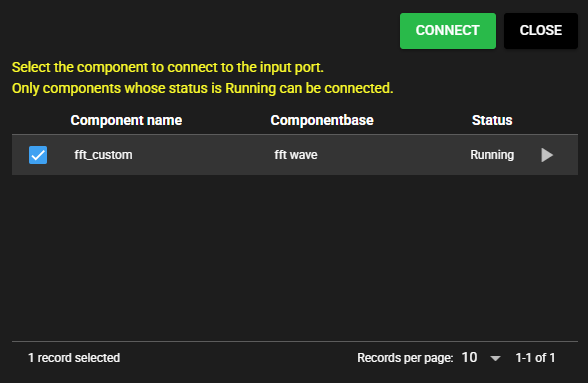
Select the component you added for the component to connect to the input port.
-
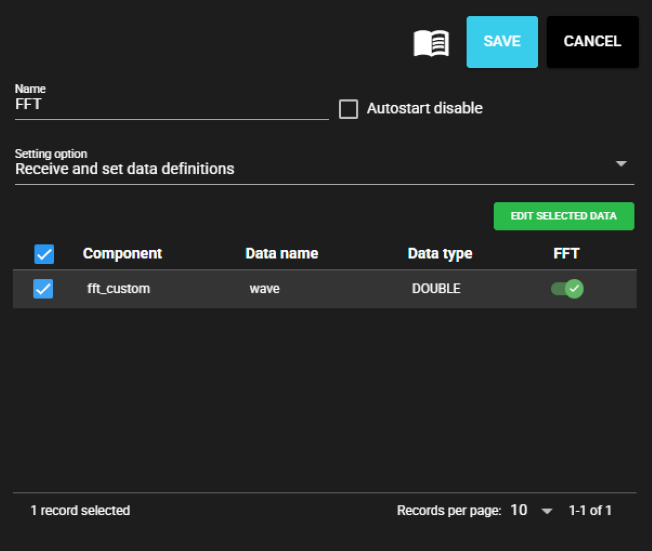
Enter the following component information.

Item Description Name Enter a name for the component
Note: The same name as another component name cannot be used.Autostart disable Select ON to disable the Autostart of the component. -
Select a Setting option from the following.
Item Description Receive and set data definitions Displays a list of data received at the input port for individual settings Set by regular expression Makes settings for the data received at the input port that matches a regular expression entered -
Enter the following items for the data to be set only when the Setting option is Set by regular expression.

Item Description Component Regular expression to indicate the component name of the data received at the input port that is to be set Data Name Regular expression to indicate the data name of the data received at the input port that is to be set Data Type Data type of the data received at the input port that is to be set Regular expression input examples
The following are input examples of regular expressions.
- Match only "data1": data1
- Match data whose name includes "abc": .*abc.*
- Match data whose name starts with "abc": abc.*
- Match data whose name ends with "abc": .*abc
-
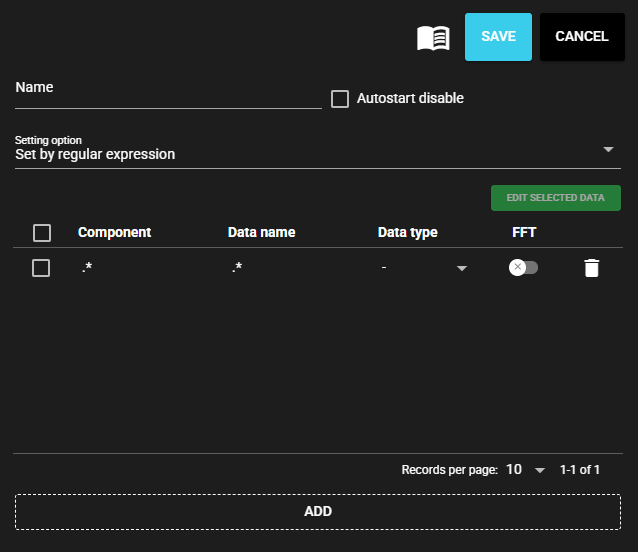
Do one of the following to open the FFT setting dialog.
- Press the FFT icon for the data for which you want to set FFT.
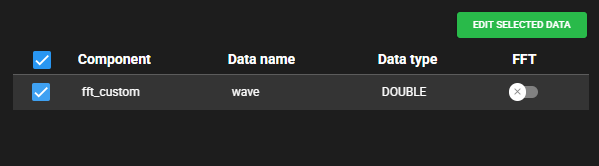
- Check the data for which you want to set FFT and press Edit selected data. The same settings will be applied to the checked data.
-
Set Enable ON.

-
Enter the following items to set FFT.
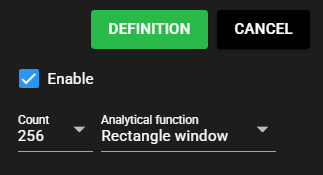
Item Description Count Number of data values for which FFT is executed Analytical function Function applied to data before executing FFT -
Press Definition.
-
Press Save.
-
Start the component. For more information on how to start components, see Start/Stop Components.
4.8.3 Moving Average#
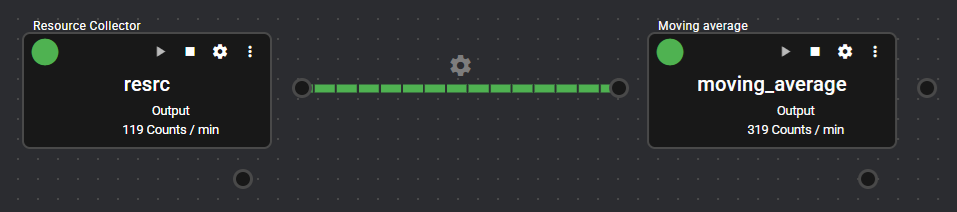
This component computes moving average values.
It receives data from the input port, computes moving averages within a period of time from that data, and outputs them as new data.
4.8.3.1 Basic Information#
The basic information of the moving average is as follows.
| Item | Description |
|---|---|
| Base name | Moving average |
| Description | Outputs as data the moving average values of the collected data. |
| Consumption point | 2 |
| Port | Input: 1 Receives data from other components. Output: 1 Outputs the moving average values of the input data based on the settings specified by the Setting Method. System: 1 This outputs component operation status and error information. For details about the error information to be output, refer to Error Code List. |
4.8.3.2 Setting Method#
You can configure moving average by following the steps below.
-
Add any component that has an output port. For more information on how to add components, see Add Components.
-
Start the added component to output data. For more information on how to start components, see Start/Stop Components.
-
Add a moving average. For more information on how to add components, see Add Components.
-
Select the component you added for the component to connect to the input port.
-
Enter the following component information.

Item Description Name Enter a name for the component
Note: The same name as another component name cannot be used.Autostart disable Select ON to disable the Autostart of the component. -
Select a Setting option from the following.
Item Description Receive and set data definitions Displays a list of data received at the input port for individual settings Set by regular expression Makes settings for the data received at the input port that matches a regular expression entered -
Enter the following items for the data to be set only when the Setting option is Set by regular expression.

Item Description Component Regular expression to indicate the component name of the data received at the input port that is to be set Data Name Regular expression to indicate the data name of the data received at the input port that is to be set Data Type Data type of the data received at the input port that is to be set Regular expression input examples
The following are input examples of regular expressions.
- Match only "data1": data1
- Match data whose name includes "abc": .*abc.*
- Match data whose name starts with "abc": abc.*
- Match data whose name ends with "abc": .*abc
-
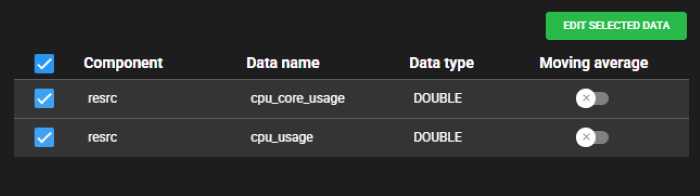
Do one of the following to open the moving average setting dialog.
- Press the Moving average icon for the data for which you want to set moving average.
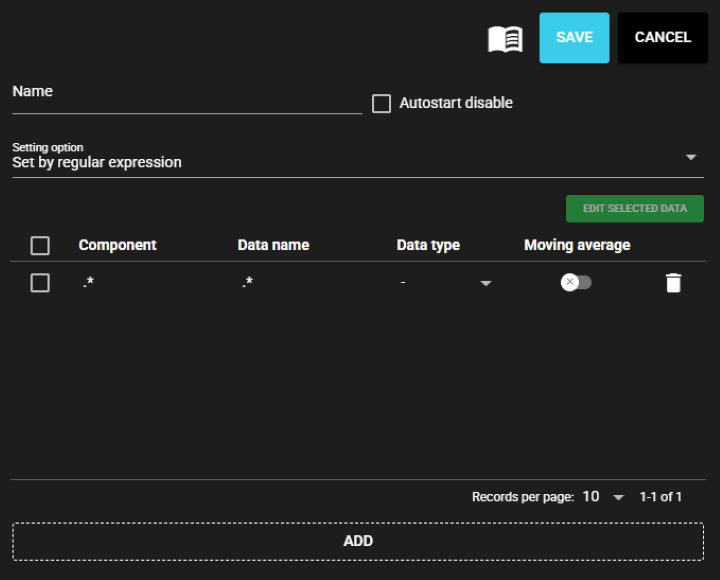
- Check the data for which you want to set moving average and press Edit selected data. The same settings will be applied to the checked data.
-
Enter the following items to set moving average.
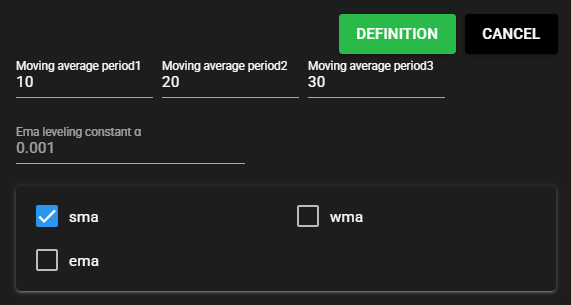
Item Description Moving average period 1 to 3 Period covered for computation Ema leveling constant α Coefficient for balancing exponentially weighted moving averages (ema)
Note: Can be entered only when ema is ONsma Simple average of the data in the period wma Average computed by assigning linear weight to each data in the period ema Average computed by assigning exponential weight to the data for all periods -
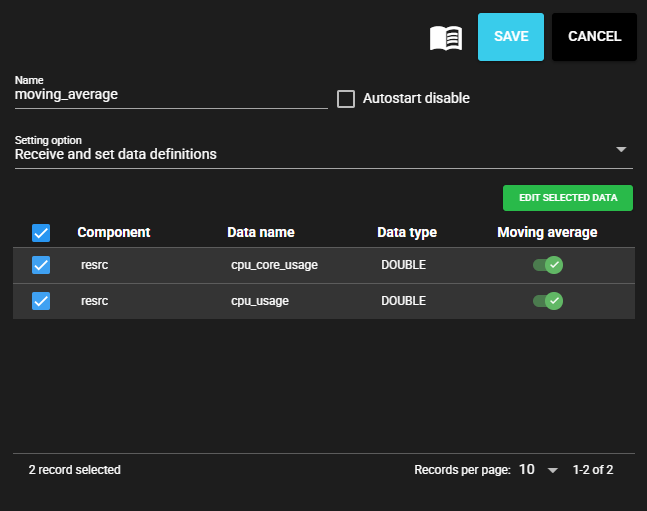
Press Definition.
-
Press Save.
-
Start the component. For more information on how to start components, see Start/Stop Components.
4.8.4 Data Conversion#
This component retrieves various types of data from the input port column, and outputs it to the output port column after various transformations.
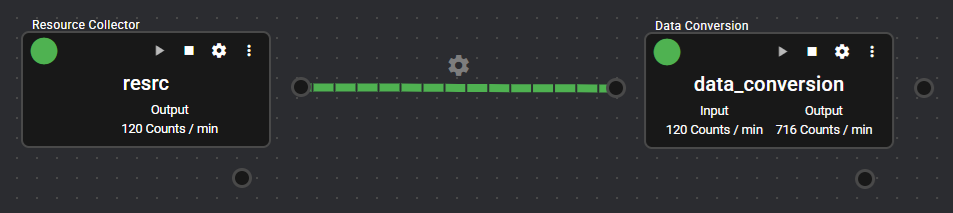
The data conversion functions currently provided are as follows.
| Conversion function | Description |
|---|---|
| Array split | Decomposes the data in an array column into individual elements and registers them in individual columns. The name of each column after decomposition is automatically set by default. [Target column] INT8/INT16/INT32/INT64 array UINT8/UINT16/UINT32/UINT64 array BOOLEAN/FLOAT/DOUBLE array |
| Bit Conversion | Converts bitN through bitM of the column data to integers and registers them in the column. For an integer scalar, bitN through bitM of the integer are treated as is. For a Boolean array, each element [N] through [M] of the array is treated as bitN through bitM. For INT8/UINT8 type arrays, each element, which has 8 bits, is converted to bit with 0 or !0, and each element [N] through [M] are treated as bitN through bitM. [Target column] Integer scalar BOOLEAN type array INT8/UINT8 type array (where each element is treated as 0 or 1) |
| Change Data Name | Registers the input data as is as separate data with a set name in a column. [Target column] No restrictions on input data |
4.8.4.1 Basic Information#
The basic information of the data conversion is as follows.
| Item | Description |
|---|---|
| Base name | Data Conversion |
| Description | Retrieves various types of data and outputs it after various transformations. |
| Consumption point | 2 |
| Port | Input: 1 Receives data from other components. Output: 1 Outputs the converted values of the input data based on the settings specified by the Setting Method. System: 1 This outputs component operation status and error information. For details about the error information to be output, refer to Error Code List. |
4.8.4.2 Setting Method (Common)#
You can configure data conversion by following the steps below.
-
Add any component that has an output port. For more information on how to add components, see Add Components.
-
Start the added component to output data. For more information on how to start components, see Start/Stop Components.
-
Add data conversion. For more information on how to add components, see Add Components.
-
Select the component you added for the component to connect to the input port.
-
Enter the following component information.

Item Description Name Enter a name for the component
Note: The same name as another component name cannot be used.Autostart disable Select ON to disable the Autostart of the component. -
Select the data conversion function you want to use.

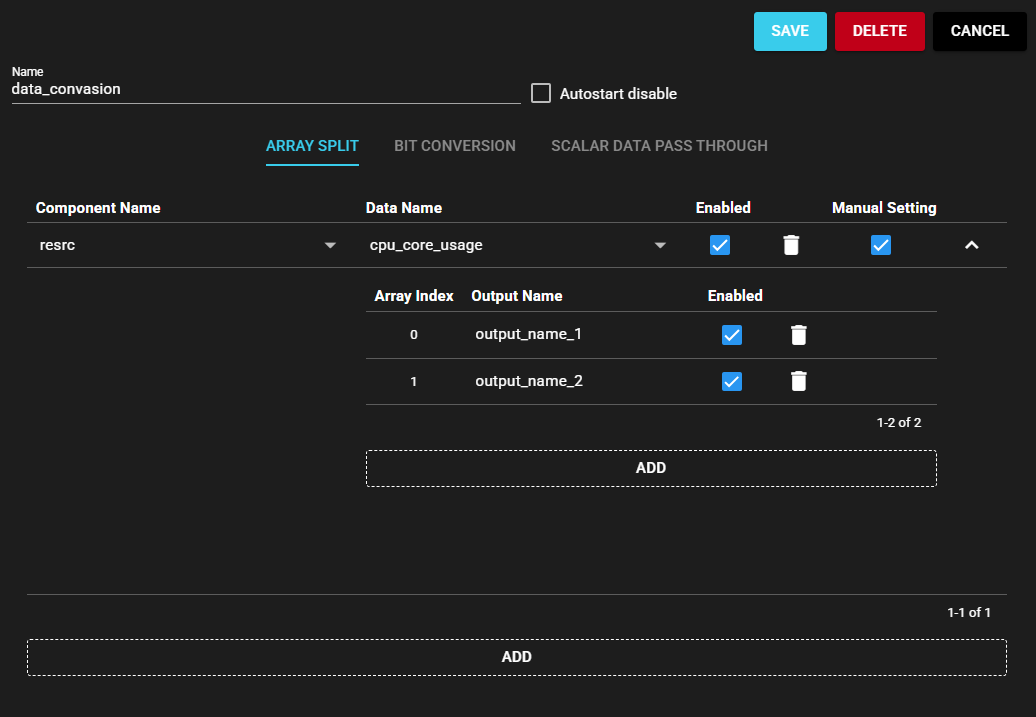
4.8.4.3 Setting Method (Array Split)#
-
Press the Add button to add the input data field.
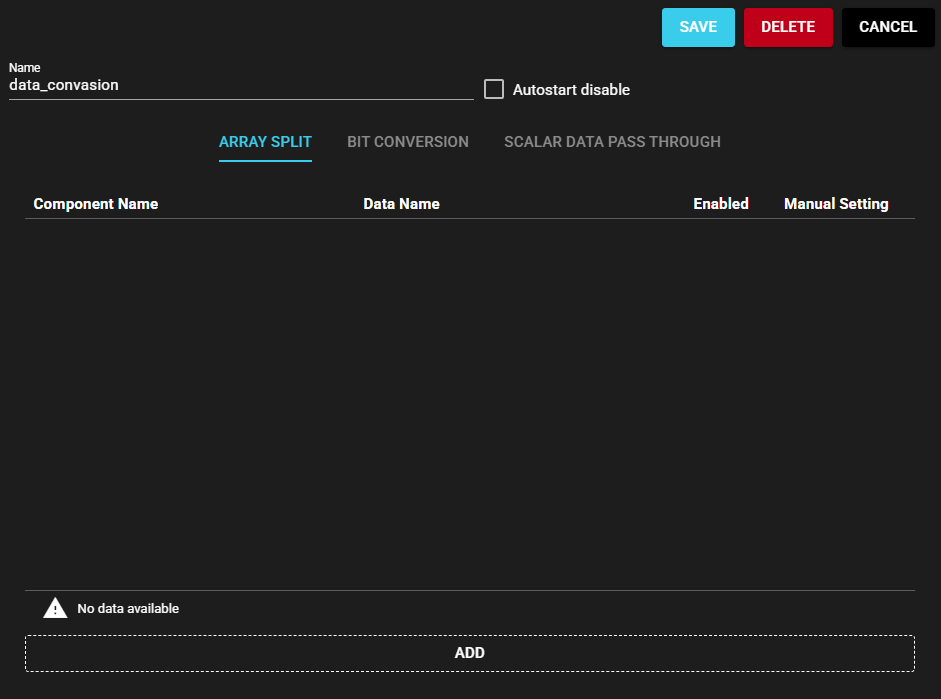
-
Enter the component name and data name to be input.
(Drop-down selection or manual entry)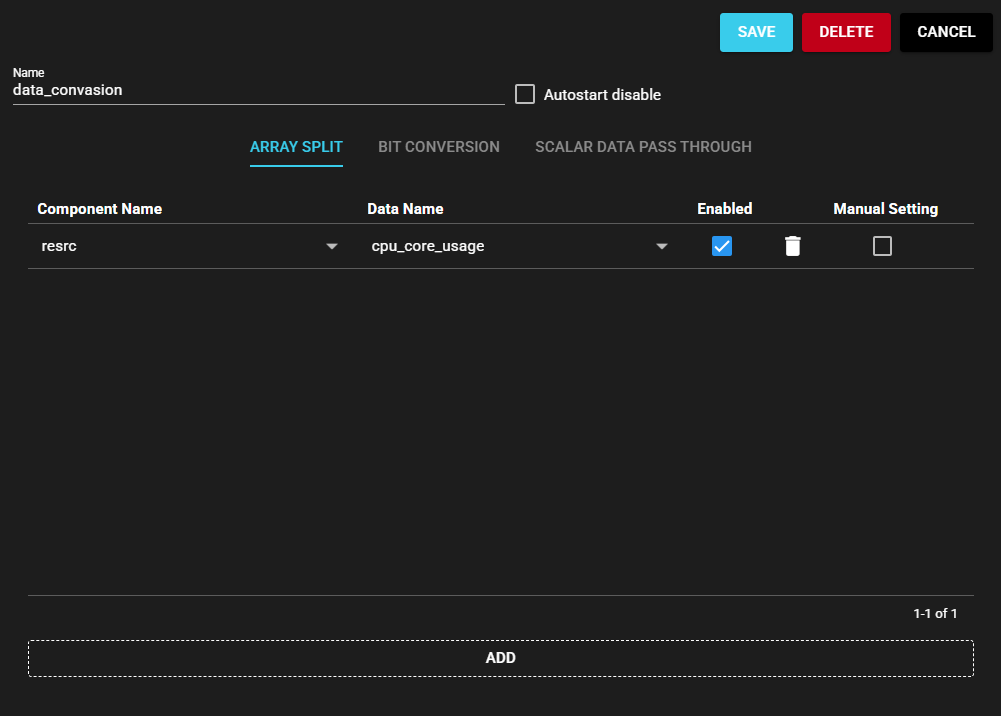
Item Description Component Name Set the component name connected to the input port Data Name Set the data name of the component name connected to the input port
(Only array columns can be set)Enable Set OFF to disable the set input data setting Delete Press this to delete the set input data setting Manual Setting Set ON when you want to manually set the output data name after array split
(When set ON, the expand button of output data setting is enabled.) -
(Optional) Press the Add button to add the output data field.
(When the manual setting is set ON and the expand button of the output data setting is pressed, the Add button is displayed)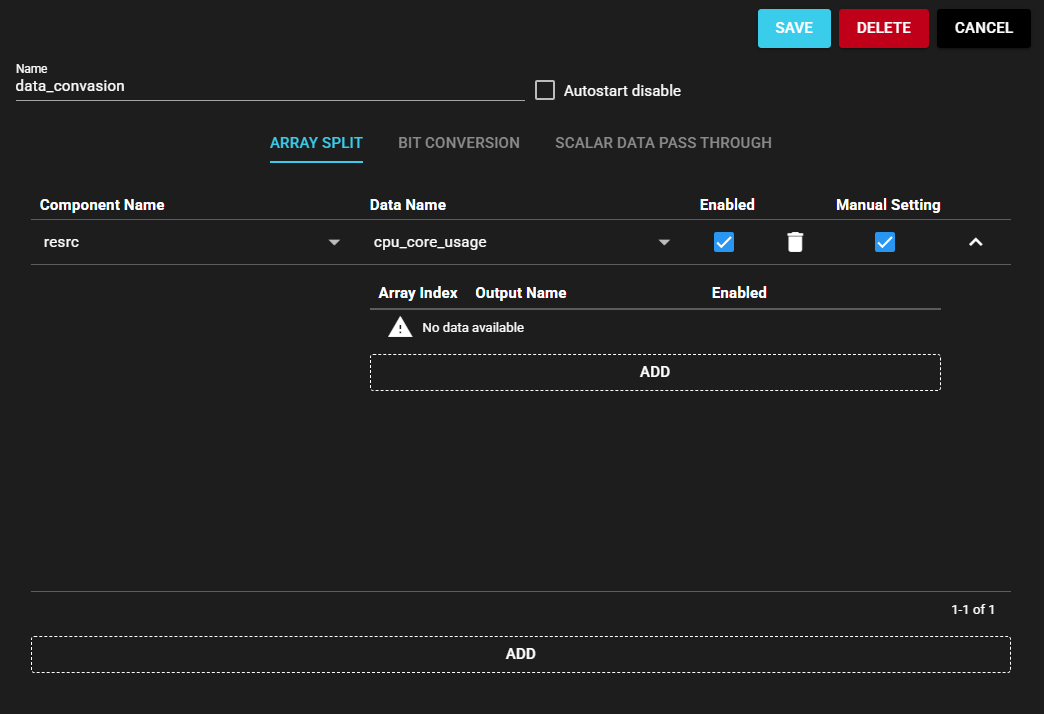
-
(Optional) Enter the data name to be output.
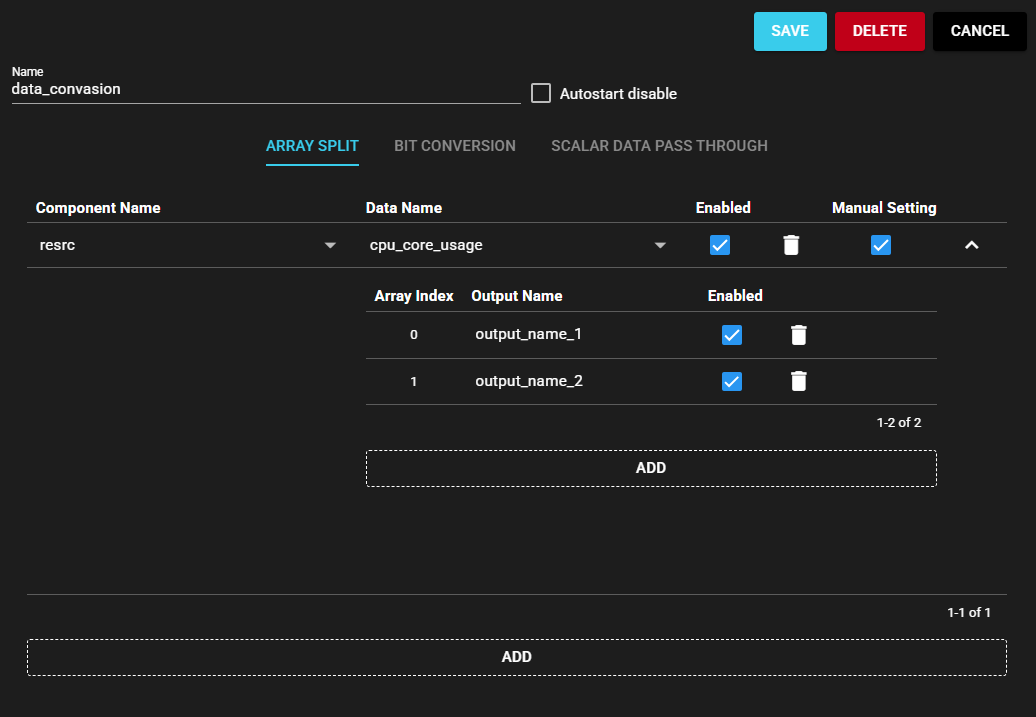
Item Description Array Index The array index is automatically assigned and displayed
(Not editable)Output Name Set the output data name Enable Set OFF to disable the set output data setting Delete Press this to delete the set output data setting -
Press Save.
-
Start the component. For more information on how to start components, see Start/Stop Components.
4.8.4.4 Setting Method (Bit Conversion)#
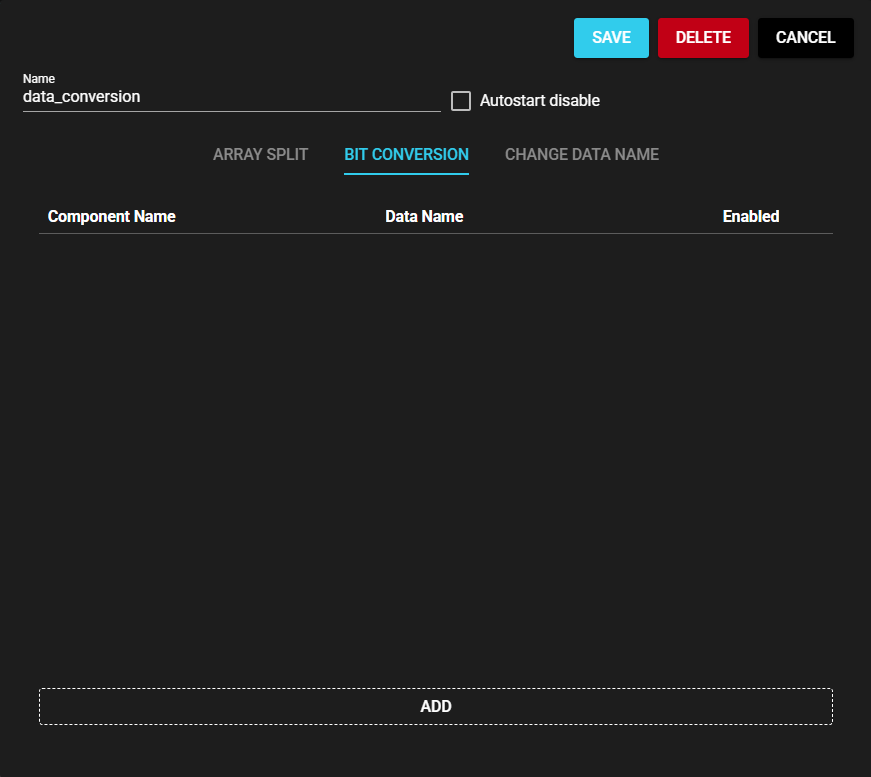
-
Press the Add button to add the input data field.
-
Enter the component name and data name to be input.
(Drop-down selection or manual entry)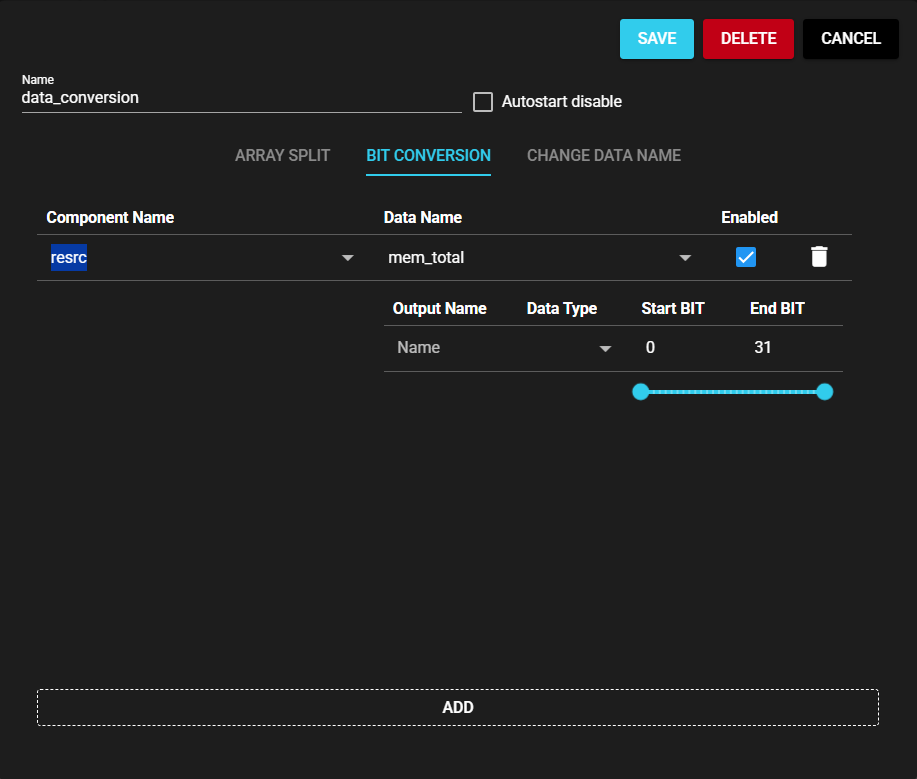
Item Description Component Name Set the component name connected to the input port Data Name Set the data name of the component name connected to the input port Enable Set OFF to disable the set input data setting Delete Press this to delete the set input data setting -
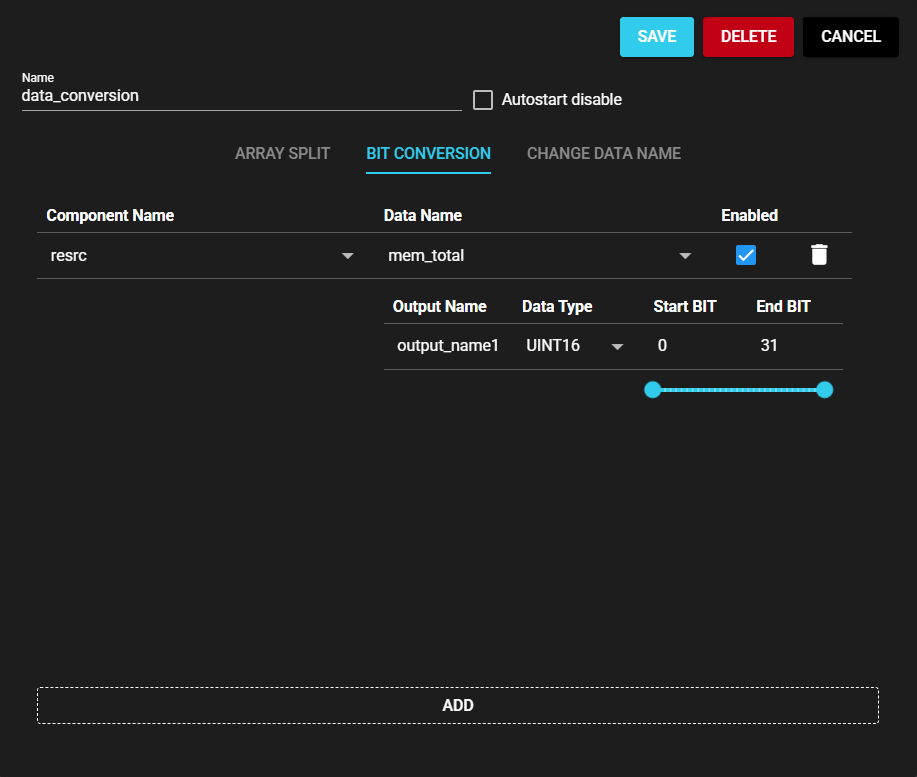
Enter the settings for the data to be output.
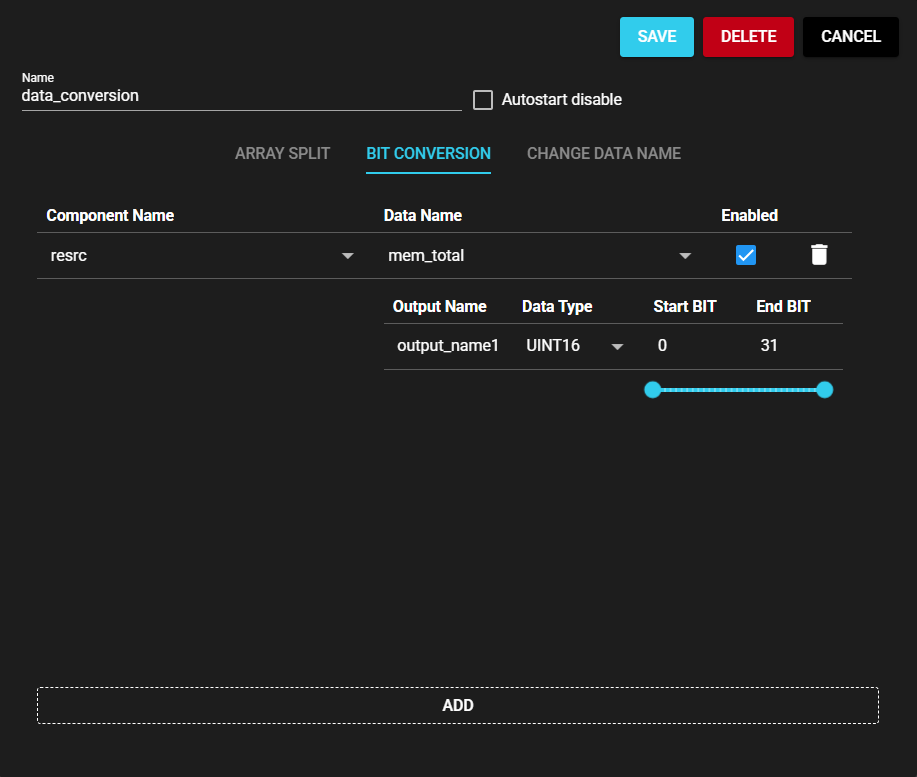
Item Description Output Name Set the output data name Data Type Set the data type to be output Start BIT Set the start BIT of the data to be retrieved from the input data.
Enter it manually or use the bit range setting.
The least significant bit is 0, and the most significant bit is 7, 15, 31, or 63, depending on the bit width of the input data type.End BIT Set the end BIT of the data to be retrieved from the input data.
Enter it manually or use the bit range setting.
The least significant bit is 0, and the most significant bit is 7, 15, 31, or 63, depending on the bit width of the input data type.Bit range setting This is linked with the start BIT and end BIT, and can be entered by either method.
The maximum value of the bit range depends on the input data type for scalar data, and on the number of input arrays for array data. -
Press Save.
-
Start the component. For more information on how to start components, see Start/Stop Components.
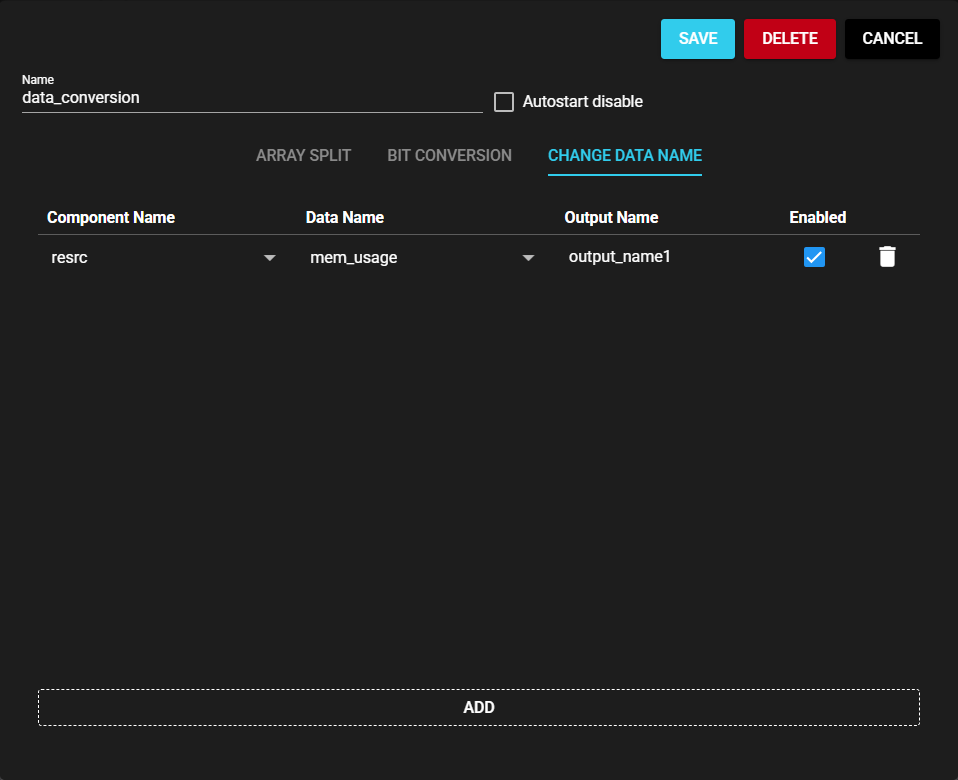
4.8.4.5 Setting Method (Change Data Name)#
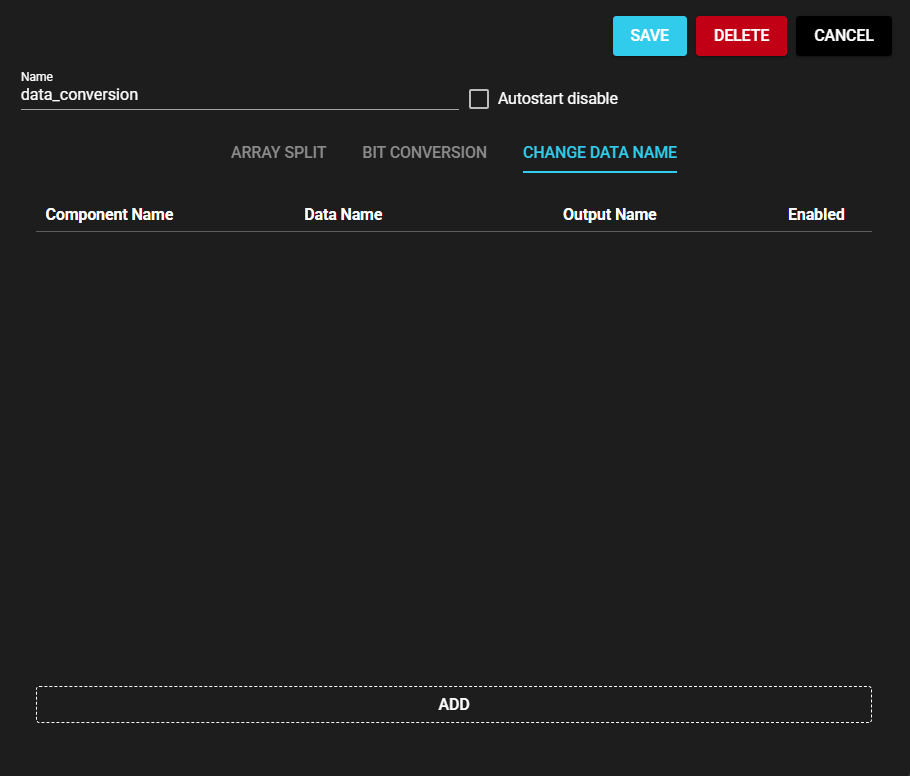
-
Press the Add button to add the input data field.
-
Enter the component name and data name to be input.
(Drop-down selection or manual entry)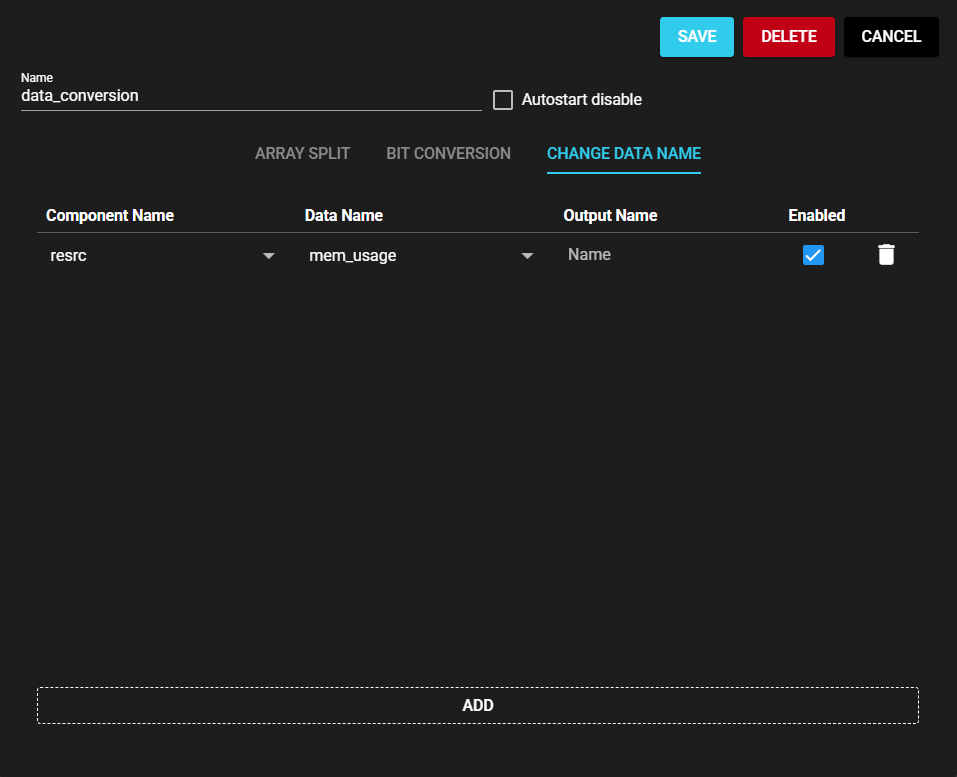
Item Description Component Name Set the component name connected to the input port Data Name Set the data name of the component name connected to the input port Output Name Set the output data name Enable Set OFF to disable the set input data setting Delete Press this to delete the set input data setting -
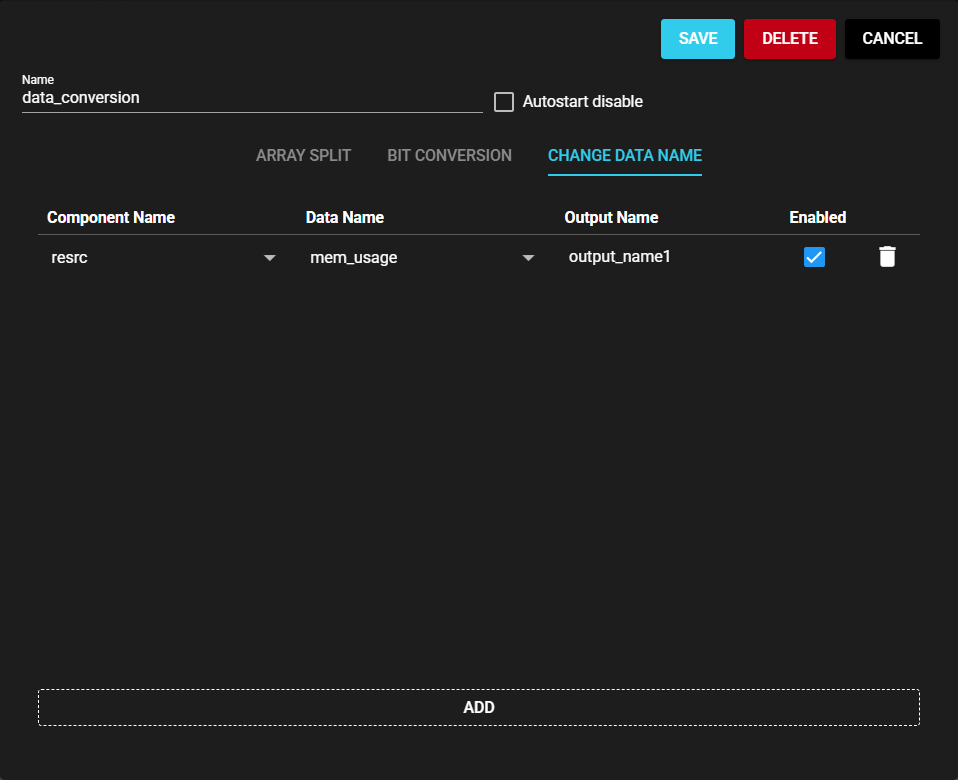
Enter the data name to be output.
-
Press Save.
-
Start the component. For more information on how to start components, see Start/Stop Components.