4.13 Status Timeline
This page explains the status timeline, which is a list of operating statuses.
4.13.1 Status list#
You can check the operating status by the component’s status lamp.
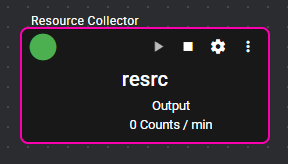
There are the following types of operating statuses:
| Lamp | Status name | Description |
|---|---|---|
 |
Normal | Component is running normally. |
 |
Warning | A problem has occurred, but the component is still running. |
 |
Error | A problem has occurred, and the component has stopped. |
 |
Stop | Component has stopped. |
 |
Stopping | Component is transitioning from running state to a stop state. |
 |
Load failed | No custom component is registered, or loading has failed, making it unable to use a component. |
4.13.2 Status timeline#
You can view the history of the components’ operating statuses. If a component has a Warning or Error status, you can check the error code.
4.13.2.1 View#
This section explains how to view the status timeline. You can either display the information of all components or the information of a specific component in the status timeline.
4.13.2.1.1 All components#
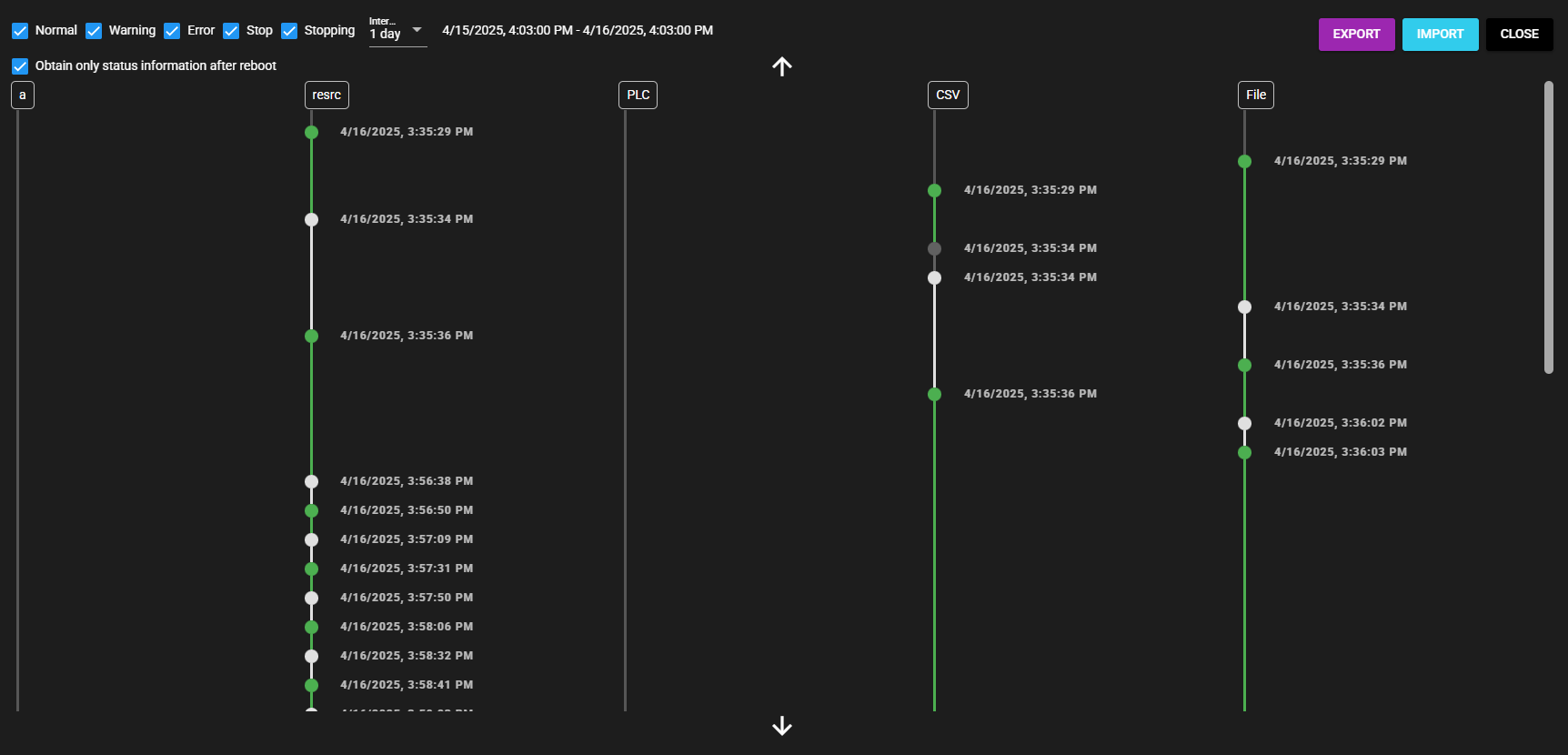
You can view a status timeline displaying the information of all components by following the steps below:
-
Press the Status Timeline icon.

-
The status history of all components is displayed.
-
Place the cursor over the Warning or Error status to view the error code.

4.13.2.1.2 Individual component#
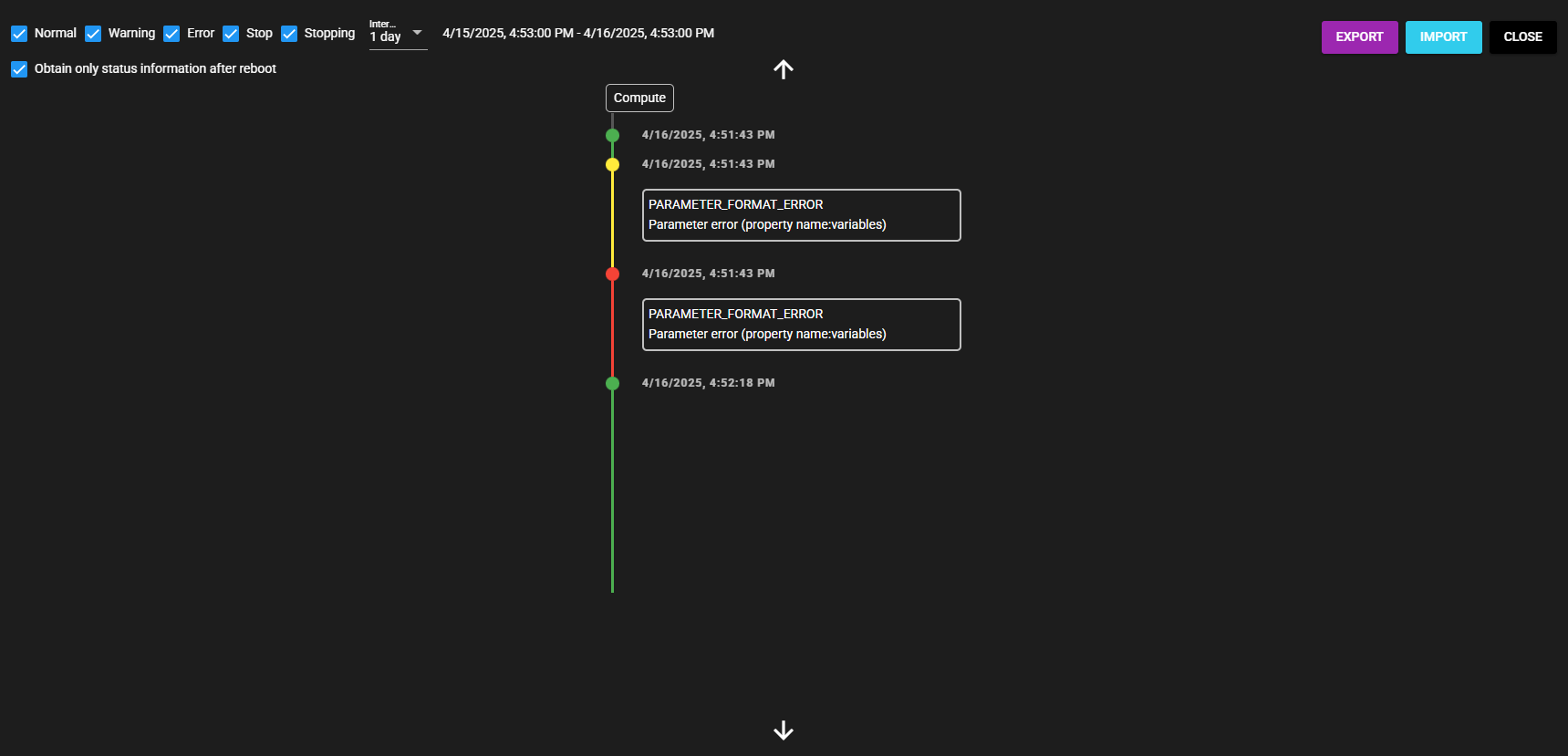
You can view a status timeline displaying a specific component by following the steps below:
-
Open the Status Timeline dialog using one of the following methods.
- Left-click the menu icon and select [Status Timeline].
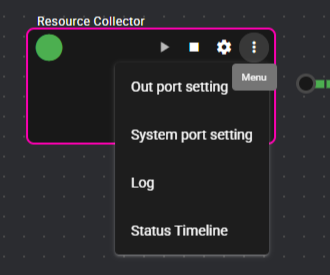
- Right-click the component and select [Status Timeline].

-
The status history of the individual components is displayed. An error code is displayed for Warning or Error status.
4.13.2.2 Refining the view#
This section explains how to refine the information to be displayed in the status timeline.
Display interval
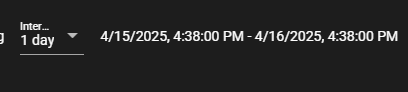
You can change the display interval of the status timeline by following the steps below:
-
Press [Interval].
-
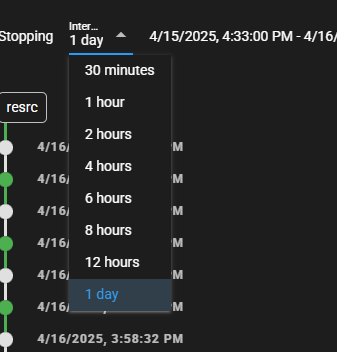
Select a time unit.
-
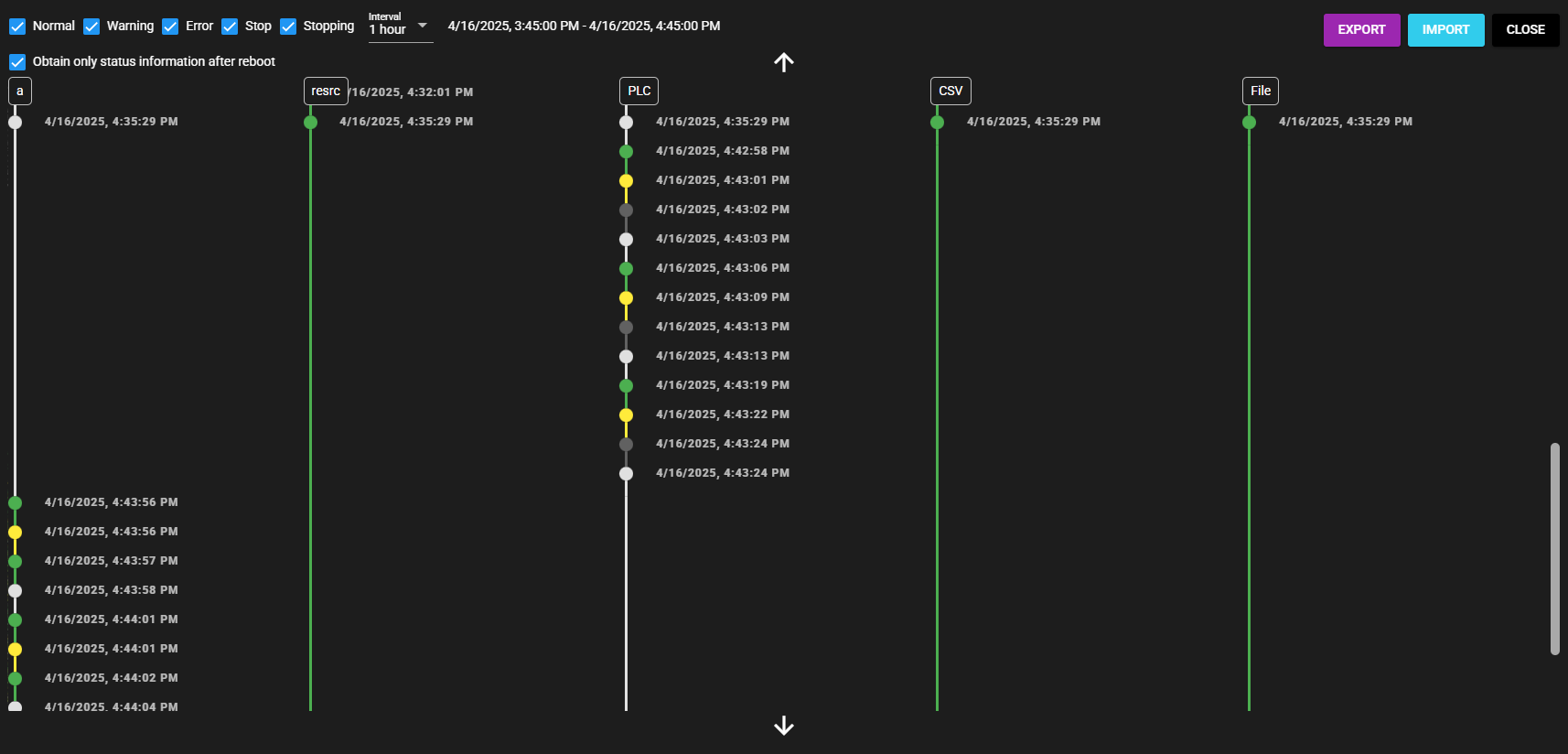
The status history is displayed within the range of the selected time unit.
-
Press the up arrow icon to view older history and the down arrow icon to view newer history.
Status
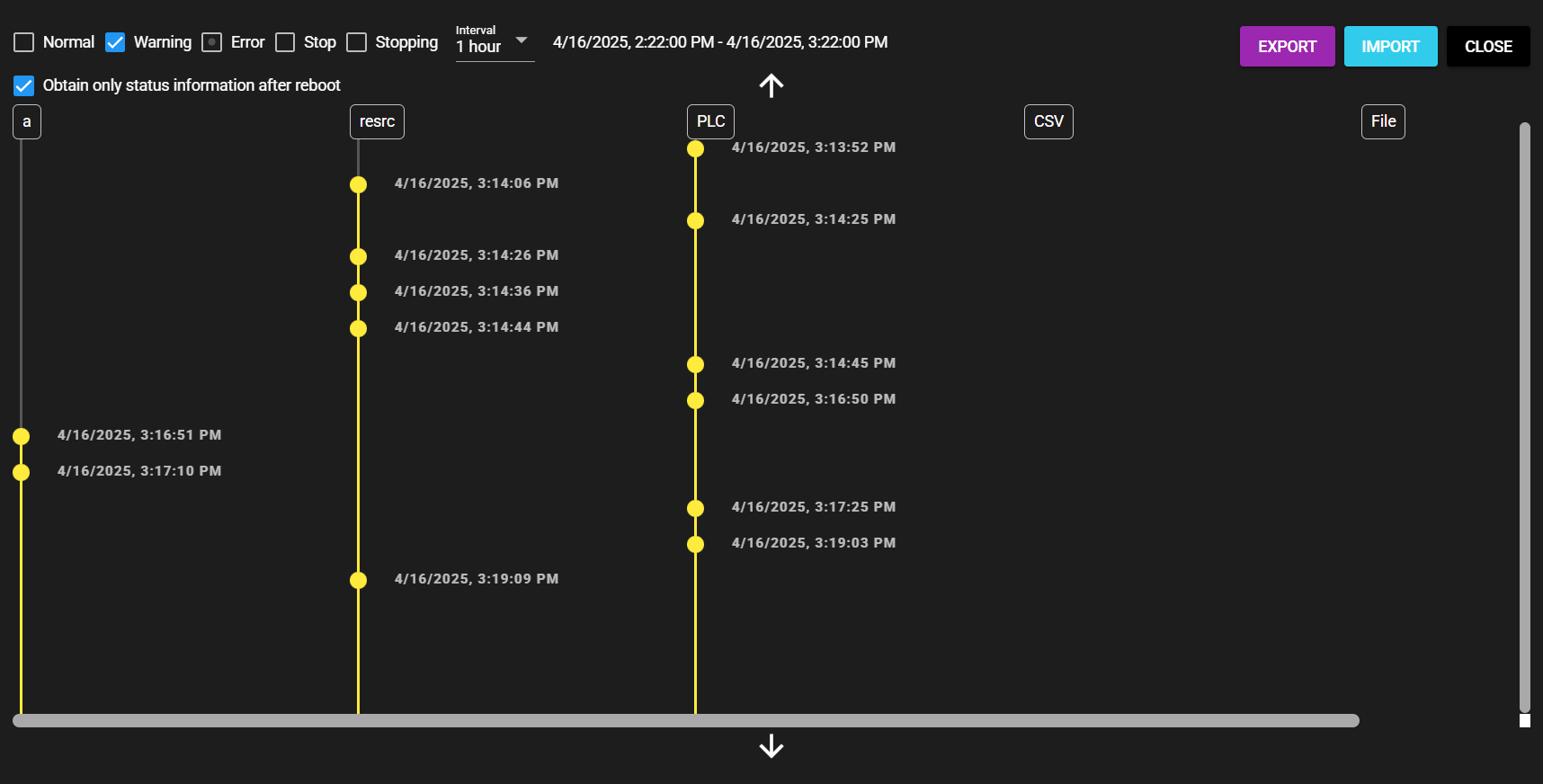
You can display only the specified status(es) in the status timeline by following the steps below:
-
Select or deselect status(es).

-
Of all statuses in the history, only the status types selected are displayed.
4.13.2.3 Export/Import#
You can output the displayed status timeline information to a file. By importing and displaying the output file in SpeeDBee Synapse on a different environment, you can share operating status information.
Export
Press [Export] to output the displayed status timeline information to a file.
Import
You can retrieve information from an exported file and view the status timeline by following the steps below:
-
Press [Import].
-
Select an exported file.
-
Information is retrieved from the file, and the status timeline is displayed.