9. Execution License
This chapter describes the SpeeDBee Synapse execution license.
9.1 License Types#
Describes the license types.
There are currently three types of licenses for SpeeDBee Synapse.
| Item | Description |
|---|---|
| Development license | This license allows all functions and operations of SpeeDBee Synapse. This license is usually used to build systems. Except for this chapter, the descriptions in this manual assume a development license. |
| Execution license | This license is for an execution environment in which some of the functions of SpeeDBee Synapse can be used. Under this license, you can take over the configuration built by the development license and run it in multiple environments. |
| Evaluation license | This is a license to run SpeeDBee Synapse for evaluation purposes. There is a limit of one hour of continuous operation after a component has been started. This is a license used for evaluation purposes before purchasing SpeeDBee Synapse. |
About Execution Licenses
An execution license cannot be used by itself. You must operate with at least one development license.
9.2 Operating specifications of the execution license usage environment#
This section describes the operating specifications of SpeeDBee Synapse with an execution license.
The table below shows the availability of typical functions for development licenses and execution licenses.
| Item | Development License |
Execution License |
|---|---|---|
| User Management/Authentication | ○ | ○ Note: Development license user information is not taken over. |
| Grafana Collaboration | ○ | ○ Note: Development license settings are not taken over. |
| Custom Components (Python, C) | ○ | ○ Note: You must manually configure custom components and external modules |
| External Control Web-API | ○ | ○ |
| Publish access token | ○ | ○ Note: Development license settings are not taken over. |
| Encrypt communication | ○ | ○ Note: Development license settings are not taken over. |
| DB query service | ○ | ○ Note: Configuration is taken over, but token authentication must be manually reconfigured on the Execution license side. |
| Run Mode | ○ | ○ |
| Edit Mode | ○ | △ Note: It's available on a limited basis. |
| Adding, Updating and Deleting Panels | ○ | × |
| Register New Component | ○ | × |
| Configuration updates for configured components | ○ | ○ |
| Deleting Configured Components | ○ | × |
| Adding and Deleting Flow Links | ○ | × |
| Configuring Various Ports | ○ | ○ |
| Filter Settings | ○ | × |
| Data monitor | ○ | ○ |
| Status Timeline | ○ | ○ |
| Log | ○ | ○ |
| Execution license configuration Download |
○ | × |
| Project Settings | ○ | × |
Importing settings for execution licenses between different OSs
If the OS of the development license operating environment and the execution license operating environment are different, some settings are automatically converted when the settings for the execution license are imported. Note, however, that the settings other than those listed below are not converted, so you may need to reconfigure them manually.
-
For the case of Linux on the development license side -> Windows on the execution license side
Converts the path in the configuration file to:
/var/speedbeesynapse -> C:\ProgramData\SALTYSTER\SpeeDBeeSynapse -
For the case of Windows on the development license side -> Linux on the execution license side:
Converts the path in the configuration file to:
C:\ProgramData\SALTYSTER\SpeeDBeeSynapse -> /var/speedbeesynapse
Note: If there is any abnormality after importing the settings, manually reconfigure them.
9.3 Execution license operation method#
This section describes how to use execution licenses.
9.3.1 Operation Flow#
The following figure shows the operation flow for execution licenses.
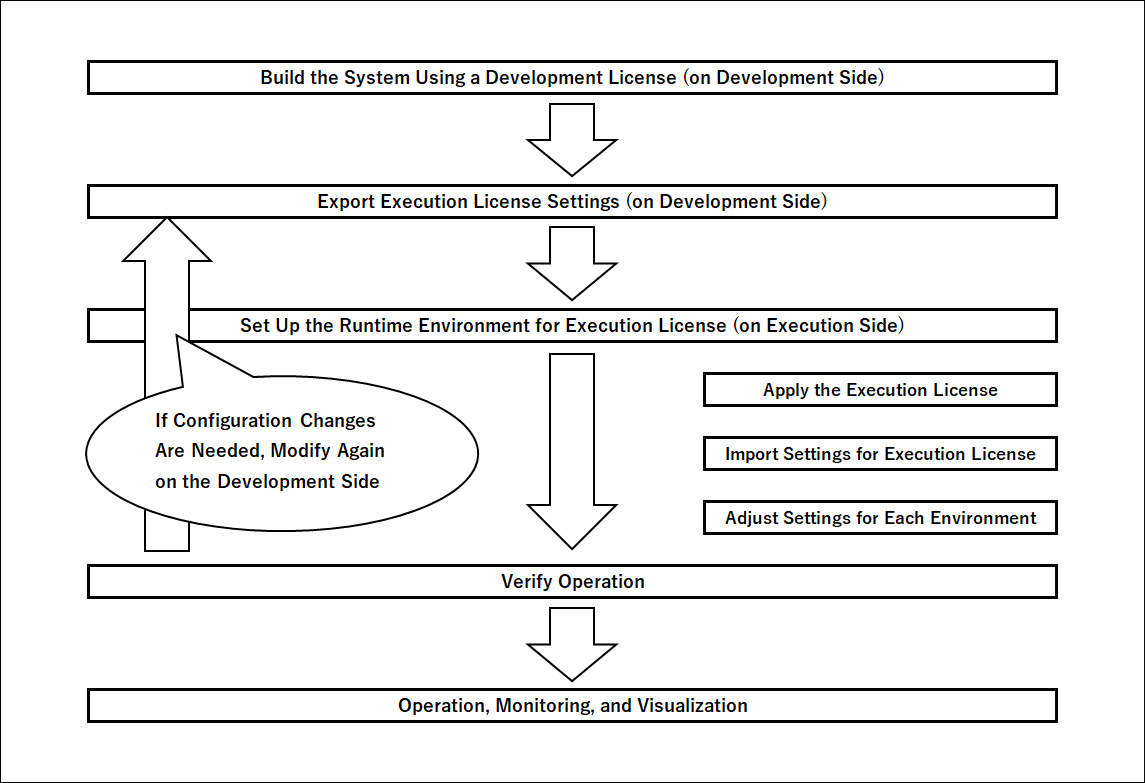
(1) System building using a development license (at the side of development license operations)
First, build a system using SpeeDBee Synapse with a development license. Set the data flow such as data collection, output format, data transmission and linkage. The specific settings depend on the purpose of the system, but refer to the Installation flow for reference.
(2) Output of execution license settings (development license side operations)
After setting the data flow to be used with the execution license, output the execution license setting. This operation is only available for SpeeDBee Synapse with a development license.
(3) Execution license Setting up the operating environment (operations on the execution license side)
Set up the operating machine for the execution license and install SpeeDBee Synapse. After installation, apply the purchased execution license. This applies the settings for the execution license, but you might need to specify settings for each execution license operating environment. For example, it may be necessary to set the IP address of an external device according to the usage environment.
(4) Operation check
After setting up the operating environment for Execution license, actually start the system. Make sure that the settings of the external device are correct. Note that you cannot use this operation to create a new data flow by adding a new component. If you need to reconfigure the system, you need to (1) build the system using the development license, and (2) output the execution license configuration again to import the settings for the execution license.
(5) Operation, monitoring and visualization
Start up the operation in the operating environment of execution license. If it becomes necessary to change the data flow, perform the operation on the development license side again, and change the settings according to this procedure.
9.3.2 Quick Tutorial#
This section describes the procedure for creating an actual execution license operating environment. This tutorial assumes that the machine on which the development license is running and the machine on which the execution license is running are located in the same network. It is assumed that SpeeDBee Synapse has already been installed.
The data flow used in this tutorial is as follows:
| Item | Description |
|---|---|
| Production Line A | Data collected by PLC collector is sent to outside by MQTT in JSON format. |
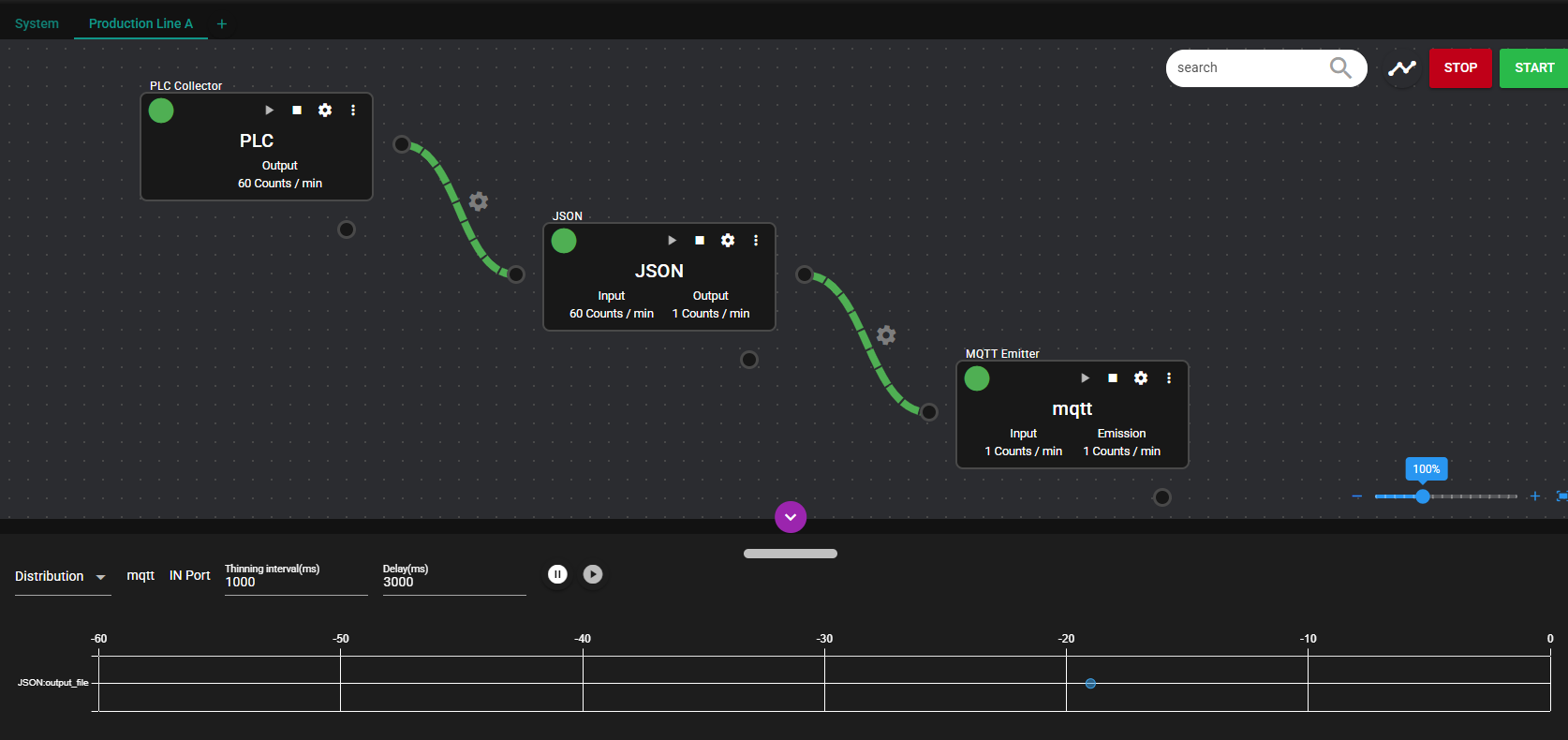
9.3.2.1 Building a System Using a Development License#
This operation is only available for SpeeDBee Synapse under a development license. Use the following instructions as a reference to configure the PLC collector, JSON serializer and MQTT emitter.
-
Select “Panel 1” and click “Panel Setting” on the right-click menu.
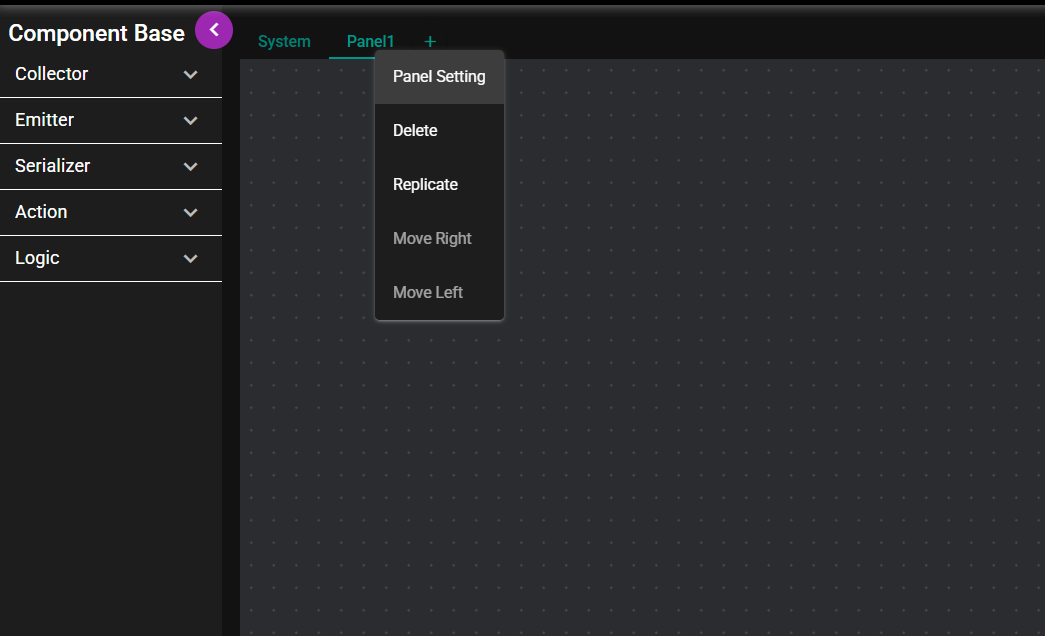
-
Change "Panel 1" to "Production Line A" and save.
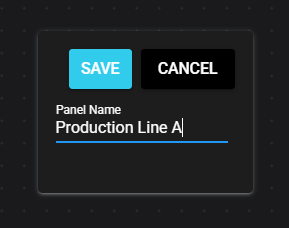
-
Configure the PLC collector settings. Drag and drop “PLC Collector” from the left side of the Flow Editor to the center of the Flow Editor.
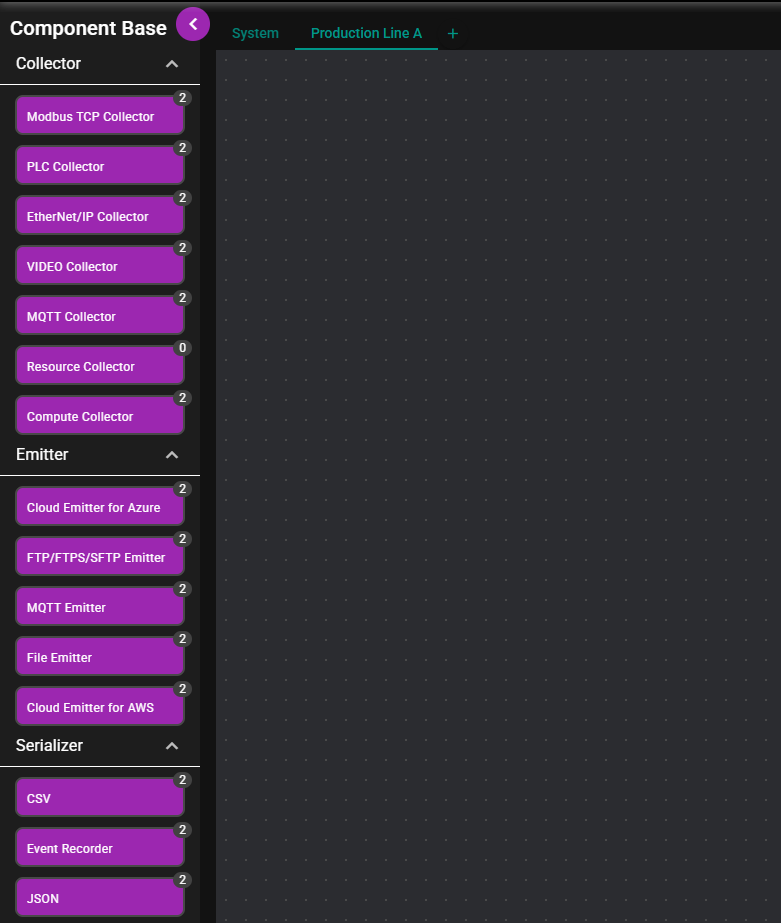
-
Enter settings for the PLC collector and click “Save.” Please adjust the IP address, port and data according to your environment.
(Note: If the PLC collector is not available, replace it with a resource collector.)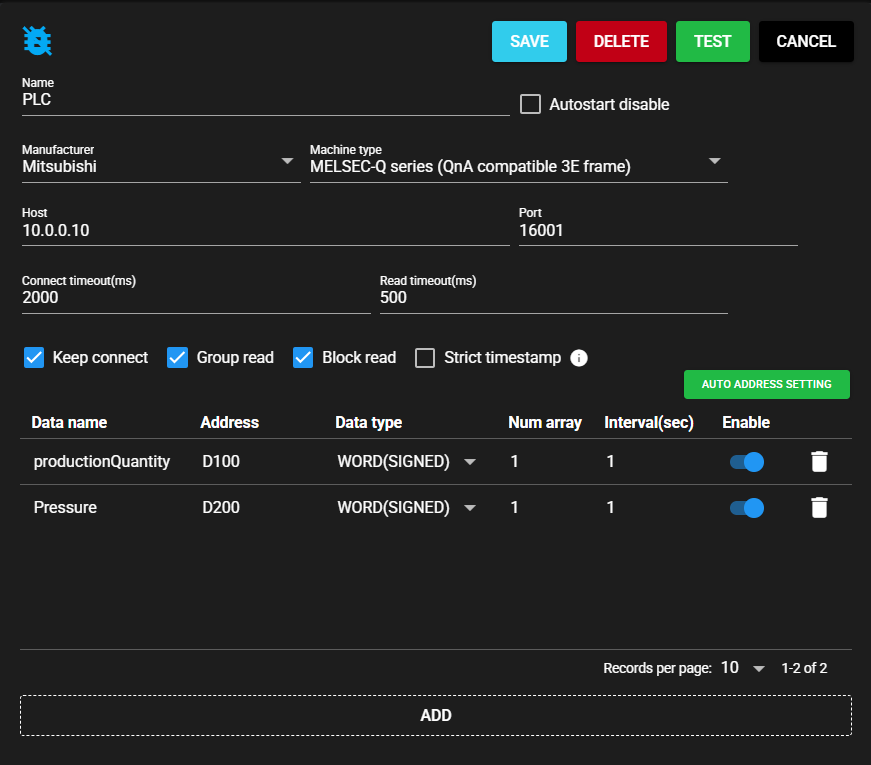
-
Configure the serializer. Drag and drop "JSON" from the left side of the Flow Editor to the center of the Flow Editor.
-
Enter the JSON settings and click “Save.”
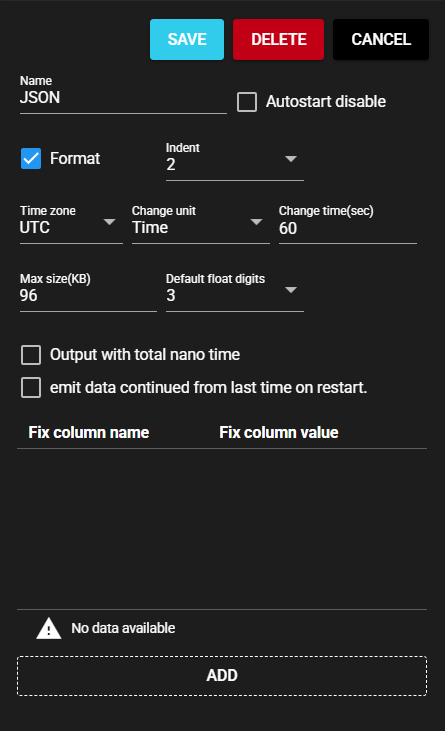
-
Configure the MQTT emitter. Drag and drop the “MQTT Emitter” from the left side of the Flow Editor to the center of the Flow Editor.
-
Enter the MQTT emitter settings and click “Save.” Please adjust the IP address, port and so on according to your environment.
(Note: If the MQTT emitter is not available, replace it with a File emitter and so on.)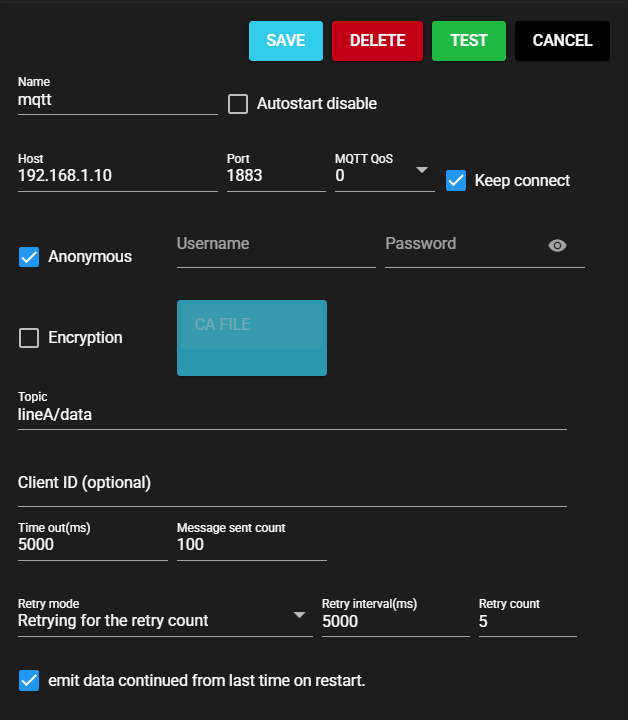
-
Connect flow links.
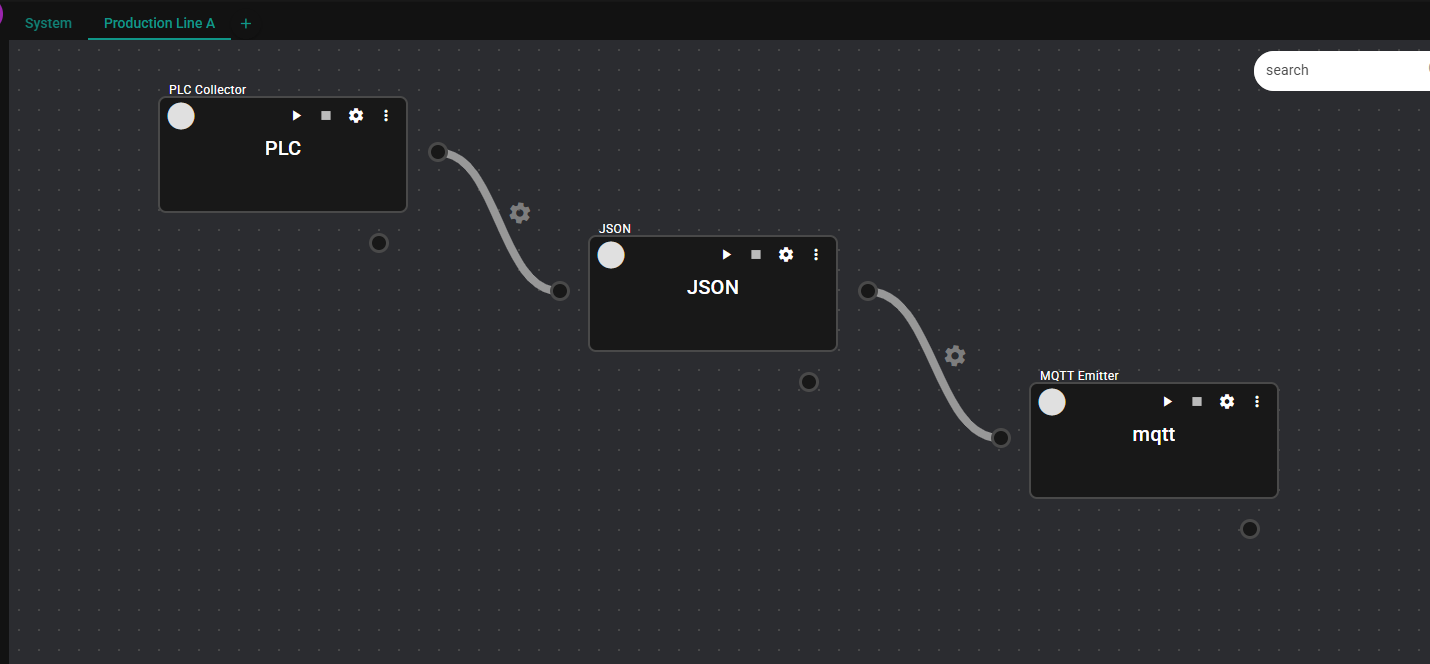
-
Make the component work. Verify that each component works properly. Let it operate for a certain period of time and check whether any abnormality occurs.
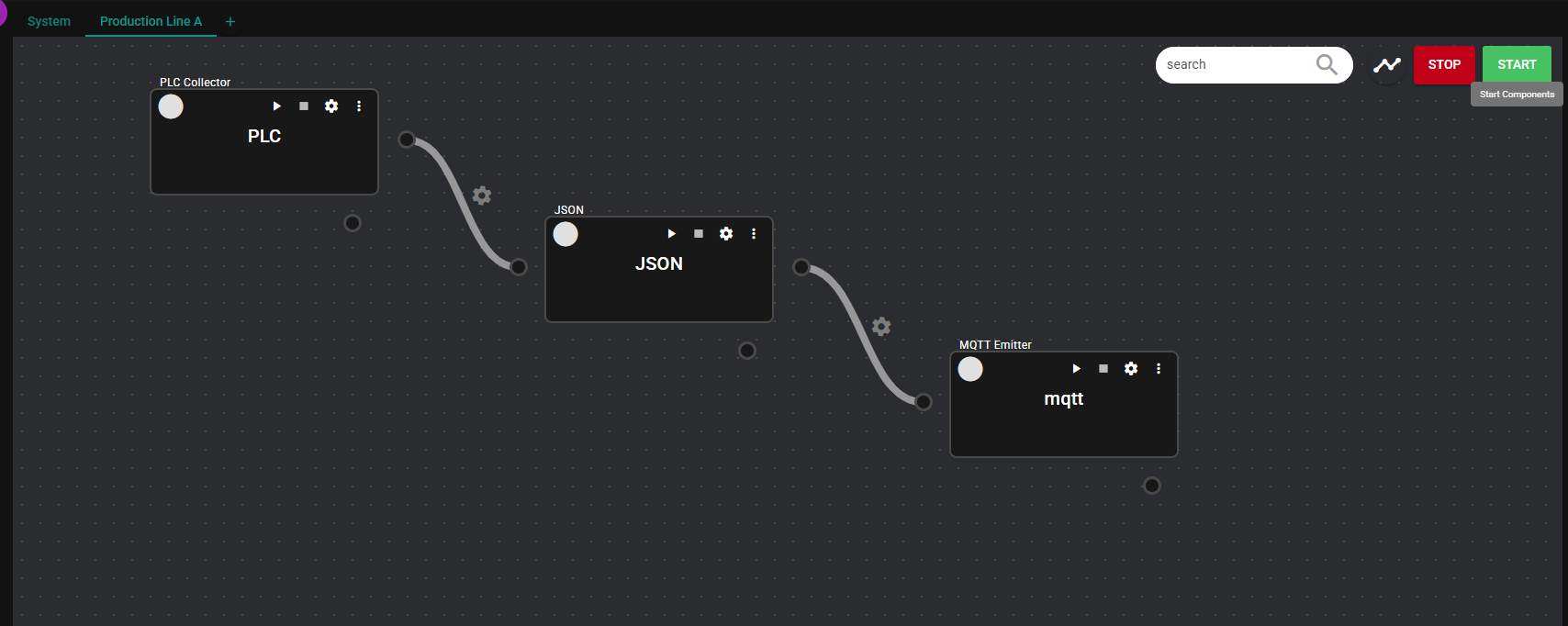
-
When you have verified that everything is working properly, stop the components.
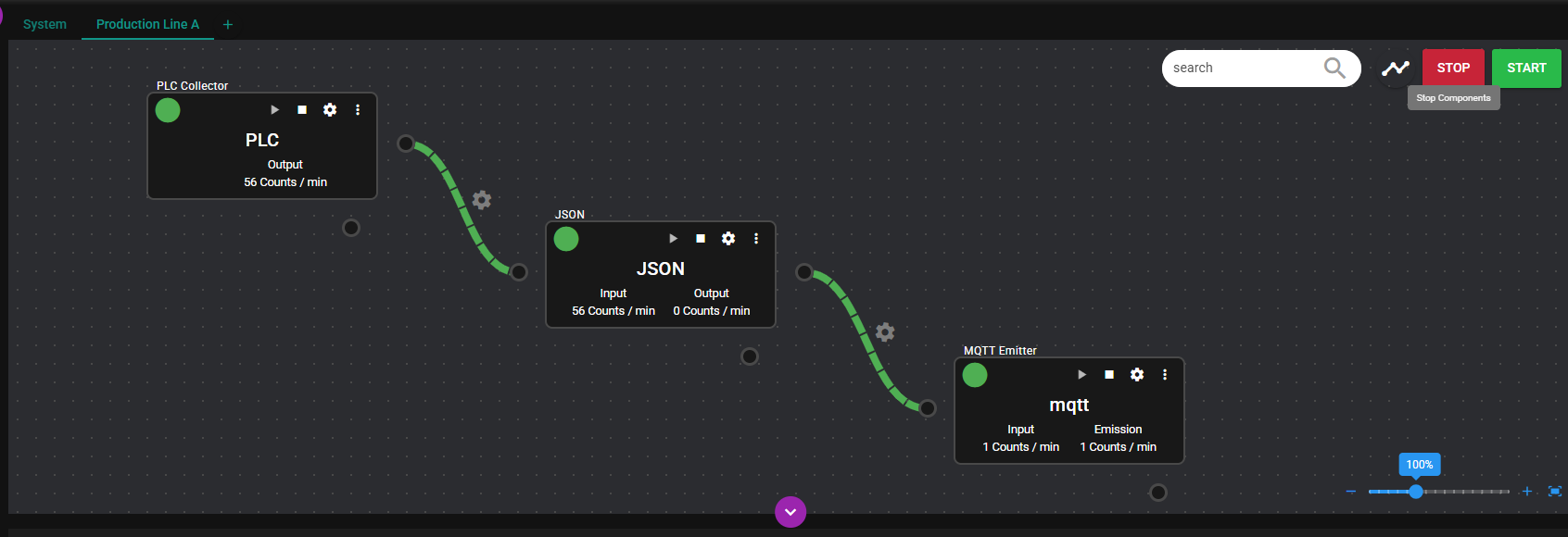
9.3.2.2 Output of execution license settings#
After setting up in the development license operating environment, output the settings for the execution license.
-
Click “Download execution license configuration” in the Setting menu. This file is used in the execution license operating environment.
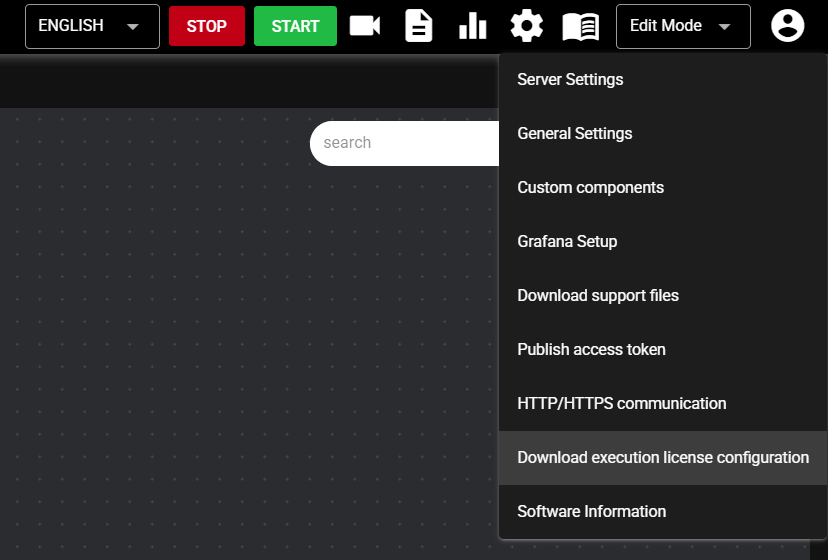
-
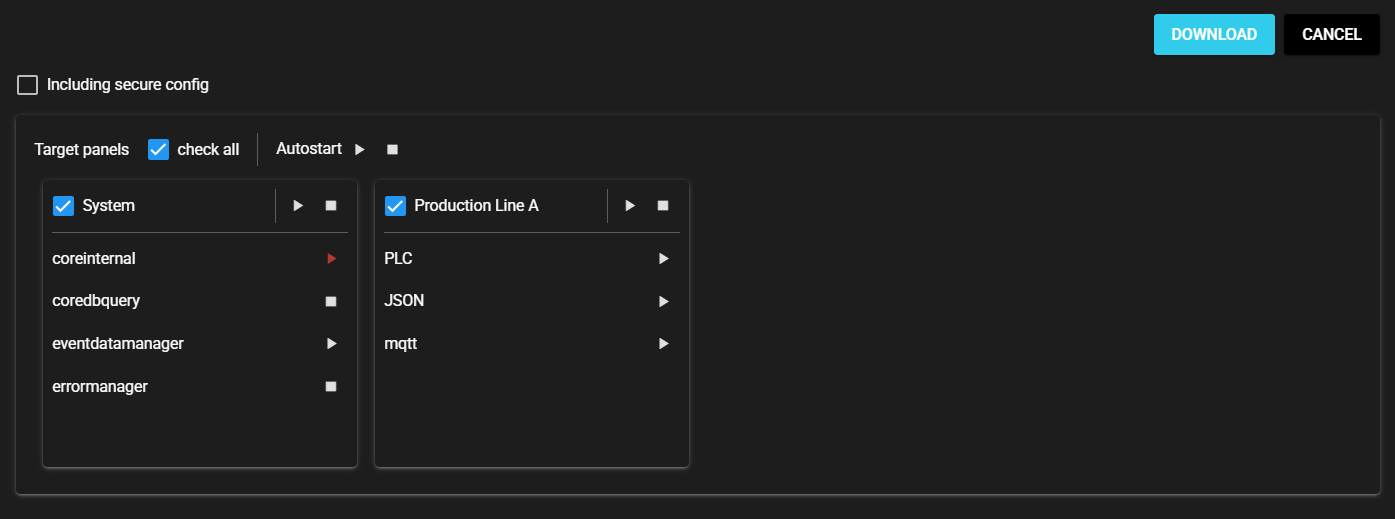
In the confirmation dialog box, click “Download.” If you want to include confidential information, check “Including secure config” before clicking “Download.” If you want to include only selected panels, check on the panels to include. You can also specify the initial Autostart settings. ⯈(Autostart) ◼ (Autostart disable)
About confidential information
When you perform Download execution license configuration that includes confidential information (For example, Azure connection strings, user names such as MQTT, and passwords), be aware that confidential information is included in the output file.
The certificate file set for each component and the file attached to the custom component are also treated as confidential information. If you do not include confidential information, it is not outputted, so you must set confidential information individually on the machine running the execution license. -
A file similar to the following is downloaded: The file name format is "execution_license_package_year_month_date.pkg."

9.3.2.3 Setting up of the execution license operating environment#
The settings for the execution license operating environment are performed. Set the SpeeDBee Synapse to Edit Mode.
-
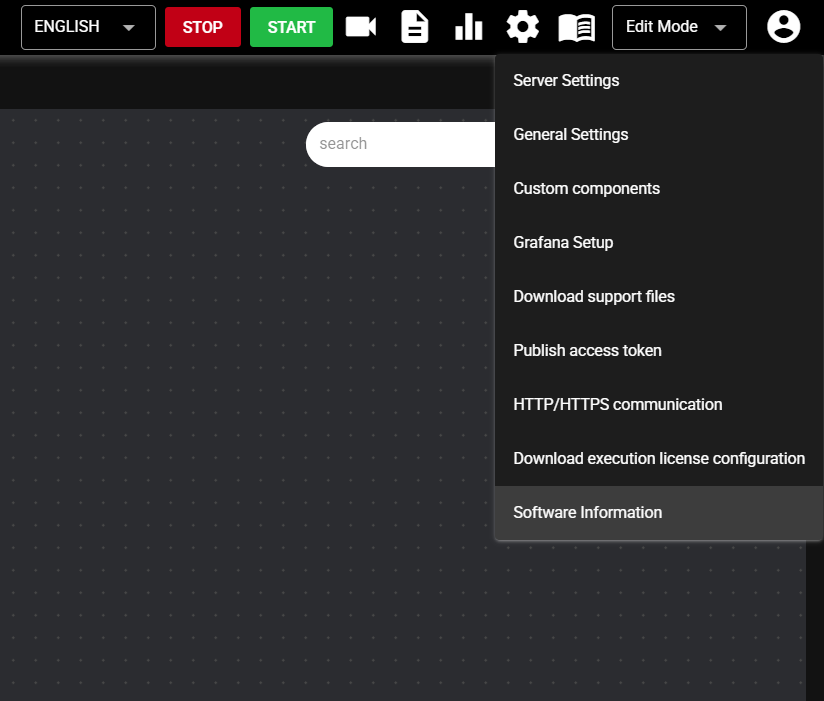
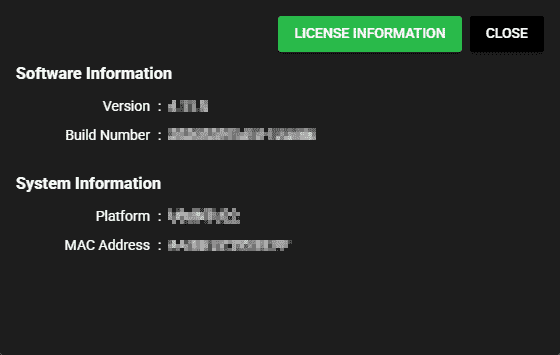
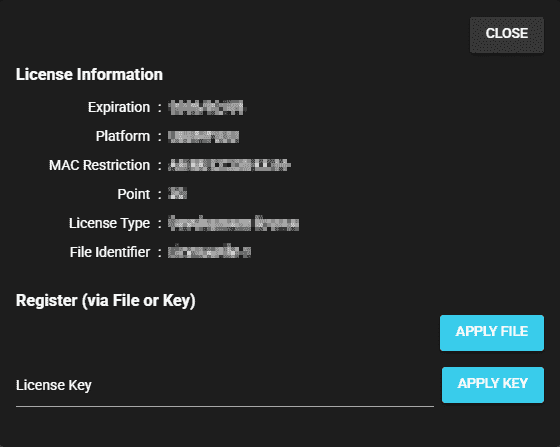
Register your license from the “Software Information” in the Settings menu.
-
Review the message and, if acceptable, click Yes.
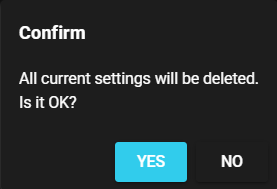
-
Import the execution license configuration file. Click “Apply Execution License Configuration File”
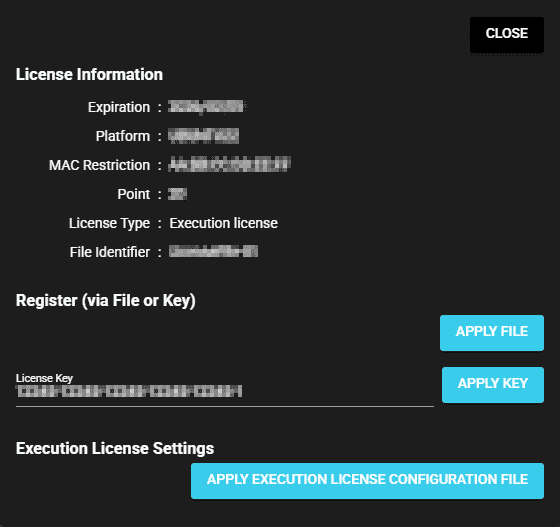
-
Select the configuration file for the execution license.
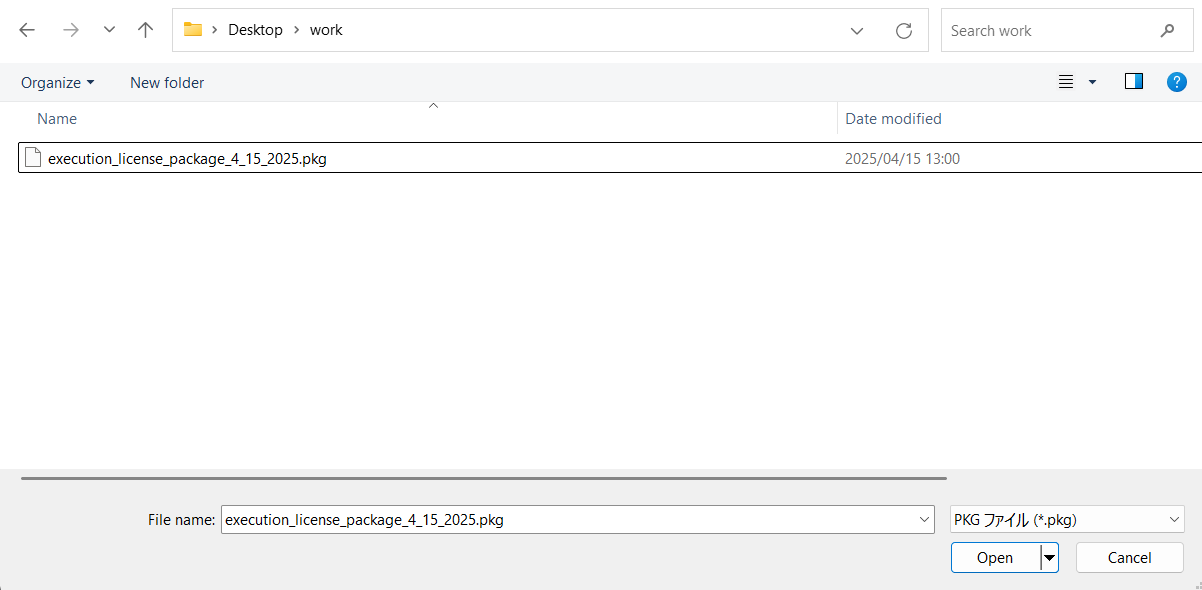
-
Review the message and, if acceptable, click Yes.
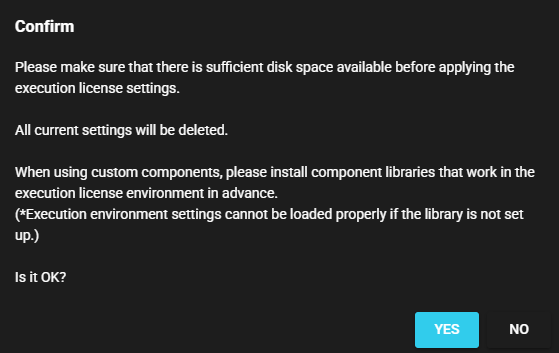
-
After a certain amount of time, the component starts.
(Note: To check the display, close the "Software Information" window.)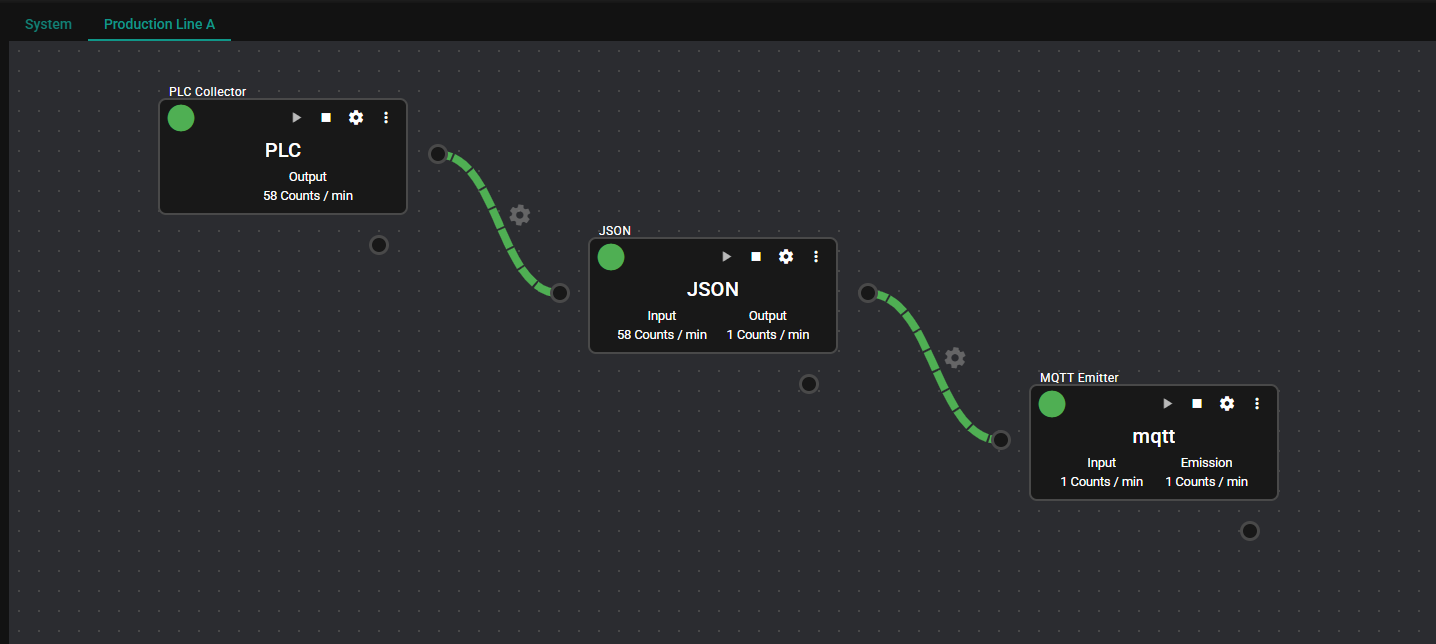
About components containing confidential information
If you import settings for an execution license that do not contain confidential information, those confidential information are not included, and thus components that require confidential information are disabled for automatic startup. For confidential information and attached files, reconfigure them individually.
-
Modify the PLC Collector settings as desired. For example, if the connection destination is different between the machine on which the development license is used and the machine on which the execution license is used, specify the settings.
(Note: Since the tutorials assume the same network environment, you do not need to change the settings if the development license side is stopped.) -
Modify the MQTT collector settings as needed. For example, if the connection destination to MQTT broker is different between the machine on which the development license is used and the machine on which the execution license is used, specify the settings.
(Note: Since the tutorials assume the same network environment, you do not need to change the settings if the development license side is stopped.)
9.3.2.4 Operation Check#
Confirm that the settings up to the previous section work correctly.
- Check the component lights. Verify that there are no warnings or errors. Review the settings if there are any problems.
9.3.2.5 Operation, Monitoring and Visualization#
When it is confirmed that normal operation is possible with the settings up to the previous paragraph, start operation.
See the Introduction flow for monitoring and visualization.
This concludes the tutorial on operating an execution license.
9.4 Notes on the execution license operating environment#
Notes on the execution license operating environment are shown below.
Notes
- When you apply an execution license, the operating mode is in accordance with the execution license and the available functions are restricted. (Reference: Operating specifications of the execution license operating environment)
- When you import the settings for the execution license, the previous settings of the selected project are deleted. (Custom components and external modules are not deleted.)
- When switching to the execution license, all projects that are not selected are deleted. Export the projects you want to keep beforehand. (Reference: Export)
- The access token settings of the development license side are not taken over. Also, the access token generated on the execution license side is not deleted even when the settings for the execution license are imported.
- The settings of the DB query service are taken over by the execution license side. However, since the access token used for token authentication is not taken over, they must be configured on the execution license side.
- If the execution license configuration uses custom components or Python external modules, they must be configured before importing the execution license configuration.
- Before importing the settings for the execution license, check whether there is enough free storage space on the operating machine. If the storage capacity is insufficient, acquisition of settings for the execution license will fail.
- To perform user management in an execution license operating environment, you must perform user management for each operating environment. Development license settings are not taken over.