10.4 Video Viewer for Video Playback
This section explains the Video Viewer for playing back recorded video.
10.4.1 Video Viewer Access#
You can open the Video Viewer for video playback in the following ways:
-
URL direct typing
You can access the following URL from your browser to open the Video Viewer for video playback.
-
http://{Host name or IP address of the device}:8120/video-viewerExample)
http://192.168.1.3:8120/video-viewer
-
-
Transition from SpeeDBee Synapse screen
You can open the Video Viewer for video playback by pressing the transition icon to the Video Viewer for video playback in the header of SpeeDBee Synapse. This icon is displayed only when i-Trigger is enabled.

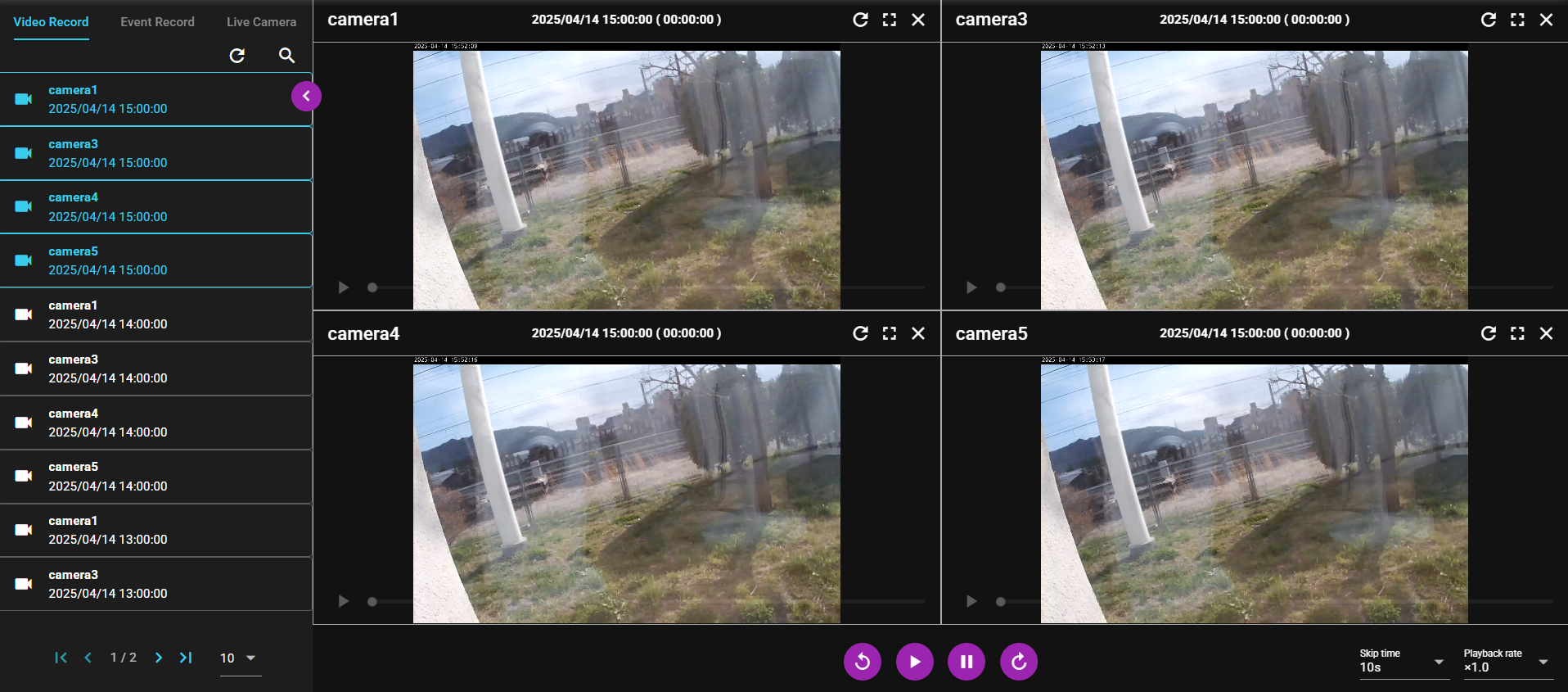
When the screen is opened, the Video Record Play screen is displayed first. By selecting a tab from the menu on the left, you can switch between the screens you are viewing.
10.4.2 Video Record Play#
A Video Record is a video that is constantly being recorded while the VIDEO Collector is running. You can play back a Video Record.
10.4.2.1 List#
Video Records are listed on the left side of the screen. By default, all video recordings prior to the date and time you open the screen will be displayed. You can also perform a search by following the steps below.
-
Press the magnifying glass icon.

-
Input the following items.
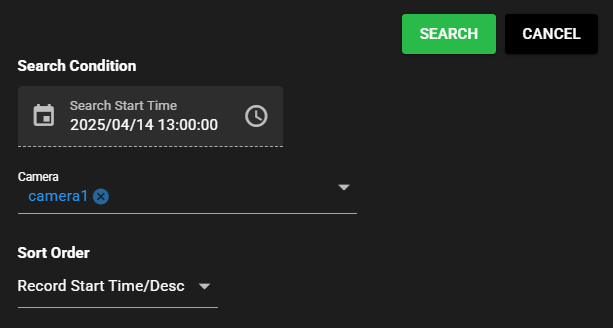
Item Description Search Start Time The time range to search for.
Note: You can search for video recordings up to the time you input.Camera Name of the VIDEO Collector to search for Sort Order Combination of sort key and order
Note 1: The sort key is selected from the following.
- Record Start Time
- Camera Name
Note 2: The sort order is selected from the following.
- Asc
- Desc -
Press Search.
-
The results of your search will be displayed.
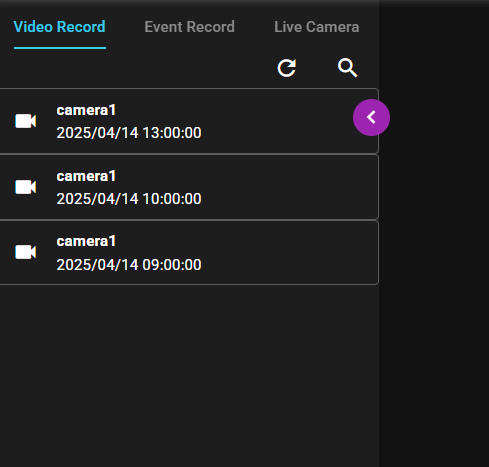
The items displayed are as follows:
- VIDEO Collector name
- Record Start Time
-
Press the refresh icon to search again with the same criteria. In addition, refresh is performed automatically at an interval of once every 30 seconds.
-
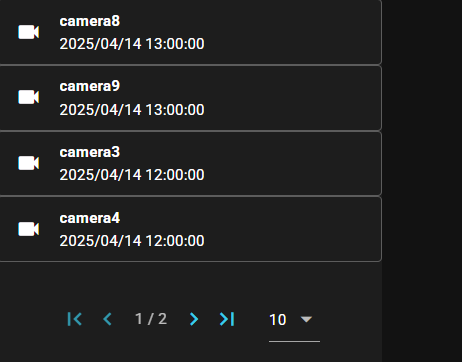
If there are many items to be displayed, they will be displayed on multiple pages. You can select the number of items to be displayed per page from 10, 100, or 1000.
10.4.2.2 Play#
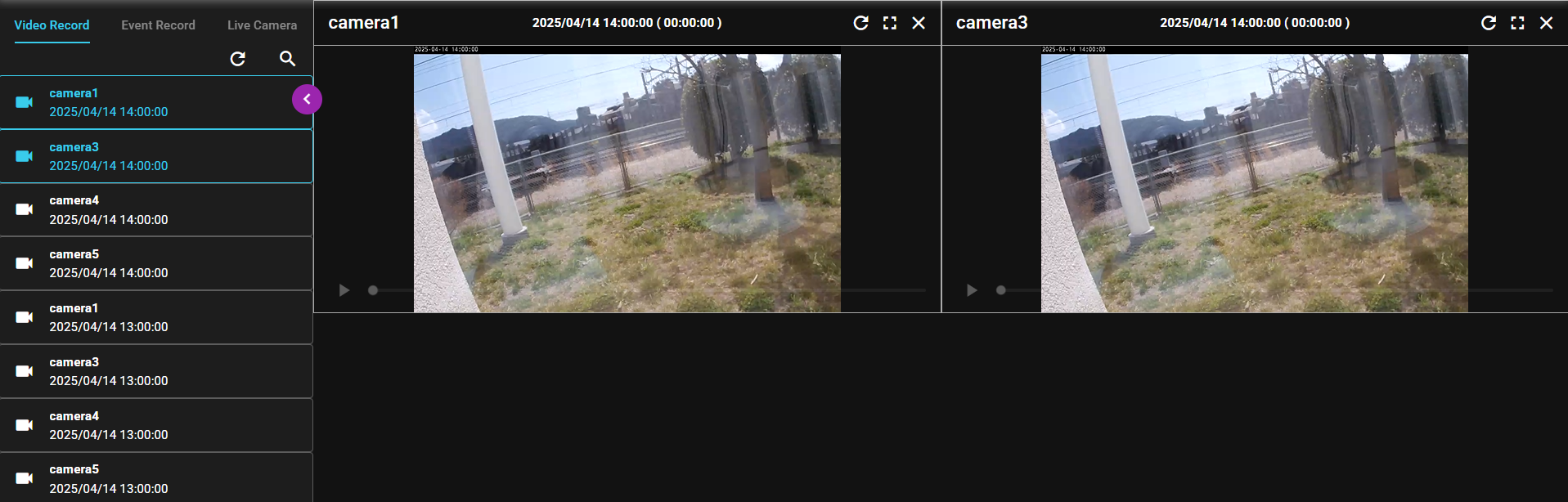
You can play back a Video Record image by following the steps below. It can also simultaneously play back 10 recorded videos.
-
Drag a Video Record image in the list and drop it on the right side.
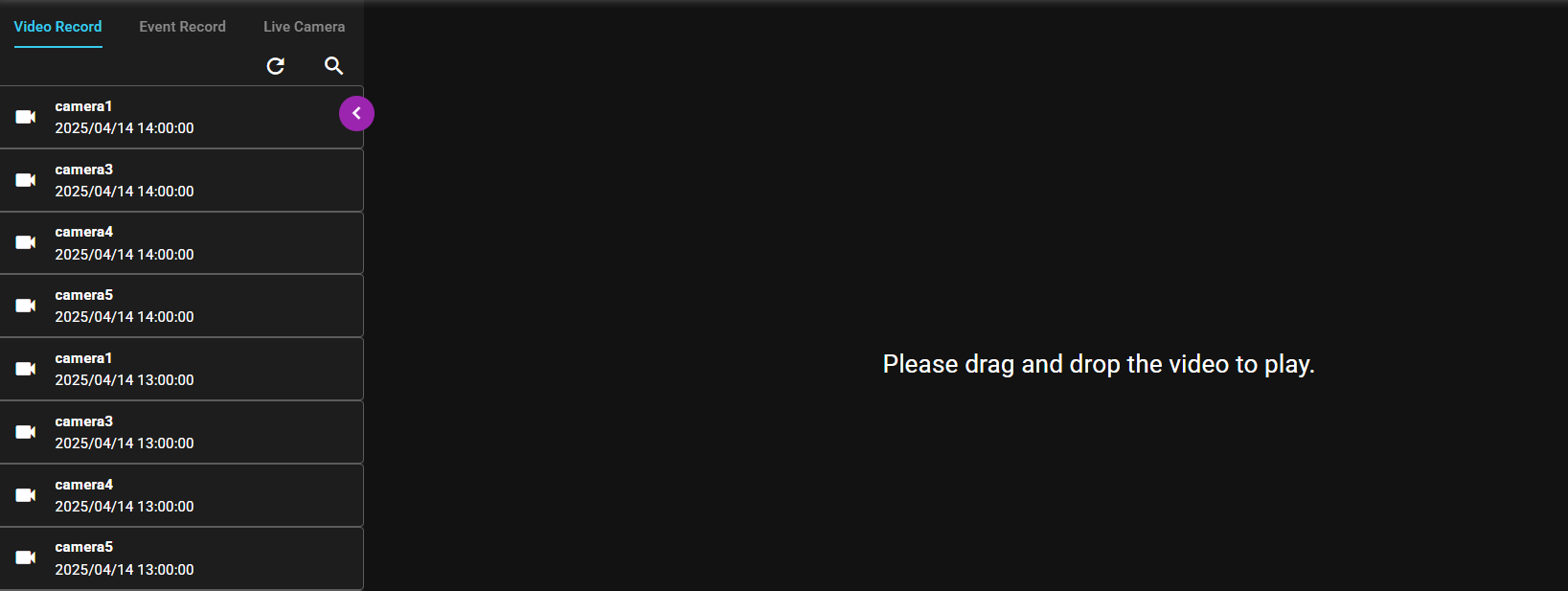
-
The Video Record image will be displayed. After the video loading is complete, you can play the video by pressing the Play icon.
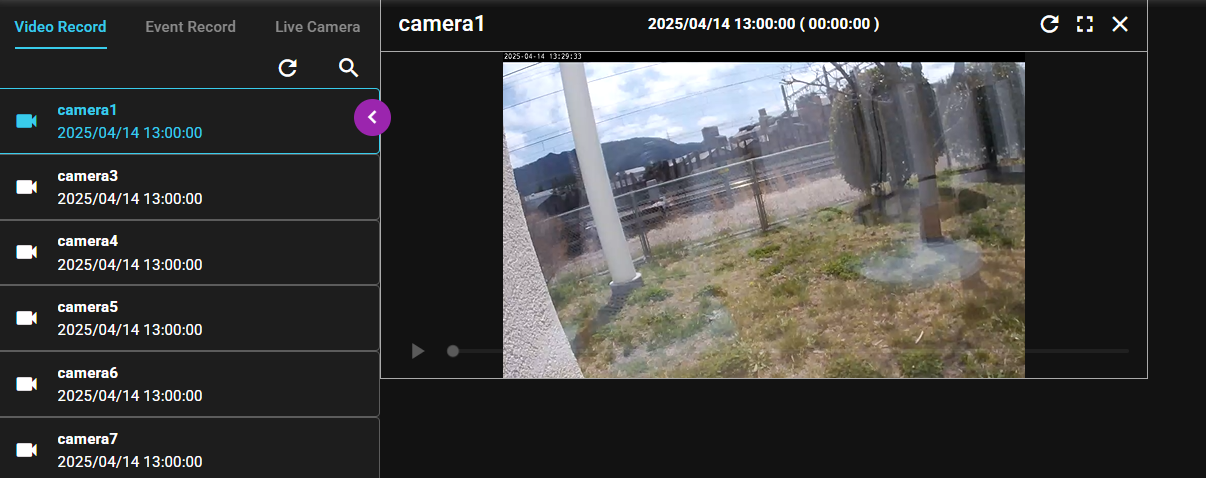
The screen items are as follows:
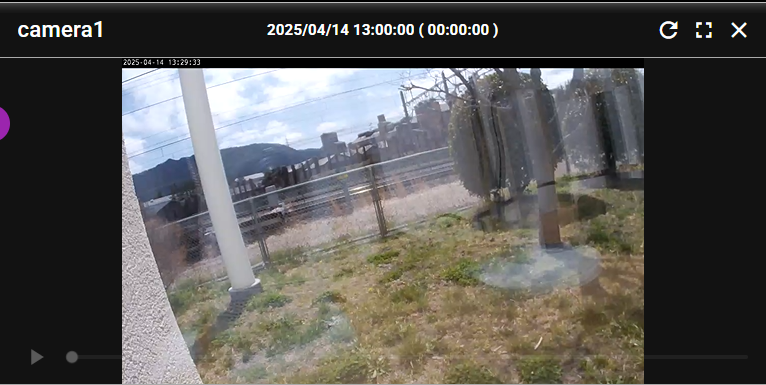
Number Description ① Displays the name of the VIDEO Collector. ② Displays the recording start date and time. ③ Reloads the video. ④ Press the icon to display the video in full screen. ⑤ Press the icon to hide the video. ⑥ Displays the Video Record image. ⑦ When pressed, toggles between video playback and stop. ⑧ Displays the current playback position. Also, by dragging and dropping the current position icon, you can change the playback position. -
You can control multiple videos simultaneously by operating the bottom area on the right side of the screen. The operation items are as follows:
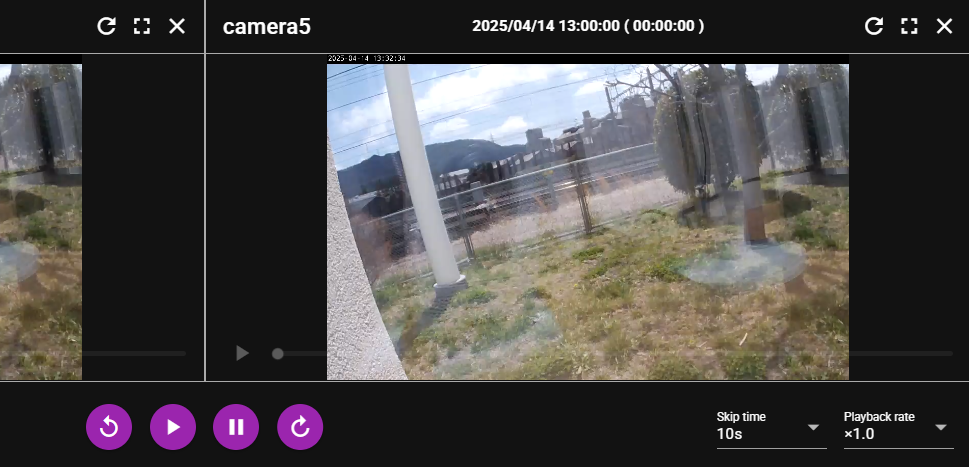
Item Description ① Press this button to move the playback position back by the specified skip time. ② Press this button to play all videos displayed. ③ Press this button to stop all videos displayed. ④ Press this button to advance the playback position by the specified skip time. ⑤ You can select the number of seconds for skip forward/skip back from the following:
- 10 seconds
- 30 seconds
- 60 seconds⑥ You can select the video playback rate from the following:
- 0.5x speed
- 0.75x speed
- 1x speed
- 1.25x speed
- 1.5x speed
- 2x speed
Notes on Video Record Play
In Video Record Play, the videos to be played back are displayed in one-hour units. With the ability to play multiple videos simultaneously, you can use the following playback ways:
- Playback of videos from the same time period by different cameras (Example: simultaneous playback of videos from the same time period by cameras at different angles)
- Playback of videos from different time periods by the same camera (Example: videos in normal and error conditions can be viewed and compared together.)
10.4.3 Event Record Play#
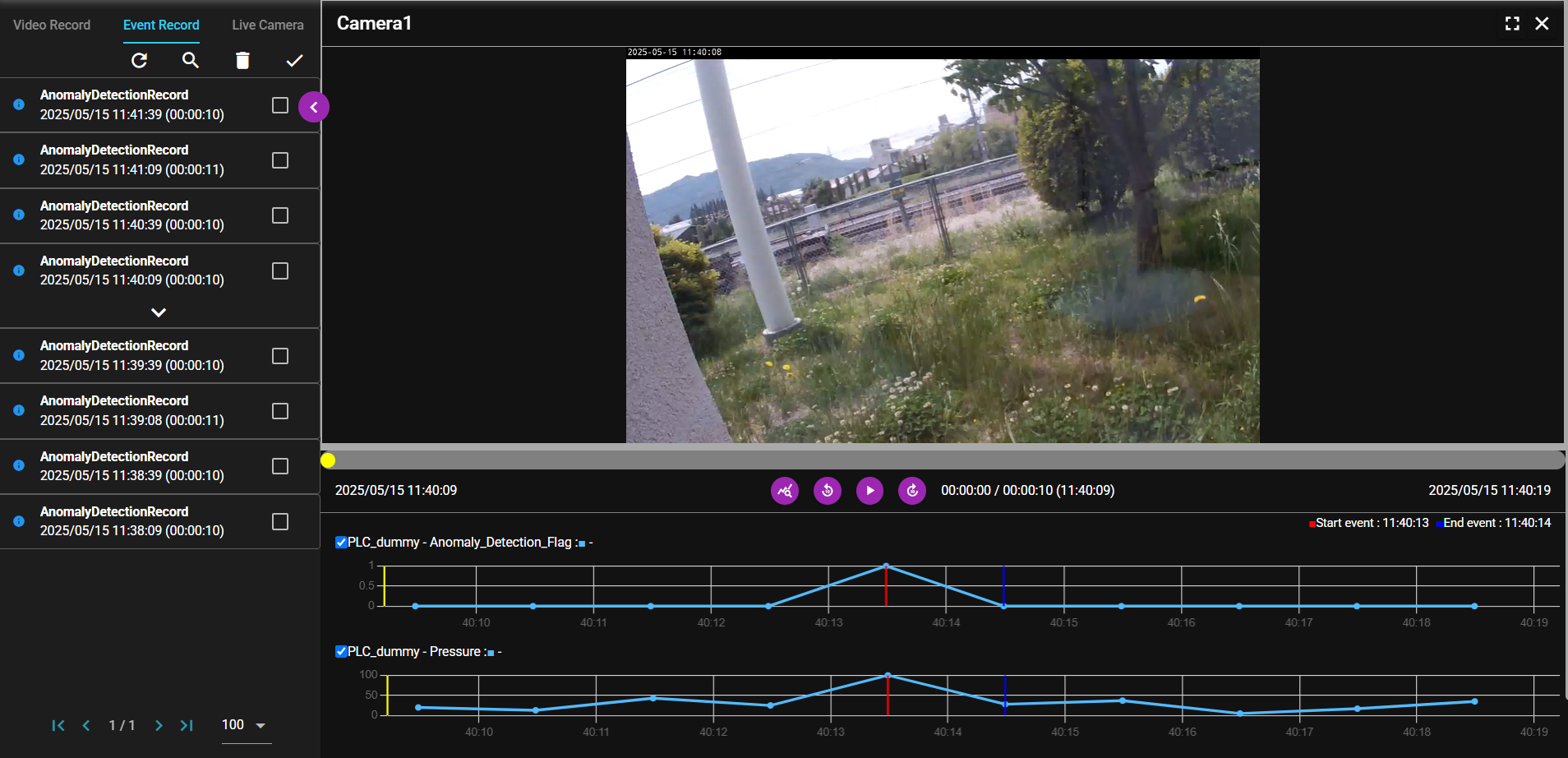
You can confirm the events generated by the Event Recorder in SpeeDBee Synapse. Video and data from the camera at the time of the event can be viewed.

10.4.3.1 List#
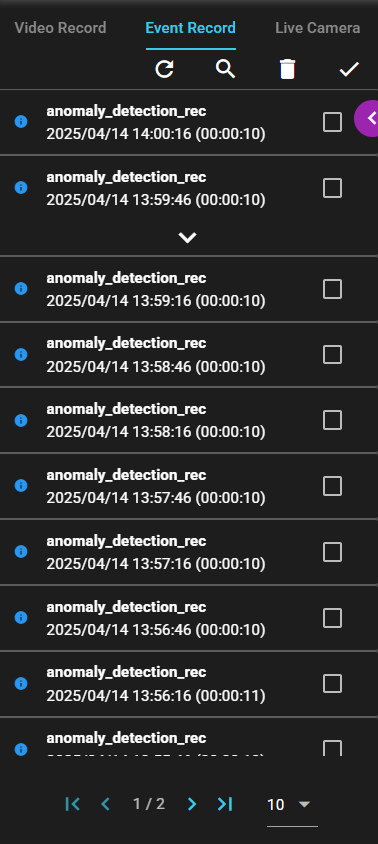
Events are listed on the left side of the screen. By default, all events that occurred between 00:00:00 and 24:00:00 on the day you open the screen will be displayed. You can also search for events by following the steps below.
-
Press the magnifying glass icon.
-
Input the following items.
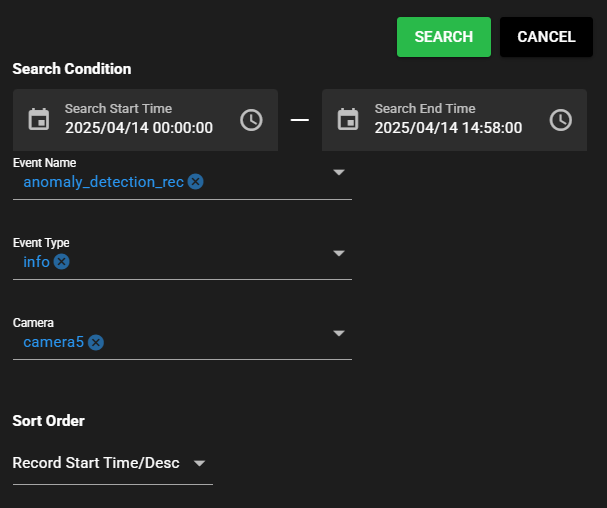
Item Description Search Start Time/Search End Time The time range to search for.
Note: The events for which a start event occurred during the time range you input will be searched.Event Name Name of the event to search for Event Type Event Kind to search for Camera Name of the camera associated with the event you are searching for Sort Order Combination of sort key and order
Note 1: The sort key is selected from the following.
- Record Start Time
- Event Name
- Event Kind
Note 2: The sort order is selected from the following.
- Asc
- Desc -
Press Search.
-
The results of your search will be displayed.
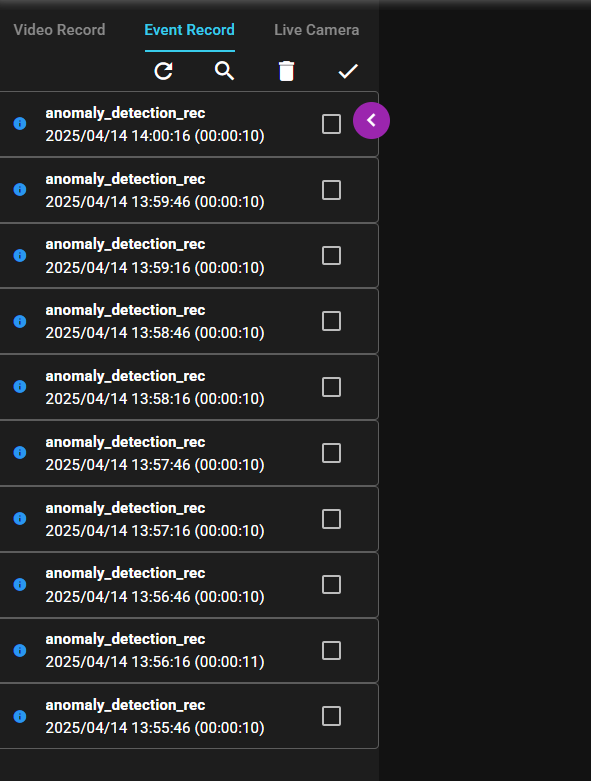
The items displayed are as follows:
- Icon indicating the event type
- Event Name
- Date and time of start event occurrence
- Record time of the event
-
Press the refresh icon to search again with the same criteria. In addition, refresh is performed automatically at an interval of once every 30 seconds.
-
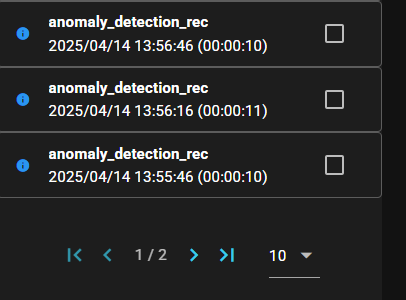
If there are many items to be displayed, they will be displayed on multiple pages. You can select the number of items to be displayed per page from 10, 100, or 1000.
10.4.3.2 Play#
You can play back a graph of the data in the component and the video from the camera at the time of the event by following the steps below. Cameras can be played simultaneously, up to 4.
-
Select an event.
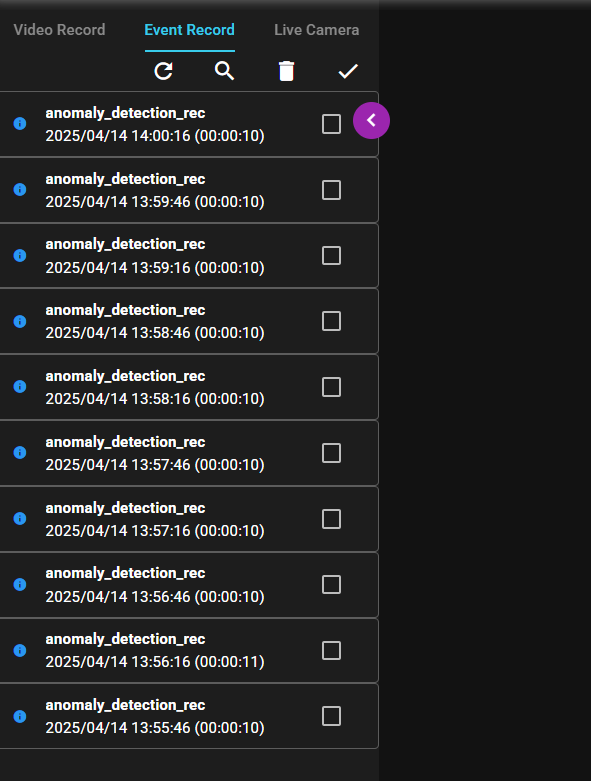
-
Video and data from your selected event will be displayed on the right side of the screen.
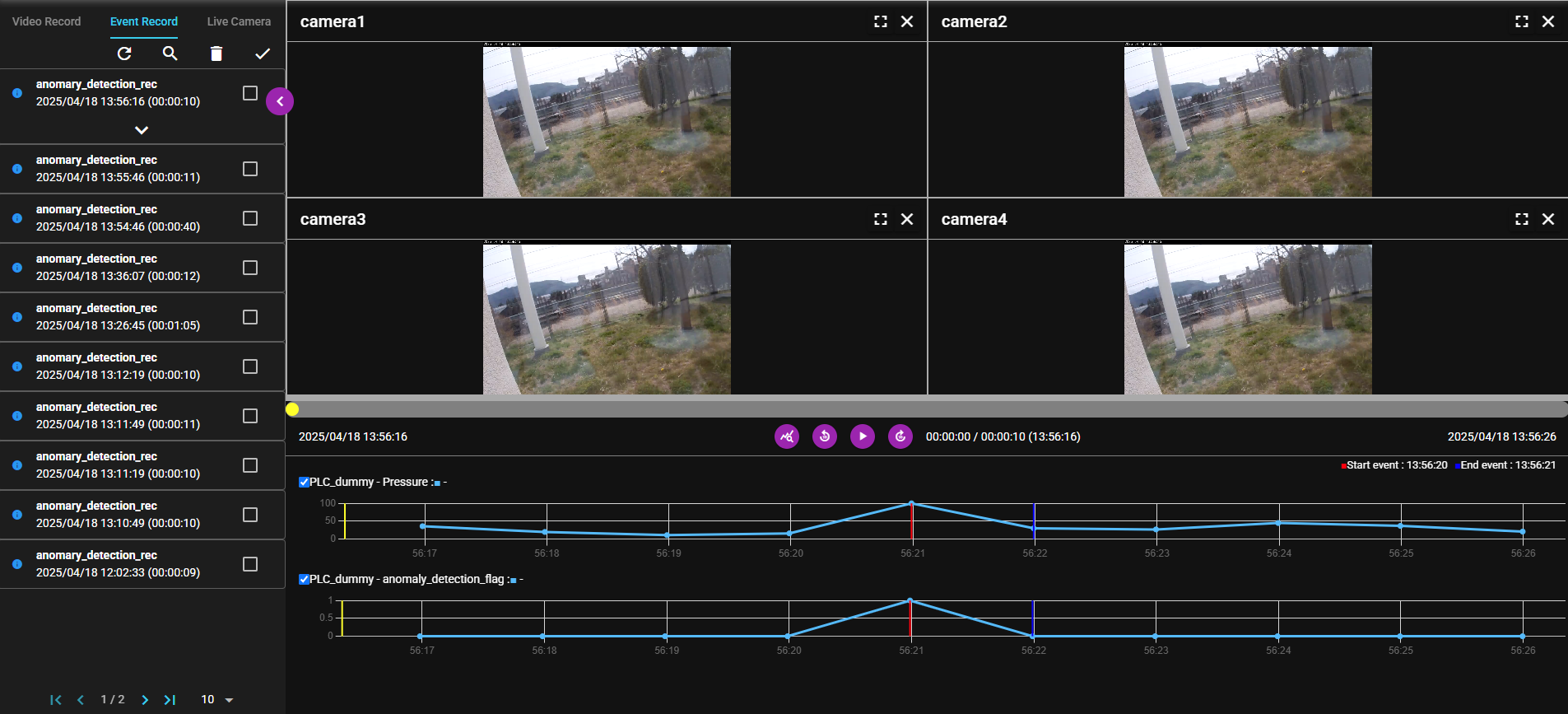
-
When you select the Play button or video, the video and graph associated with the event will play. The screen items are as follows:
- Video section
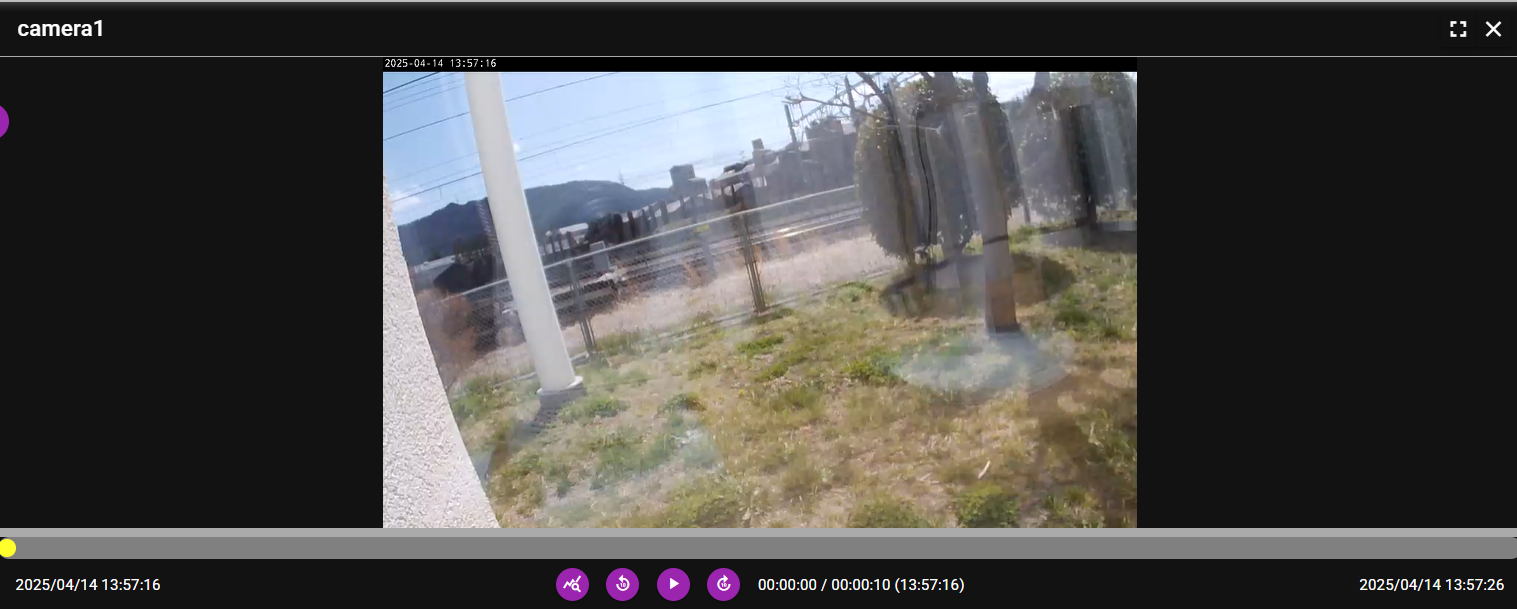
Number Description ① Displays the name of the VIDEO Collector. ② Press the icon to display the video in full screen. ③ Press the icon to hide the video. ④ Displays the video from the camera registered in the event at the time of the event. When pressed, toggles between event playback and stop. ⑤ Displays the current playback position of the video. Also, by dragging and dropping a point at the current position, you can change the playback position.
You can also adjust the viewing area of the video by dragging the area between this section and the video and moving it up and down.⑥ Displays the Record Start Time of the event. ⑦ Press this button to toggle the graph display status from one of the following.
- Overall Graph ... Displays all data in the graph.
- Detail Graph ... Displays data at the current playback position at about 30 seconds.⑧ Press this button to skip the playback position before 10 seconds. ⑨ Press this button to start playing the video and graph. ⑩ Press this button to skip the playback position after 10 seconds. ⑪ Displays the event record time and the elapsed playback time. ⑫ Displays the Record End Time of the event. - Graph section

Item Description ① Displays graphs with check marks and hides graphs without check marks. ② Displays the name of the component from which the data is emitted and the data name. ③ Displays the line color of the data and the value of the current playback position. ④ Displays the time and line color of the start and end events. ⑤ (for numerical data) Displays the data of the component registered in the event at the time of the event in a time series. The X-axis indicates time and the Y-axis indicates value. The following lines will also be displayed:
- Yellow line ... Moves in conjunction with the playback of the video and indicates the current playback position.
- Red line ... Indicates the time of the start event.
- Blue line ... Indicates the time of the end event. It is displayed only on the end event occurrence.
⑤ (for character string data) Displays the data of the component registered in the event at the time of the event in a table consisting of two columns of date/time and value. The following will also be displayed:
- Purple row ... Moves in conjunction with the playback of the video and indicates the current playback position.
- Red mark... Displayed next to the time and indicates the start event.
- Blue mark... Displayed next to the time and indicates the end event. It is displayed only on the end event occurrence.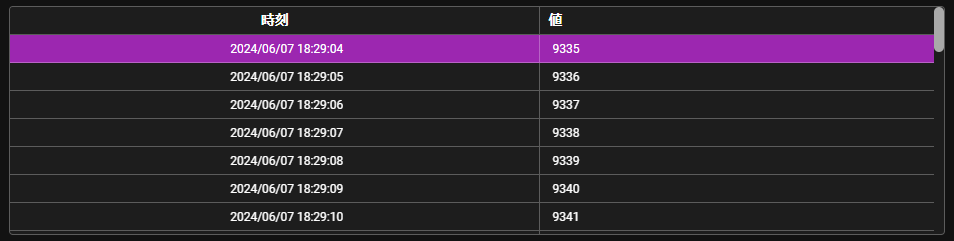
-
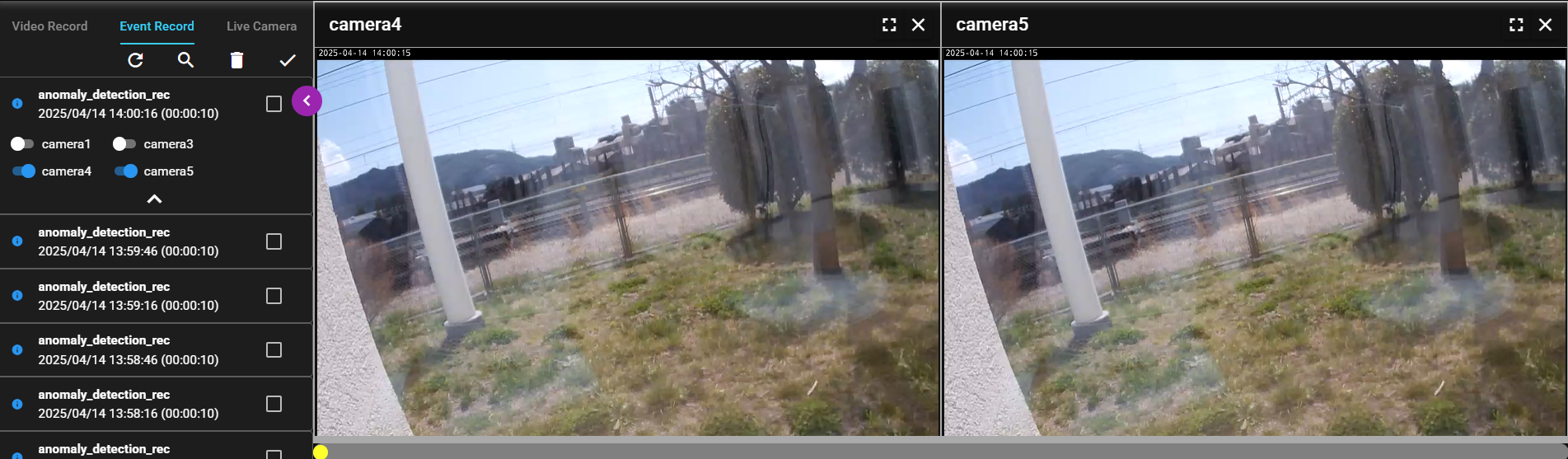
You can choose to show or hide the video by toggling the toggle switch next to the Camera Name, which is displayed on the selected event in the list.
10.4.3.3 Delete#
You can delete an event by following the steps below.
-
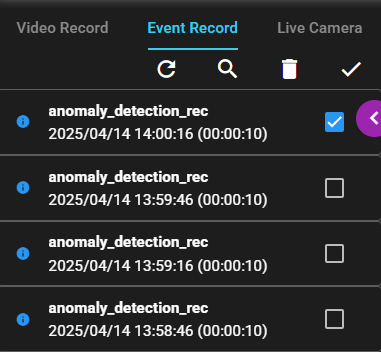
Place a check mark in the checkbox for the event. By pressing the check icon in the header, you can place a check mark in all events displayed in the list.

-
Press the Delete icon in the header.
-
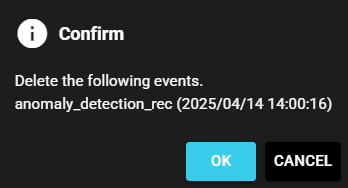
Select OK.
-
The event with a check mark will be deleted.
10.4.3.4 Event Display by Specifying URL#
By specifying the following URL, which includes the Record Start Time (YYYY/MM/DD hh:mm:ss), you can directly access the events generated by the Event Recorder in SpeeDBee Synapse. If multiple events occur at the same time, an ID is appended to the last of the URL.
-
http://{Host name or IP address of the device}:8120/video-viewer/event_record/{YYYY-MM-DDThhmmss}Example 1)
http://192.168.1.3:8120/video-viewer/event_record/2025-03-28T165209
Example 2) Note: When events with overlapping times occur
-
http://192.168.1.3:8120/video-viewer/event_record/2025-03-28T165210/1 -
http://192.168.1.3:8120/video-viewer/event_record/2025-03-28T165210/2
The URL is generated by converting the format of the Record Start Time of the event to "YYYY-MM-DDThhmmss".

Press each event to automatically update the URL.
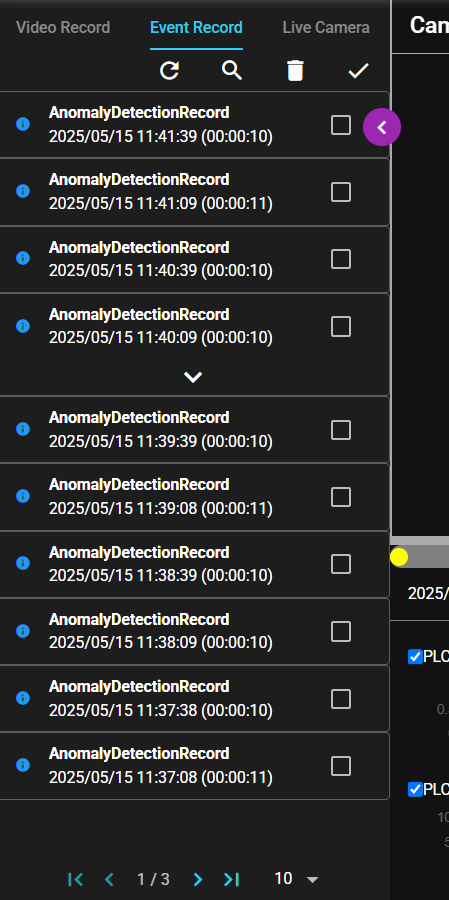
When you access an event by specifying its URL, events that occurred within 2 minutes before and after the record start time of the target event will be listed. When you access the event list, the maximum number of events displayed per page will be 100, and the target event will be selected and displayed.
10.4.4 Live Camera#
You can play back the video (current camera video) of the VIDEO Collector running in SpeeDBee Synapse.
10.4.4.1 List#
VIDEO Collectors are listed on the left side of the screen.
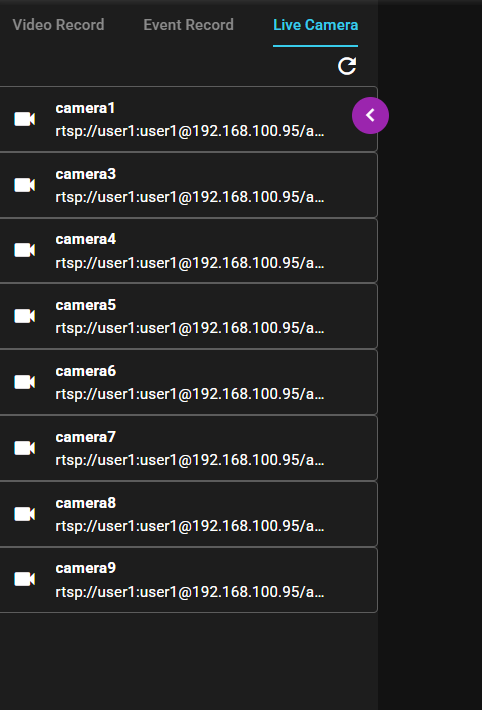
The items displayed are as follows:
- VIDEO Collector name
- The RTSP URL of the camera registered in the VIDEO Collector
Also, when you press the refresh icon, the information in the list will be updated to reflect the latest status of the VIDEO Collector (Registered, updated, and deleted items will be applied.).
10.4.4.2 Play#
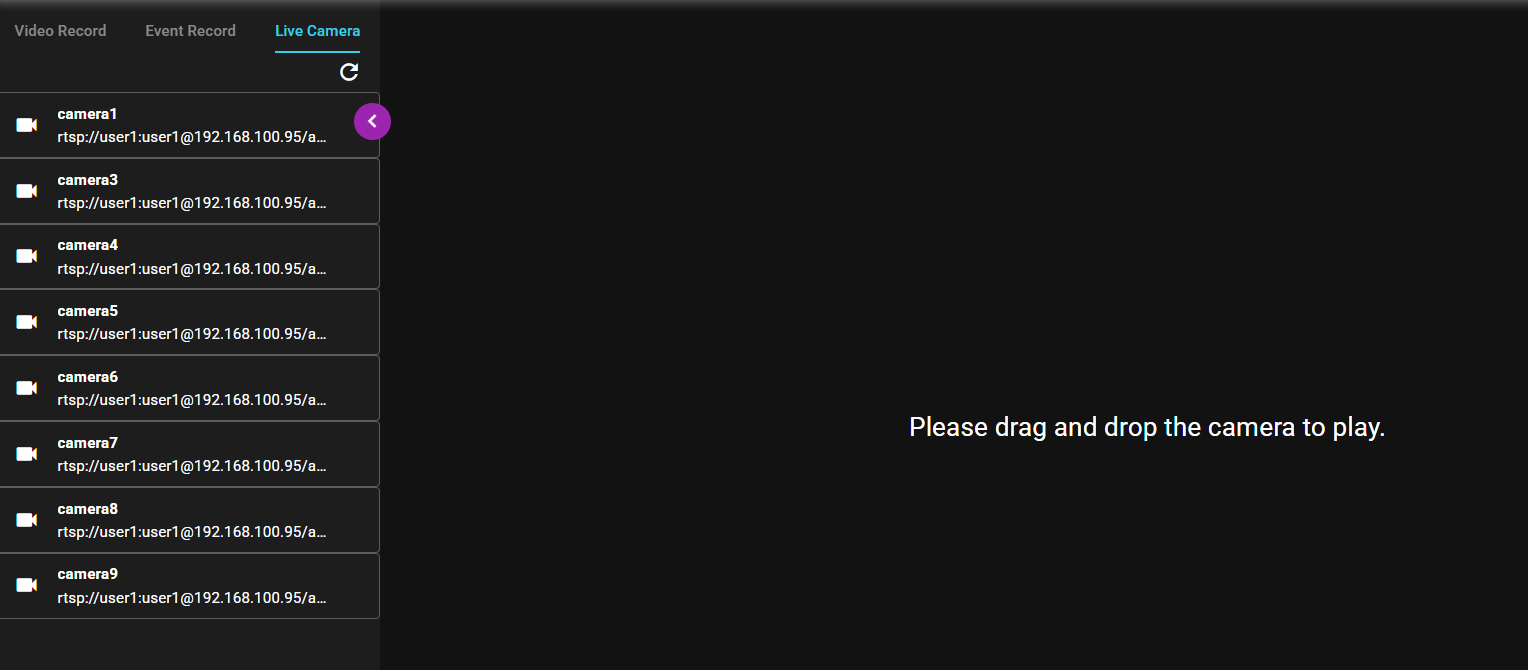
You can play back the current video from the camera by following the steps below. It can play back 10 cameras simultaneously.
-
Drag a camera video in the list and drop it on the right side.
-
The current video from the camera will play.
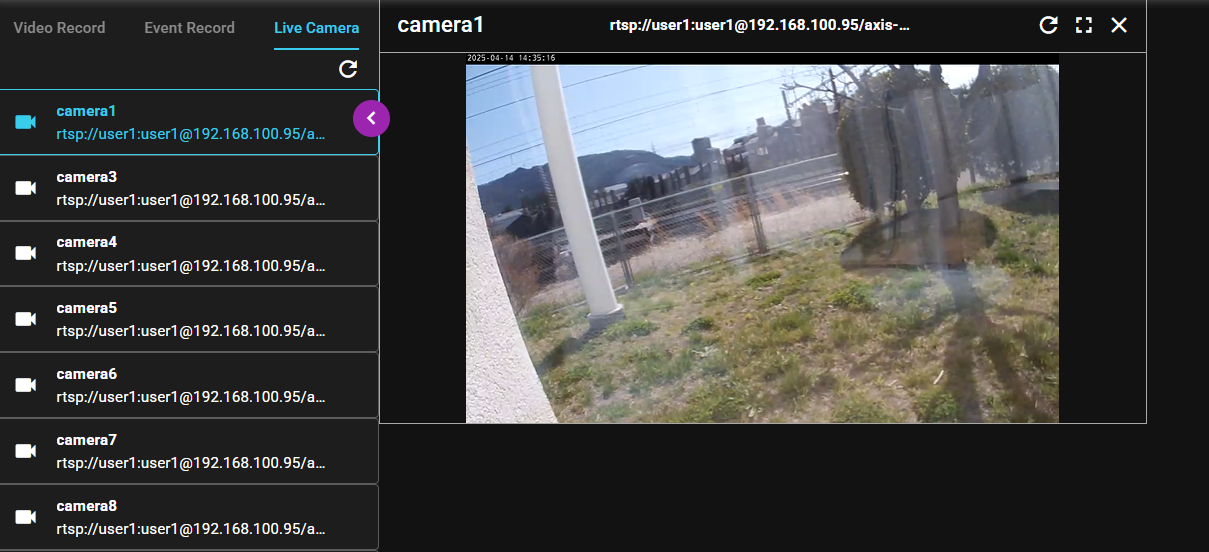
The screen items are as follows:
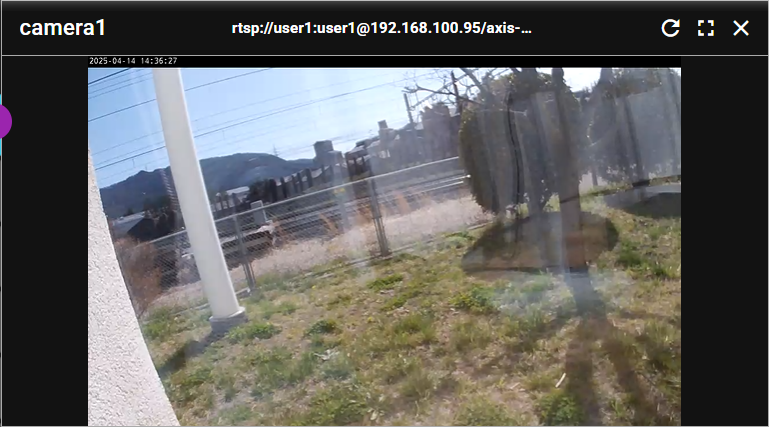
Number Description ① Displays the name of the VIDEO Collector. ② Displays the RTSP URL of the camera registered in the VIDEO Collector. ③ Press the icon to reconnect to the camera. ④ Press the icon to display the camera video in full screen. ⑤ Press the icon to hide the camera. ⑥ Plays the live video from the camera.
If storage is full
Live Camera function cannot be used if the machine on which i-Trigger is running is full of storage space.