3.5 Running the Collection Service
This procedure describes how to start the collection service by starting the component.
It also describes how to verify that the collector, serializer and emitters configured in the previous sections are working properly after the collection service is started, and how to tune the settings.
3.5.1 Start/Stop Collection Service#
You can start the collection service by starting the component. Components can be activated in three areas: by component, by entire panel, and by entire SpeeDBee Synapse.
3.5.1.1 Starting/Stopping Components#
You can use the following procedure to start or stop a single component.
-
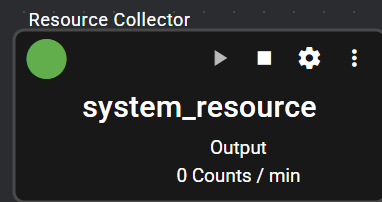
You can start the component by pressing the start icon of the component. When the component starts, the status light turns green.
-
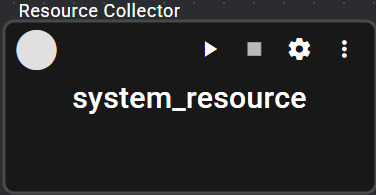
You can stop a component by pressing the stop icon of the component. When the component stops, the status light turns gray.
3.5.1.2 Start/Stop All Components on a Panel#
You can use the following procedure to start or stop components on a single panel.
-
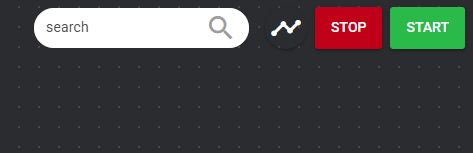
By pressing the "Start" button on the panel, you can start all the components on the panel for which "Autostart disable" is OFF.
-
All components on the panel can be stopped by pressing the "Stop" button on the panel.
3.5.1.3 Start/stop all components on SpeeDBee Synapse#
You can start or stop components on SpeeDBee Synapse using the following procedure.
-
By pressing the "Start" button on the header, you can start all the components on the SpeeDBee Synapse for which "Autostart disable" is OFF.

-
You can stop all components on SpeeDBee Synapse by pressing the "Stop" button on the header.
3.5.2 Test#
This section describes how to review the data collected by the Resource Collector and how to download the file outputted by the File emitter.
Verifying Resource Collector Operation
-
Select "Run" in the header mode selection to open the Run mode window.

-
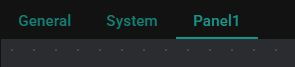
Displays the panel 1.
-
Click the output port of the Resource Collector.
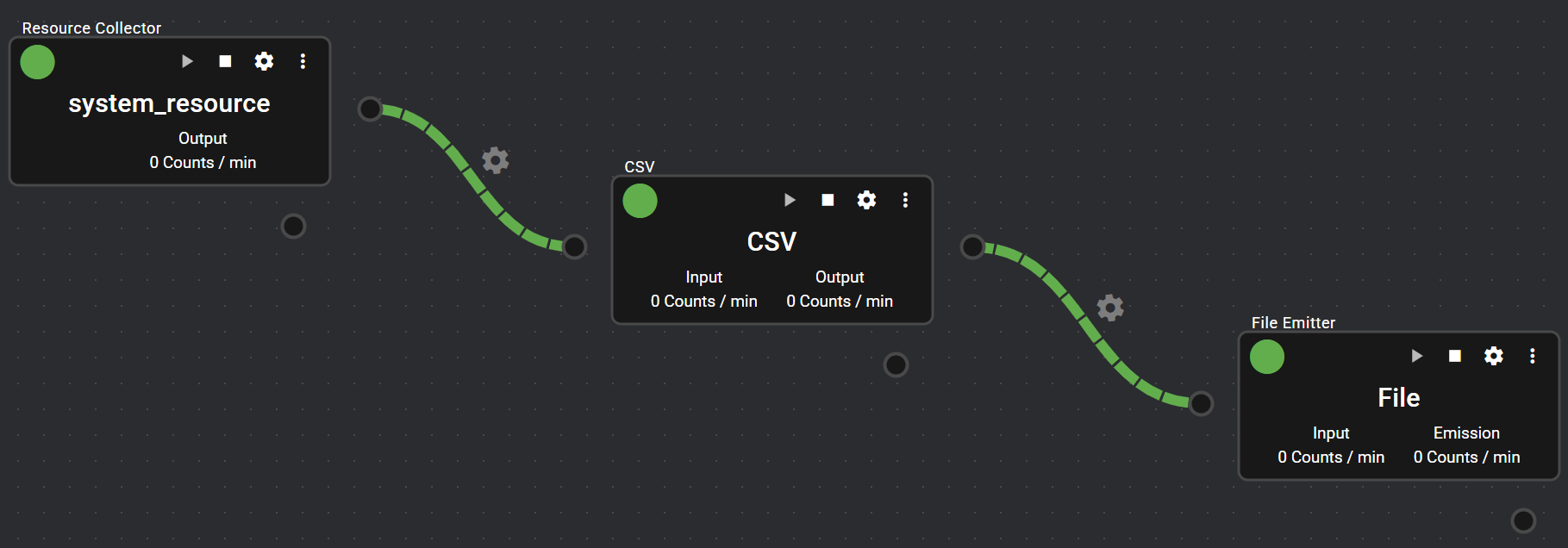
-
Click the indicator at the bottom of the screen to display the Data Monitor and see what data the Resource Collector is collecting.
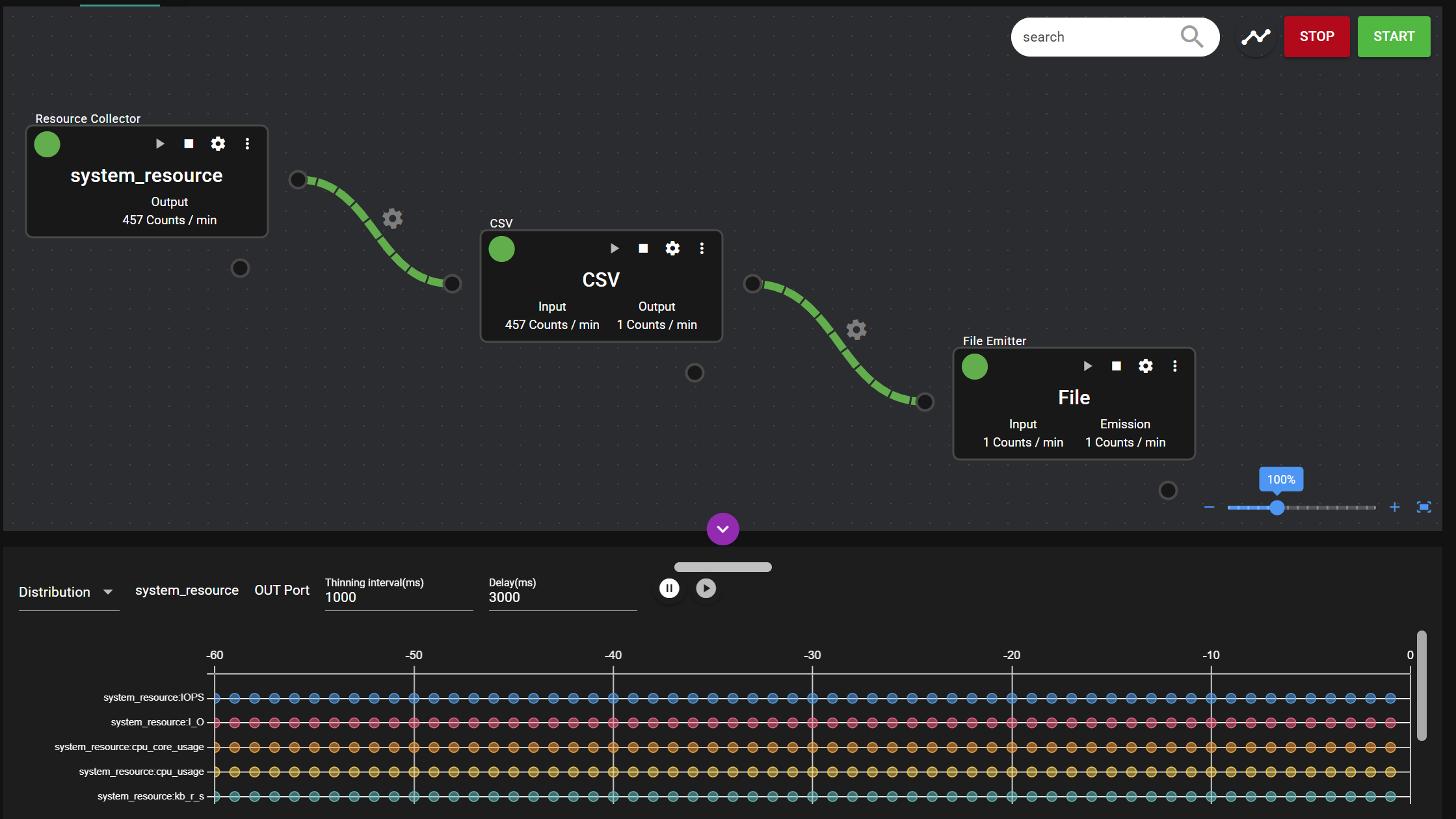
Verifying the File Emitter in Action
-
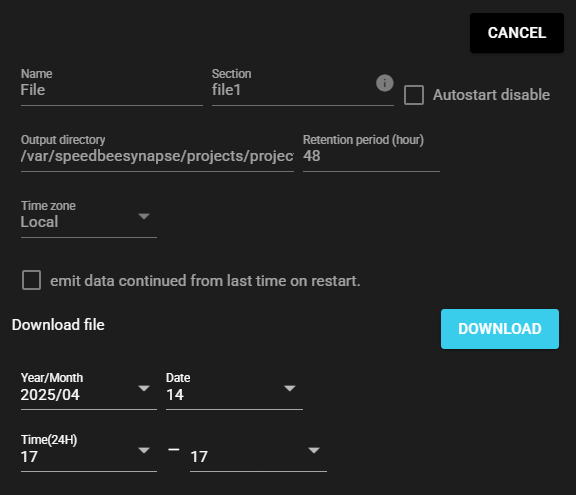
Press the File emitter's settings icon.
-
Enter a time range and press Download. The files outputted by the File emitter during the specified time range are downloaded in zip format.
3.5.3 Configuration Tuning#
This task explains how to edit component settings and delete components.
-
Select "Edit mode" in the header mode selection to open the Edit mode window.
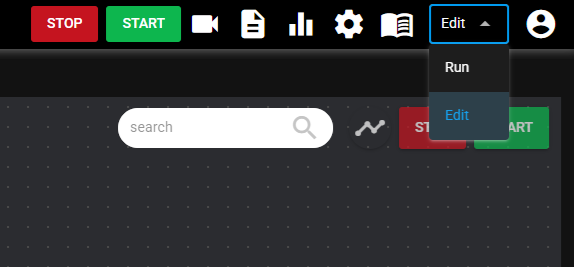
-
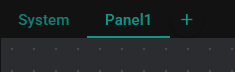
Open the panel 1.
-
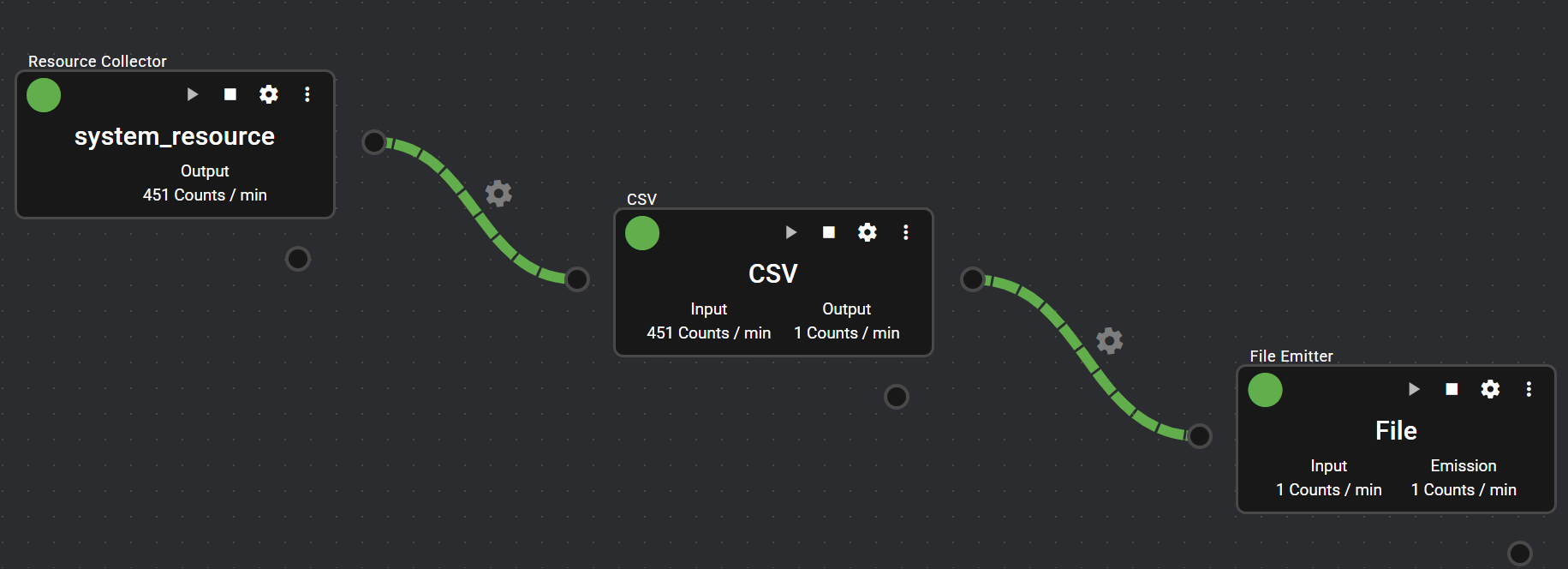
Press the configuration icon for the component whose settings you want to change.
-
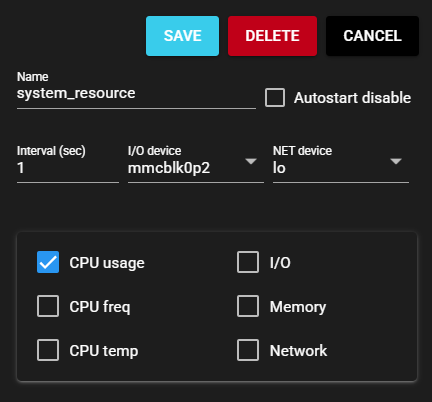
Change the settings in the settings dialog and press "Save." The Resource Collector image is used here. For example, if you want to collect information such as memory usage, select this check box. If you want to delete the component, press Delete and select Yes in the confirmation dialog box.
-
The configuration can be applied to the collection service by stopping and restarting the component whose configuration has been changed. For details about starting and stopping components, see “Starting and Stopping the Collection Service”.
3.5.4 Stop Collection Service#
Stopping all components on the SpeeDBee Synapse puts the collection service in a standby state. For procedures, see "Start/stop all components on SpeeDBee Synapse."