10.5 Components
This section explains the components used in i-Trigger.
10.5.1 VIDEO Collector#
This component receives images from network cameras distributed by RTSP and saves recorded files.
Recorded files are saved as ts files in a specified directory and can optionally be output in mp4 format.
Saved video files are retained for a certain period of time and can be played back on the Video Viewer screen while retained.
This component does not support communication through a Proxy Server.

10.5.1.1 Basic Information#
| Item | Description |
|---|---|
| Base Name | VIDEO Collector |
| Description | It receives video from network cameras and saves TS files (MPEG2-TS) in a specified directory. |
| Consumption Point | 2 |
| Port | Input: 0 Output: 1 Received video is output to a TS file as recorded data. You can play this file in the Video Viewer. For more information on output data, see Output Data Items. System: 1 Outputs the status of component operation and error information. For more information on output error information, see Error Code List. |
10.5.1.2 Configuration Items#
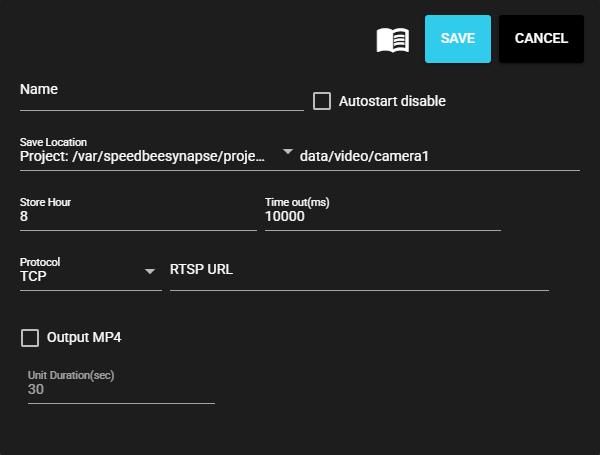
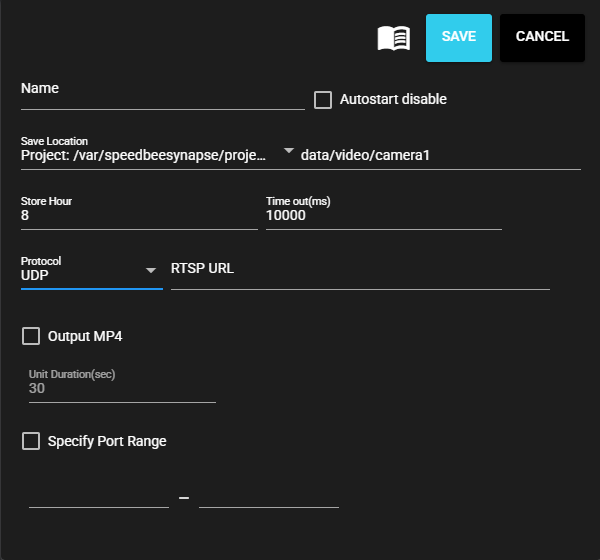
The VIDEO Collector configuration items are as follows:
- When TCP protocol is selected
- When UDP protocol is selected
| Item | Description |
|---|---|
| Name | Input the name of the component. Note: Names that duplicate other component names are not allowed. |
| Autostart disable | Used to disable autostart of the component. |
| Save Location | A directory where video files are saved. The base directory and its relative path are specified. The base directory can be selected from the options below.
|
| Store Hour | Retention period for video files. It is specified on an hourly basis.) Note: Videos will be automatically deleted when the Store Hour is exceeded. |
| Time out(ms) | Input the time in milliseconds that the communication time times out. |
| Protocol | Protocol to be used for transport.
|
| RTSP URL | Live stream URL for the network camera |
| Output MP4 | When enabled, MP4 video files can be generated at regular intervals. Note: When disabled, only TS files are output. |
| Unit Duration | When Output MP4 is enabled, the recording time per MP4 file can be specified in seconds. Note: The video length may not exactly match the specified setting. |
| Specify Port Range | When UDP is selected, a range of UDP ports for receiving data is specified. |
10.5.1.3 Output Data Items#
The VIDEO Collector outputs the following data:
| Item | Column Name | Data Type | Description |
|---|---|---|---|
| TS File | $ss_movie_file | FILE | This column outputs TS files (MPEG2-TS). The media type is fixed to "video/MP2T". |
| Container File | container_file | FILE | This column outputs MP4 files when Output MP4 is enabled. The media type is fixed to "video/mp4". |
10.5.1.4 Test Connect#
By following the steps below, you can perform a test connection to the camera you have configured.
-
Open the configuration screen of the registered VIDEO Collector.
-
Press Test.

-
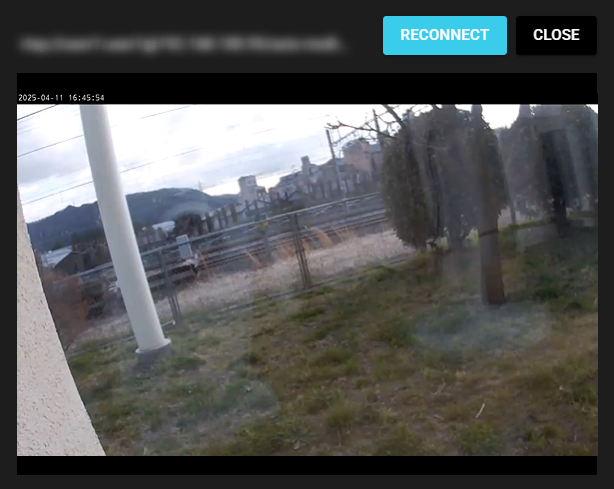
A test connection to the configured camera is performed, and if the connection is successful, the camera image can be played back live.
Caution for test connection of the camera
- If you cannot connect to the camera
Make sure that the RTSP URL and other settings are correct. Also, make sure that the network camera you are using is the camera that is supported for use. Even if the camera is supported for use, if the configuration on the camera side is not compatible with the supported video codecs, you will need to change the configuration on the camera side.
Reference: See the cameras that can be used.
Also, increasing the setting for timeout may resolve the problem.
- Number of simultaneous connections
Depending on the camera type, the number of simultaneous connections for the same streaming will vary. Low-specification cameras may support only one connection for simultaneous playback, so please check your camera's instruction manual or the camera's product website.
10.5.2 Event Recorder#
This component collects data in the event section and outputs it in JSON format that can be referenced by the event record function in the Video Viewer screen.
If the VIDEO Collector is connected to the IN Port, video files in the section can also be collected.
Since the event section is determined by the event trigger component, an event trigger must be connected to the IN Port.
10.5.2.1 Basic Information#
| Item | Description |
|---|---|
| Base Name | Event Recorder |
| Description | It collects data after an event is detected and outputs the collected data in JSON. If there are video files in the same section, they will be collected together as well. By saving the collected data to a specified directory, you can play it back in the Video Viewer. |
| Consumption Point | 2 |
| Port | Input: 1 Receives data from other components. Output: 1 Outputs the data in the section to be recorded to a JSON file. For more information on output data, see Output Data Items. System: 1 Outputs the status of component operation and error information. For more information on output error information, see Error Code List. |
10.5.2.2 Configuration Items#
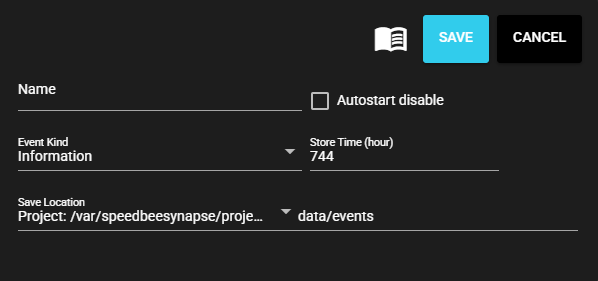
The Event Recorder configuration items are as follows:
| Item | Description |
|---|---|
| Name | Input the name of the component. Note: Names that duplicate other component names are not allowed. |
| Autostart disable | Used to disable autostart of the component. |
| Event Kind | A classification that can be configured for events. You can optionally specify this option according to the event content.
|
| Store Hour | Retention period for recorded data and videos. It is specified on an hourly basis. Note: Videos will be deleted by the event data manager when the Store Hour is exceeded. |
| Save Location | A directory for saving data and videos in the section where an event is detected. The base directory and its relative path are specified. The base directory can be selected from the options below.
|
10.5.2.3 Output Data Items#
The Event Recorder outputs the following data:
| Item | Column Name | Data Type | Description |
|---|---|---|---|
| Event File | event_file | FILE | This column outputs a JSON file for event recording. The media type is fixed to "application/json". |
10.5.3 Event Trigger#
This is a component included in the SpeeDBee Synapse console. For more information, see Event Trigger.
10.5.4 Event data manager#
This is a component included in the SpeeDBee Synapse console. For more information, see Event Data Manager.