3.4 Setting of Components
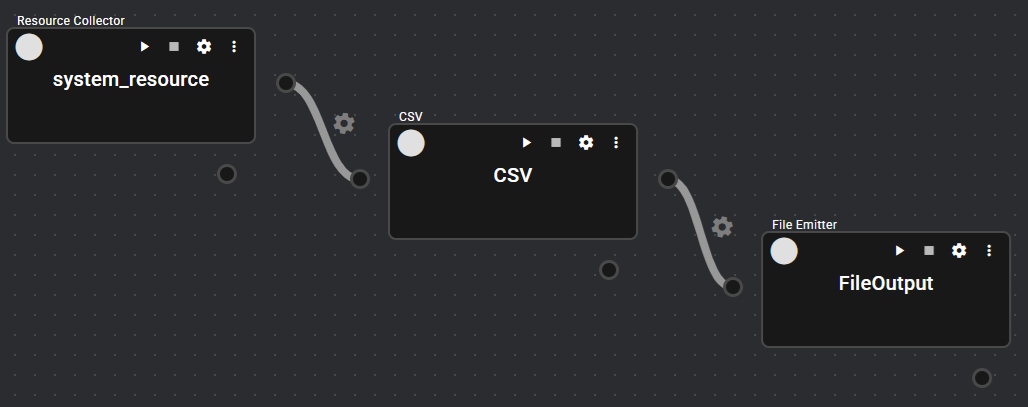
This section describes how to set up the collected data until it is saved to a file.
3.4.1 Configuring the Resource Collector#
Describes how to configure the "Resource Collector" to collect CPU utilization rate of Operating machine. The "Resource Collector" is a component that collects system resources of Operating machine (such as CPU usage, memory consumption, etc.).
You can configure the resource collector as follows.:
-
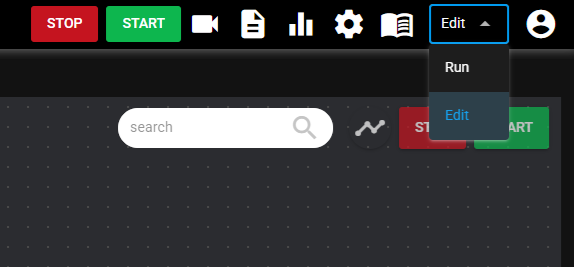
Select "Edit mode" in the header mode selection to open the Edit mode window.
-
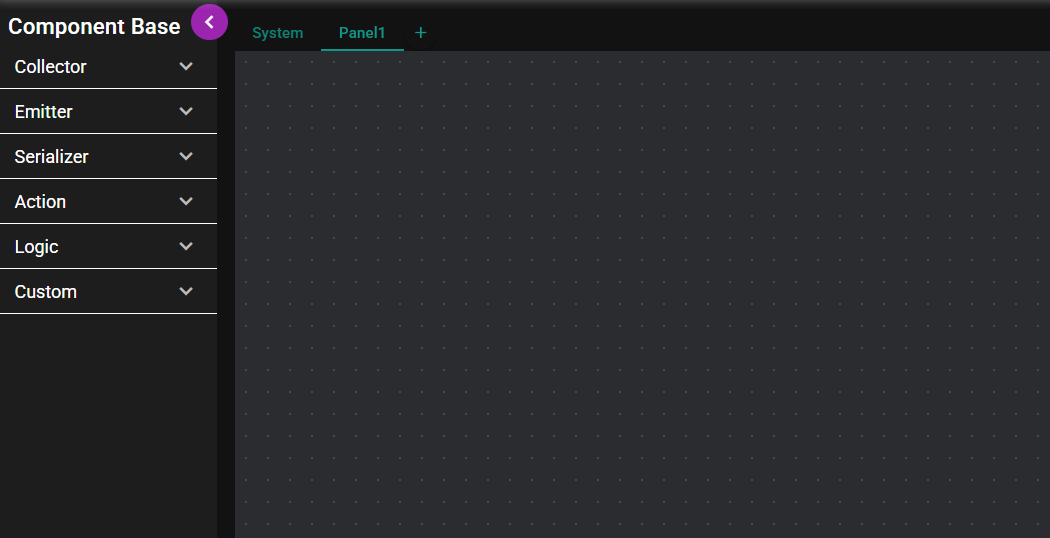
Displays the panel 1.
-
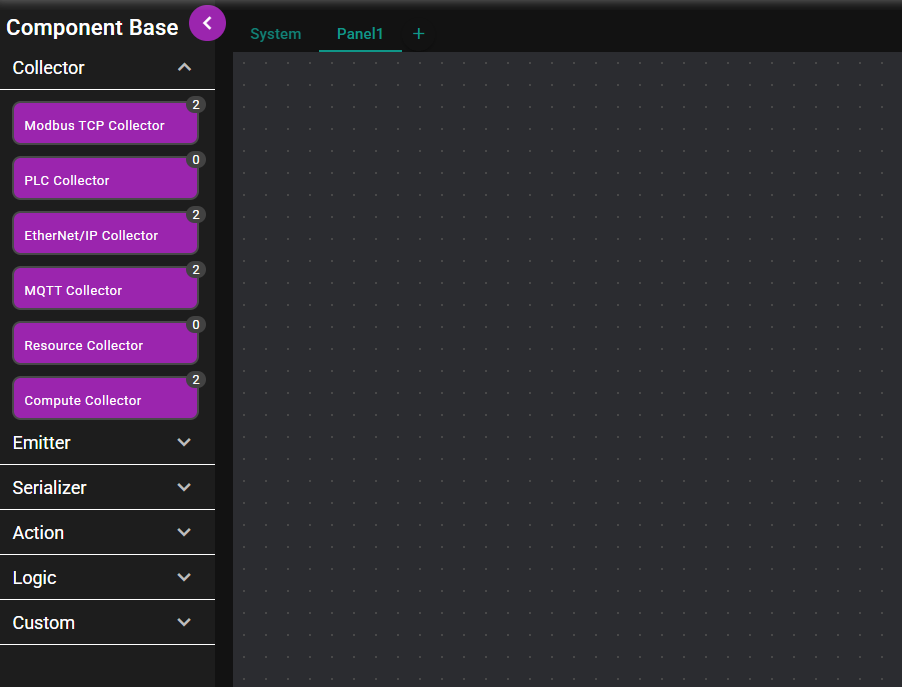
Press the "Collector" indicator in the left menu to display the collector list.
-
Drag "Resource Collector" and drop it on the panel.
-
The settings dialog will open automatically. "Enter "name" as desired, check "CPU usage" and click the "Save" button.
Name example: System resource
3.4.2 Configuring the CSV Serializer#
This section describes how to configure the "CSV serializer" to output the CPU usage rate collected by the resource collector to a file in CSV format. "The "CSV serializer" is a component that takes arbitrary data, processes it into CSV format, and re-outputs it.
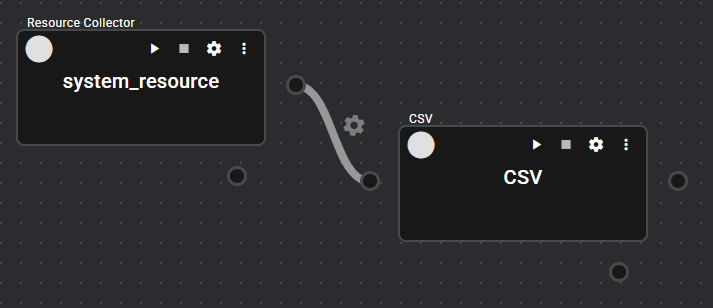
The flow of data between components is defined by Flow links. A flow link connects two components and flows data between the connected components.
You can configure the CSV Serializer by the following procedure.:
-
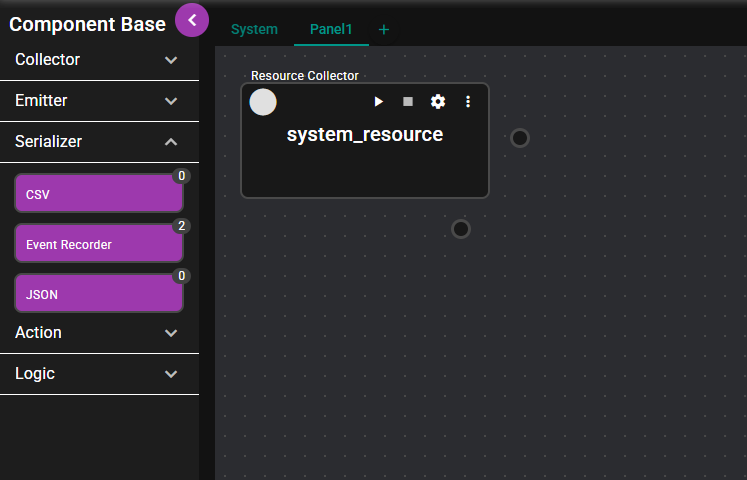
In the Edit mode window, press the "Serializer" indicator in the left menu to display the Serializer List.
-
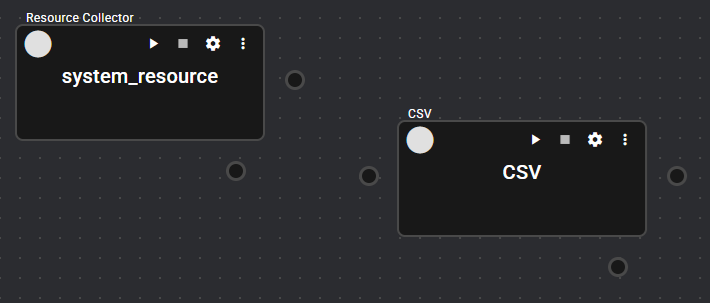
Drag the “CSV Serializer” and drop it on the panel.
-
The settings dialog will open automatically. "Enter "name" as desired, and click the "Save" button.
Name example: CSV format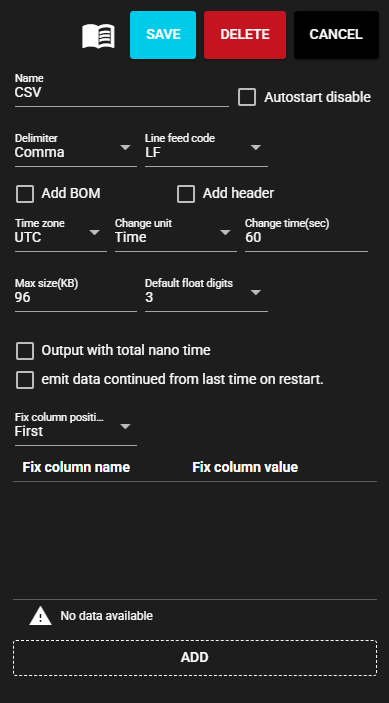
-
Drag the output port of the Resource Collector.
-
Release the mouse button at the input port of the CSV Serializer.
-
A flow link is added between the components.
3.4.3 File Emitter Settings#
Next, we'll explain how to set up the "File Emitter". "The "File Emitter" is the component that receives the data processed by the serializer and outputs it to the local environment as a file.
You can configure the File Emitter by the following procedure.:
-
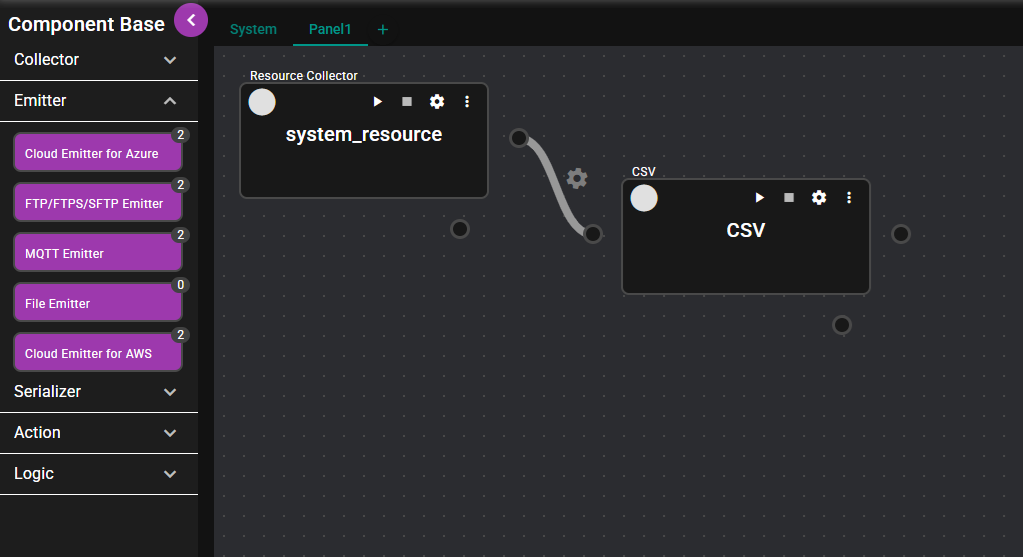
In the Edit mode window, press the "Emitter" indicator in the left menu to display the Emitter List.
-
Drag “File Emitter” and drop it on the panel.
-
The settings dialog will open automatically. "Enter "Name" and “Category” as desired, and click the "Save" button.
File name sample: File Output
Category sample: file1
Note: Only half-width characters can be entered for "Category".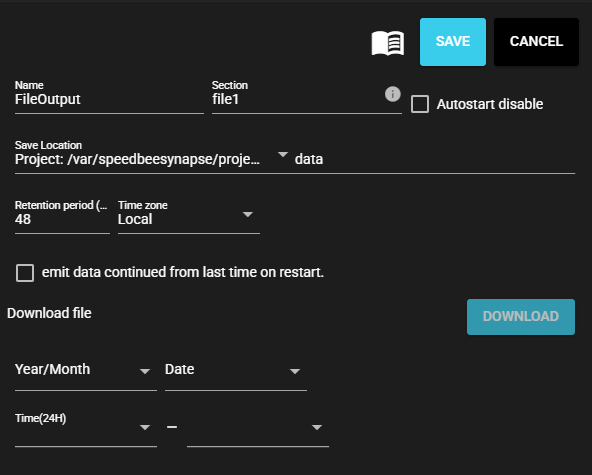
-
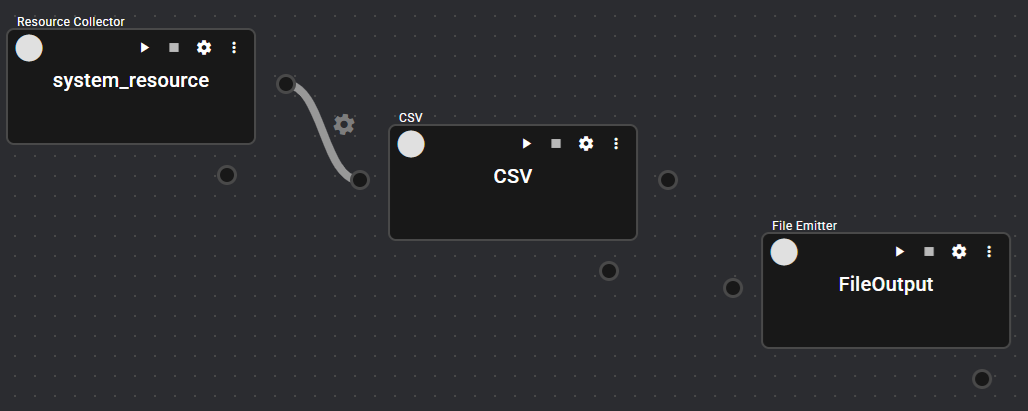
Drag the output port of the CSV Serializer.
-
Release the mouse button at the input port of the File Emitter.
-
A flow link is added between the components.